
Users with different recorder cards
If you use SD and microSD cards, or expect your next recorder to use a different format, a reader with both slots could save you from needing a separate reader for each format.


Start by checking your recorder’s card format and which connection is free on your computer. A compact reader with the right slot and connector can keep loose cables off a small desk. A reader with both SD and microSD slots can be handy if you use both formats, but check there’s enough room around neighbouring ports. Don’t choose a reader based solely on a stated UHS-II maximum speed: any potential benefit depends on the card and the rest of the connection.
If you use SD and microSD cards, or expect your next recorder to use a different format, a reader with both slots could save you from needing a separate reader for each format.
A reader without a separate cable can save space, but check that it won’t get in the way of other plugs or ports.
If you use a UHS-II SD or microSD card, check whether a reader designed for that specific card format and interface suits your computer and transfer needs.
Choose this when: you use different card formats or computer ports and don’t want an extra cable on your desk.
Trade-off: the reader plugs directly into your computer, so check there’s enough room around the port.
Choose this when: you actually use a UHS-II card and transfer time matters to you.
Trade-off: support doesn’t guarantee a particular copy time; also check whether the reader is suitable for SD or microSD.
Choose this when: the manual for your recorder model confirms that it supports file transfer via USB.
Trade-off: this depends on the model and isn’t a feature of every field recorder.
First check the card format and connection. Then compare the space available and match the card interface to how you’ll use it.
| What to consider | What should you check? | Who is this important for? |
|---|---|---|
| Card format | Check the format printed on the card or in your recorder’s manual, then compare it with the reader’s slot. | If I copy recordings from different recorders or cards, I want to make sure the slot is compatible. Around 36% of consumers put card compatibility first. |
| USB connection | Check which ports are free and whether the reader has a USB-A connection, USB-C connection or both. | If I use computers with different ports, I want to connect the reader without needing an incompatible plug. Around 29% of consumers give the computer port the highest priority. |
| Desk space | Check where the port is and whether other plugs need to stay connected next to the reader. | At a small desk, I want to insert the card without the reader getting in the way of other connections. Around 21% of consumers put their physical setup first. |
| Card interface | Compare the UHS rating of the card and reader, and check the card format and computer connection. | If I use a UHS-II card, I want to know whether the reader supports that interface; a specification alone can’t predict copy time. Around 14% of consumers give transfer time the highest priority. |
An SD slot and a microSD slot aren’t the same. The readers reviewed differ in which card formats they accept.
First check your recorder’s card format, then check the slots on the exact reader model.
If the slot is the wrong type, you may still need a suitable reader or adapter.
A stated USB or card interface isn’t a measurement of how long it will take to copy your audio files. The SD Association describes UHS-II as an interface that both the card and reader need to support.
Compare the card and reader interfaces, and don’t treat stated maximum speeds as a promise for your workflow.
A compact reader with an integrated connector plugs directly into your computer, so it can take up space next to other ports.
Check that the reader fits while any other plugs you need are connected. If not, consider a suitable model with a cable.
Microsoft warns that disconnecting removable hardware unsafely in Windows can cause data loss.
Wait until copying is complete, check that the files are in their destination, then eject the card through your operating system before removing it.
Disconnecting the card unsafely can increase the risk of data loss.
According to ACT, the ACT AC6375 combines USB-A and USB-C connectors with SD and microSD slots.
According to the manufacturer, the SDMSDRWU3AC combines USB-A and USB-C with SD and microSD slots.
Model 50706 is described as having USB-A, USB-C, SD and microSD.
The MobileLite Plus SD Reader is an option for SD cards with UHS-II support.
The QuickFlow is a dedicated microSD card reader with USB-C.
The product options below are adapters and hubs whose product information mentions an SD, TF or SDHC/SDXC card reader. Before buying, check that the card format and connection match your recorder card and computer.
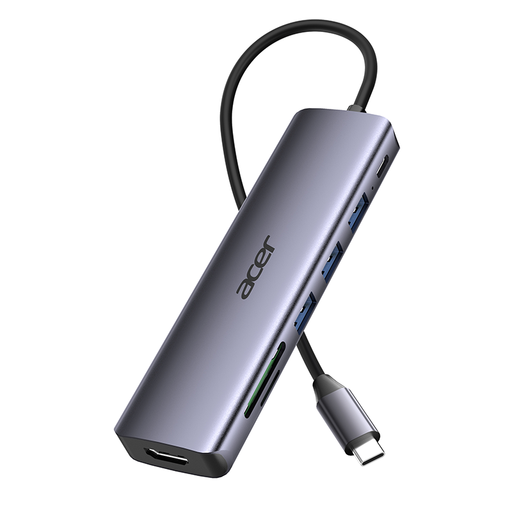 Image unavailable
Could be a good option if your computer has USB-C and your card is SD or TF; check the card format and available connection.
The product name lists a 7-in-1 USB-C hub with an SD/TF card reader and three USB 3.0 ports.
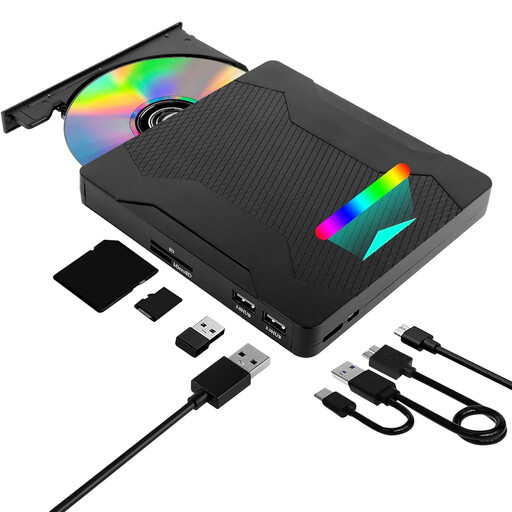 Image unavailable
This combination could be suitable if you also need an external DVD drive; check that the SD or TF slot fits your recorder card.
The product name lists USB 3.0, Type-C, a DVD writer and an SD/TF card reader.
The product description lists compatibility with Windows, Linux and Mac OS.
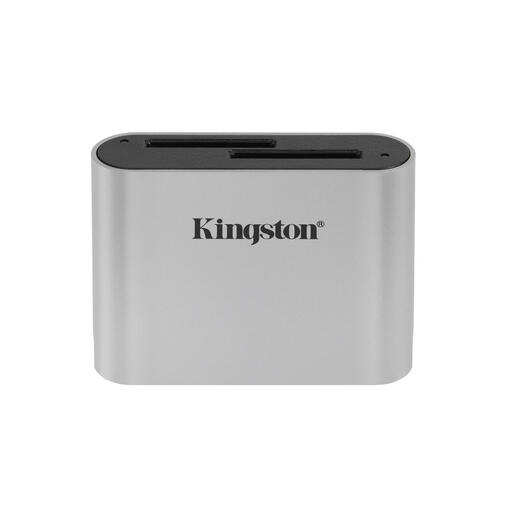 Image unavailable
This model could be suitable if you use an SDHC or SDXC card with UHS-II; check the card format before choosing.
The product name lists SDHC/SDXC, UHS-II and USB3.2 Gen1. The product description mentions a USB-C cable.
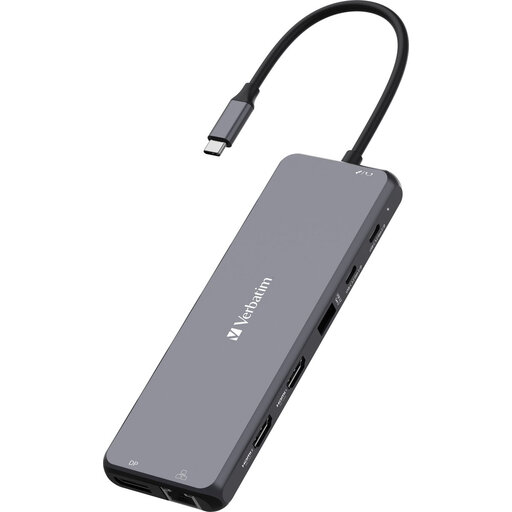 Image unavailable
Could be a good option if your computer has USB-C and your recorder card is SD or microSD; check the hub’s connection and the exact card format.
The product information lists SD and microSD card readers in a USB-C hub.
You’ll need a computer with a compatible connection and a reader for the exact card format. On a Mac, you can move files from a connected card reader using Finder. Before wiping your recorder card, check that the copied files are in their destination.
Not always: Zoom describes file transfer via USB for the F2 and F2-BT. This doesn’t automatically apply to other recorders; check the manual for your exact model before deciding that you don’t need a separate card reader.
Wait until copying is complete, then eject the storage device through your operating system before removing the card. Microsoft recommends safely removing removable hardware in Windows to prevent data loss; on a Mac, you can eject the storage device using Finder.
When you buy as a consumer in the Netherlands, the product must meet the standards you’re entitled to expect; according to the Dutch government, if there’s a problem you should contact the seller. For distance purchases, you’re generally entitled to a 14-day cooling-off period. The applicable terms may vary; a manufacturer’s warranty doesn’t replace your statutory rights.
That depends on the rules that apply to the specific product. According to the European Commission, CE marking applies only to products covered by specific EU rules. Check the relevant regulations and the product information for the model rather than assuming that every card reader needs the mark.