
Using a single recorder card
You want to read the card from your field recorder directly on a laptop. First, check whether it’s an SD or microSD card.


First, choose a card reader with a slot for the SD or microSD card in your recorder, and a connection that works with the device you’re copying files to. If you only use one card format, a more compact reader may be enough; multiple slots or UHS-II support are mainly relevant if you’ll use those features. Check the copy before erasing the original card, and safely remove the reader; Microsoft Support recommends safely disconnecting hardware.
You want to read the card from your field recorder directly on a laptop. First, check whether it’s an SD or microSD card.
You use a phone or tablet instead of a laptop when you’re out and about. The connection and support for external storage both affect whether the card reader will work for you.
You switch between SD and microSD, or use two SD cards as part of your workflow. If so, check the number and type of slots, not just the size of the reader.
Start with the card format and connection, then consider how you copy files and whether extra slots or speed matter for the way you work.
| What to consider | What to look for | Who should consider this? |
|---|---|---|
| Compatible card format | Check the format of your recorder card and make sure the reader has a suitable slot for it. | If I want to read the card directly from my recorder, the slot needs to match the card format. Around 36% of consumers make compatibility their top priority. |
| Connection and device | Check the port on your laptop, tablet or phone. If you’ll be using it with a mobile device, also check that the device recognises connected storage. | When I’m copying files to a laptop or mobile device on the go, I want the connection to be compatible and the files to be accessible. For around 29% of consumers, the connection is their main concern when buying. |
| Copying recordings carefully | Copy the files, check the copies on the destination device, then safely remove the card reader before erasing or disconnecting the source. | If I want to keep my recordings, I need to be able to check the copy before clearing the original card. Around 21% of consumers prioritise a careful copying process. |
| Transfer speed and slots | Compare the card and reader interfaces, and check how many slots you need. A stated maximum speed doesn’t guarantee that speed when copying with your equipment. | When I’m copying multiple cards or larger amounts of material, speed can be a factor, as long as the other parts of my workflow are compatible. Around 14% of consumers prioritise transfer speed. |
A compatible USB connection won’t help if the reader doesn’t have a slot for the card in your recorder.
Check the card format and supported slots separately from the USB connection. If they don’t match, you may need a different reader or an adapter.
Lexar’s stated read speed of up to 312 MB/s is a manufacturer specification for the Professional USB-C Dual-Slot Reader, not a guarantee of the speed you’ll get with your card, device and copying process. The SD Association describes various card interfaces.
Check that both the card and reader support the interface you need, and don’t base your choice solely on the highest speed figure.
If you erase the source card before checking the copy, you could lose recordings. Microsoft Support recommends safely removing removable hardware.
Wait until copying is complete, check the files on the destination device, then safely disconnect the reader.
The QuickFlow SD Card Reader is a USB-C option for full-size SD cards.
The RDF5 is designed for those looking for a single compact reader for SD and microSD cards.
The Professional USB-C Dual-Slot Reader is a USB-C reader for SD and microSD cards.
The Workflow SD Reader is designed for workflows using two full-size SD cards; MobileLite Plus SD is a separate SD range.
This selection includes USB-C hubs with SD and microSD card readers, plus a separate reader with two SD slots. Check that both the card format and connection are compatible with your recorder and the device you’re copying files to.
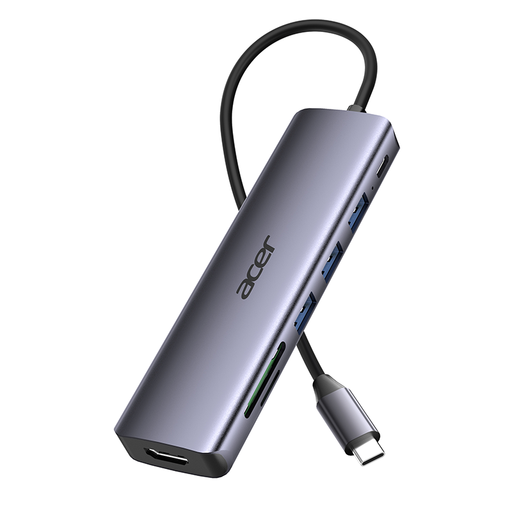 Image unavailable
May be suitable if your recorder card is SD or microSD and the receiving device uses USB-C.
The product information describes a USB-C hub and an SD/TF card reader.
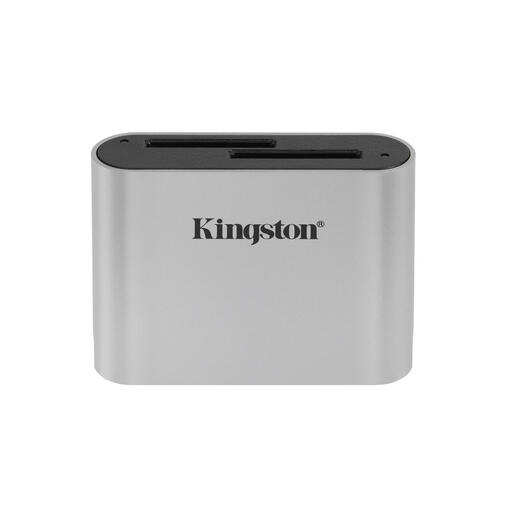 Image unavailable
An option if you use two full-size SD cards as part of your copying process.
The title mentions two SDHC/SDXC slots and UHS-II support. The product description says it can be used on its own with the included USB-C cable.
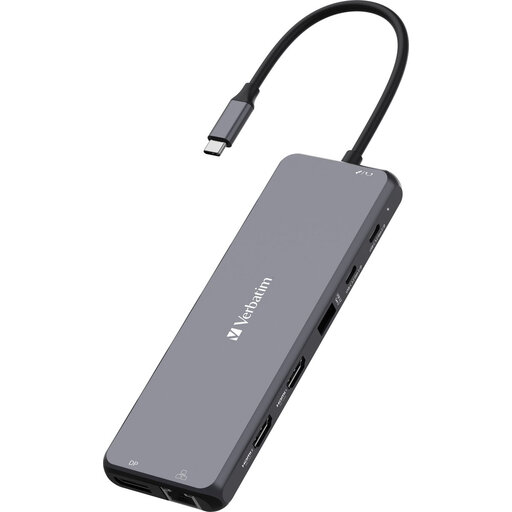 Image unavailable
May be suitable if you read SD or microSD cards using a device with USB-C.
The product description lists a USB Type-C hub with an SD and microSD card reader.
Choose a reader with a slot for the card that’s actually in your recorder. If you use both formats, a model with separate SD and microSD slots may be suitable.
Apple Support says connected SD cards may be accessible as external storage through the Files app. Check that your iPhone recognises the connection, card and reader before relying on this as your only way to copy files.
Wait until copying is complete, check the files on the destination device, then use Safely Remove Hardware. Microsoft Support recommends safe removal to help prevent data loss.