What should you look for when choosing one?
First, work out where your video is coming from. Then compare recording quality, passthrough to your gaming display and the route for your commentary. These features answer different questions.
| What to consider |
What to check before buying |
Which consumers prioritise it |
| Connection and compatibility |
Check the source’s HDMI output, the USB port or PCIe slot, the operating system and the supported recording software. |
If I want to connect a standalone console to my streaming PC, the whole setup needs to work before I can record. Around 33% of consumers say compatibility is their top priority. |
| Recording quality |
Compare the resolution and frame rate you want to record with the specifications of the exact model and the software you use. |
If I want to review and discuss clips, I need to know what will actually be recorded, not just what the card can pass through. Around 27% of consumers prioritise how usable the recording is. |
| Passthrough to your display |
Compare the resolution, Hz, HDR and VRR of your source and display with the card’s passthrough modes. |
If I want to keep playing on my usual gaming display during the review, I want to retain my preferred display mode. Around 20% of consumers consider passthrough their main priority. |
| Commentary and game audio |
Map out the signal paths for HDMI audio, your headset, microphone and group chat, then check a test recording for missing or duplicated audio. |
If I’m providing live commentary, I want both my voice and the game audio to come through clearly. Around 20% of consumers put their audio setup first. |
Joybuy products
This selection focuses on external USB capture cards for a separate HDMI source, used with a PC or laptop. Check the recording and passthrough modes for each model against your equipment.
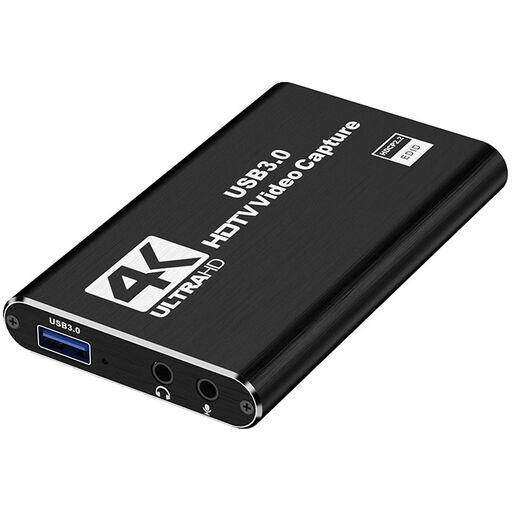 No image available
USB 3.0 HDMI capture card, 1080p60 recording
For a separate HDMI source when you want to record on a PC or laptop.
The product name specifies HDMI input up to 4K 30Hz and recording at 1080p 60Hz.
The product name specifies compatibility with PC and laptop.
View at Joybuy
 No image available
VIELLAN HDMI video capture card with 4K passthrough
For a separate HDMI source if you’re looking for 1080p recording and 4K passthrough.
The product name specifies video recording up to 1080p and 4K HDMI passthrough.
The product name specifies UVC and UAC support, a microphone input and a headphone output.
View at Joybuy
Frequently asked questions
Do I need a capture card for a game running on the same PC?
Not necessarily. OBS Project describes Game Capture as a source that captures a compatible game directly, so try that first. For footage from a separate HDMI console or second PC, you’ll need a suitable video capture source.
How do I connect the card and check my commentary?
Add a suitable HDMI source and the capture card to your setup, following the instructions for the exact model, then select the card in OBS as a video capture device. Add your microphone as the appropriate audio source and make a test recording to check that both your voice and the game audio are audible without an echo. OBS Project warns that selecting the same audio source in multiple places can cause an echo.
Does 4K passthrough mean my review will be recorded in 4K?
No, that doesn’t automatically follow from the passthrough specification. NZXT says the Signal HD60 can pass through a 4K signal, but can’t record it to the computer in 4K. For each model, compare the recording and passthrough modes separately.
Can I stream protected tournament footage using a capture card?
Don’t assume that you can. Elgato says its capture cards don’t capture HDMI signals protected by HDCP. In the Netherlands, publishing copyrighted footage generally requires permission, subject to any applicable legal exceptions; also check the rights for the specific material. The Dutch government says copy protection must not be bypassed.
What warranty applies when buying a capture card in the Netherlands?
There’s no set statutory warranty period in the Netherlands that applies to every product. The Dutch government says statutory warranty is based on what you can reasonably expect from the product; check the terms for your specific purchase.


