
Console guide creator with a small desk
Wants to record console footage on a computer while playing on a separate display. OBS Project describes a capture device as a way to bring console footage into OBS.


If you’re playing and recording on the same PC, try Game Capture in OBS first. For gameplay from a separate console, you may need a capture card. Choose a card based on the recording quality you want, the HDMI passthrough to your gaming display and the audio connections: 4K passthrough doesn’t automatically mean 4K recording. OBS Project describes both recording methods.
Wants to record console footage on a computer while playing on a separate display. OBS Project describes a capture device as a way to bring console footage into OBS.
Wants menus and instructions to remain readable in the recording, so compares recording quality rather than just passthrough resolution.
Wants to capture game audio, commentary or group chat, and needs to decide in advance how each audio signal will be connected. Elgato notes that recording your voice with Chat Link may require a separate microphone.
Best for: guides that only show gameplay from the PC running OBS. OBS Project describes Game Capture as the source to use for this.
Trade-off: this method won’t automatically capture the HDMI signal from a separate console.
Best for: recording console footage when 1080p60 is enough for your guide; the Elgato Game Capture Neo and NZXT Signal HD60 are examples of models in this category.
Trade-off: passthrough and recording are different modes. Elgato says the Neo can pass through up to 2160p60, but records at a maximum of 1080p60. NZXT says the Signal HD60 can pass through a 4K signal, but cannot record in 4K.
Best for: guides where small text calls for higher recording quality, or when you want to keep a particular refresh rate or VRR on your gaming display. Elgato specifies capture up to 2160p60 for the 4K S; AVerMedia specifies capture up to 2160p30 and VRR passthrough up to 1440p120 for the GC551G2.
Trade-off: check the exact combination of recording, HDR, resolution and passthrough. Maximum specifications don’t guarantee that every combination will work.
First decide whether you want to record a console or the same PC you’re playing on. Then compare recording and display modes separately, and finally plan your audio and cable setup.
| Consideration | What should you check? | Who is this important to? |
|---|---|---|
| Connections and desk space | Map out HDMI-in, HDMI-out to your gaming display and USB to your computer. Also check which cables are included with the exact model. | If I’m connecting a console at a small desk and playing on a separate display at the same time, I want to know how the cables will run in advance. Around 29% of consumers prioritise the connection setup above all else. |
| Recording clarity | Compare the maximum capture resolution and frame rate for the mode you want; treat recording and passthrough as separate specifications. | I want menus and small text to remain readable in the final file. Around 29% of consumers put recording quality first. |
| Picture on your gaming display | Check whether the card passes through your preferred combination of resolution, Hz, HDR and VRR. | When I’m playing on my own display while recording, I want to keep using my preferred display settings. Around 21% of consumers prioritise the gaming picture. |
| Game audio and spoken commentary | Check where your console, headset and microphone send their audio, and whether you need an analogue input or a separate microphone. Make a test recording. | If my guide needs to include both game audio and commentary, I want to hear that both sources are being recorded. Complete audio is a top priority for around 21% of consumers. |
A card can pass through a 4K signal without recording the file in 4K. Elgato makes this distinction for Game Capture Neo; NZXT notes the same limitation for Signal HD60.
Compare capture and passthrough separately for the display mode you want to record your guide in.
A connected headset can affect which audio the capture card receives. You may also need a separate microphone to record your own voice, according to Elgato.
Check which cables are included and make a short test recording with game audio, commentary and, if needed, group chat.
Elgato doesn’t include an HDMI cable with Game Capture Neo. You may therefore need an extra HDMI cable for a console-to-display setup.
If the game and recording are running on the same PC, OBS can use Game Capture as a recording source, so a capture card isn’t necessarily needed.
If you’re not connecting a console or a second gaming PC, try recording directly in OBS first.
Game Capture Neo and Game Capture 4K S are external capture cards with different recording and passthrough modes.
The Live Gamer EXTREME 3, model GC551G2, is an external card that lets you compare capture and VRR passthrough to your display separately.
According to NZXT, Signal HD60 is an option for console footage when you don’t need 4K recording.
These products are external HDMI capture cards for recording on a computer. Check each model’s recording quality, the display setup you want and its audio connections.
 No image available
An option for anyone who wants to record HDMI game footage on a computer and needs recording up to 1080p60.
The product title lists HDMI input up to 4K 30Hz and recording up to 1080p60; the stated 4K input isn’t a 4K recording specification.
Check that the connection you need for a separate gaming display is supported by this version.
 No image available
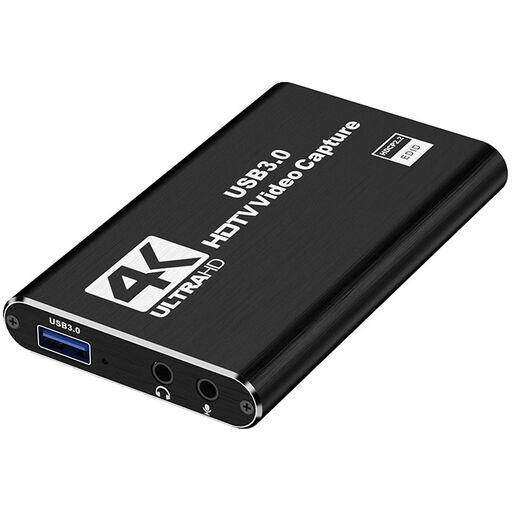
An option for anyone who wants to record HDMI footage on a computer and also needs HDMI passthrough to a display.
The product title lists video recording up to 1080p, 4K HDMI passthrough, UVC and UAC, plus a microphone input and headphone output.
Check that the stated modes suit your console, display and preferred recording settings.
Not for the usual OBS setup, where the game and recording run on the same PC: OBS Project describes Game Capture as a source for the game. For gameplay from a separate console in OBS, OBS Project describes using a capture device.
With a card that has HDMI passthrough, connect the console to HDMI-in, HDMI-out to the gaming display, and USB to the recording computer. Elgato describes this setup for the 4K S; check the ports, cables and system requirements for your chosen model.
Check that the HDMI signal isn’t being blocked by HDCP protection and that you’ve selected the correct input and video source in your recording software. For headset and chat audio, also check whether the sound is routed through HDMI or needs to go to an analogue input separately; AVerMedia says the GC551G2 doesn’t record HDCP-protected signals.
For an online consumer purchase, you generally have a 14-day cooling-off period after delivery, with some exceptions. In addition, if a product doesn’t do what you could reasonably expect under normal use, the seller must resolve the issue under the statutory guarantee. ACM ConsuWijzer identifies the seller as your point of contact.
A capture card doesn’t give you the right to publish. According to the Dutch Data Protection Authority, identifiable people shown in footage may be covered by the GDPR; the exception for personal or household use doesn’t necessarily apply to public publication. Whether you can publish specific gameplay, music and conversations also depends on the rights involved and the circumstances.