
Console and computer beginners
You want to use gameplay in OBS and, above all, find out whether your console, computer and capture card work together. OBS describes a game capture device as a way to bring console footage into OBS.


For a simple PS5 broadcast, the built-in broadcasting feature may be enough. To use gameplay as an input in OBS on a computer, you’ll need a capture device. If you’re choosing a capture card for your spare-room setup, compare its HDMI passthrough with its recording quality, then check the connections, audio routing and any HDCP restrictions on your console.
You want to use gameplay in OBS and, above all, find out whether your console, computer and capture card work together. OBS describes a game capture device as a way to bring console footage into OBS.
You want to keep playing at the settings your screen supports while streaming. So compare HDMI passthrough separately with what the card can actually record.
You want to include commentary or group conversations in your stream alongside gameplay. Map out the audio routing between your console, headset and capture card beforehand.
First, decide whether you need a card for OBS. Then check the connection between your console and computer, and make sure passthrough, recording and audio suit your setup.
| What to consider | What should you look for when buying? | Who is this important for? |
|---|---|---|
| Compatibility | Check your console’s HDMI output, your computer’s USB port or PCIe slot, and support for your operating system and streaming software. | I want to get my console footage into the right software without any workarounds; consumers who prioritise compatibility account for around 36% of this choice context. |
| Picture on your gaming screen | Compare your console’s and screen’s desired resolution, Hz, HDR and VRR with the exact model’s HDMI passthrough. | I want to keep playing with my usual screen settings while streaming; consumers who prioritise passthrough account for around 29% of this choice context. |
| Recording quality | Check the maximum recording resolution and frame rate separately from passthrough. Also check the requirements for your software and computer. | I want the stream or recording to capture the picture settings I’m after; consumers who prioritise recording quality account for around 21% of this choice context. |
| Audio | Check how game audio, your microphone and party chat connect, and which audio sources you need to set up in OBS. | I want commentary or party chat to be heard alongside gameplay in my broadcast; consumers who prioritise audio mixing account for around 14% of this choice context. |
Passthrough and recording are separate specifications. Elgato lists passthrough up to 4K60 for Game Capture Neo, but recording up to 1080p60. NZXT also distinguishes between 4K passthrough and recording up to 1080p for Signal HD60.
Before choosing, compare your preferred screen settings with the recording quality of the exact model.
Your console, screen, capture card and software all need to support your preferred settings. A manufacturer’s maximum isn’t automatically available in every setup.
Check the passthrough mode and any software requirements for recording, including those that vary by operating system.
Elgato notes that HDCP protection can prevent its cards from receiving a recordable picture.
For gameplay, follow the official instructions for your console and capture card. Don’t use tools to bypass copy protection on films or streaming services.
Ports and included cables vary by model. Depending on your existing setup, you may be missing a compatible computer port, HDMI cable or audio connection.
Before buying, check the connections and box contents for the exact model, and map out the video and audio routing.
The range includes external cards such as Game Capture Neo and HD60 X, as well as the internal 4K Pro for compatible desktop PCs.
Live Gamer MINI GC311 is an external option for 1080p60, while Live Gamer ULTRA 2.1 GC553G2 is designed for higher HDMI passthrough and capture.
Signal HD60 is an external card for anyone who wants to stream in 1080p via a computer.
Ripsaw HD is an external card for connecting a console to a separate streaming computer, with audio connections included.
Model 35871 is an external HDMI 2.1 card for higher passthrough and capture performance.
This product selection focuses on an external USB capture card for console footage and recording up to 1080p.
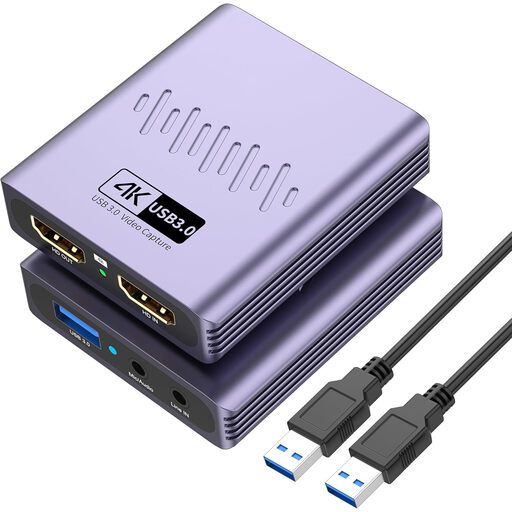 No image available
An external USB card for anyone who wants to send console footage to a computer via HDMI and is happy with recording up to 1080p.
The product title lists USB 3.0, 4K passthrough and video recording up to 1080p; passthrough doesn’t mean 4K recording.
The title also lists a microphone input, headphone output and driver-free installation. Check that the connections and computer port suit your setup.
No. The PS5’s built-in broadcasting feature may be enough for a simple broadcast. PlayStation explains how to stream using a linked account, for example to YouTube or Twitch. If you want to use console footage as an input in OBS on a computer, OBS describes using a capture device or a network-dependent Remote Play route.
For a card with HDMI passthrough, connect the console to HDMI-in and the screen to HDMI-out, then connect the card to your computer according to the model’s instructions. Next, add a video capture source in OBS. The ports and cables you need vary by card.
With Elgato cards, having HDCP enabled can cause a black screen. For PS5 gameplay, Elgato recommends turning off HDCP in the console settings before connecting the card. This won’t make protected films or streaming services recordable.
First, check which audio sources the capture card and OBS are receiving. OBS warns that using the same audio source both in a scene and in the general audio settings can cause an echo; listen to the mix before going live.
A capture card doesn’t give you the right to use content. The Dutch government states that using copyright-protected music, films and photos may require permission. For content in a specific broadcast, also check the rights holder’s terms; general government information doesn’t automatically determine the rights for every individual game broadcast.