What should you consider when choosing?
First, decide whether you’re recording directly from a gaming PC or using a separate HDMI source. Then consider whether separate recordings will do, and what recording quality and audio setup you need.
| What to consider |
What to check before buying |
Who is this important for? |
| Compact setup and connections |
Map out the complete HDMI and USB signal path, and check how many ports and cables it requires. |
If desk space is limited, I want to know where the source, computer and, if needed, gaming display will go. Around 33% of consumers prioritise a compact, practical connection setup. |
| Recording one after another or simultaneously |
Decide whether separate recordings will do; for simultaneous recording, check the number of inputs and available USB ports. |
Anyone who wants to compare two games at the same time needs to record both sources simultaneously. Around 25% of consumers prioritise this capability. |
| Recorded picture and display output |
Compare each model’s recording and passthrough specifications separately, using the same target resolution and frame rate. |
If I want to compare picture quality fairly, the recordings need to be made using the same settings. Around 25% of consumers prioritise the quality of the recorded picture. |
| Audio and required connections |
Make a test recording with your intended console, headset and software, then check the audio in the saved file. |
Anyone who wants to record game audio or commentary will want to know in advance whether the headset changes the audio setup. Around 17% of consumers prioritise a working audio connection. |
Joybuy products for recording games
These Joybuy products are external HDMI capture cards for recording a game source on a computer, with stated recording limits of up to 1080p.
 No image available
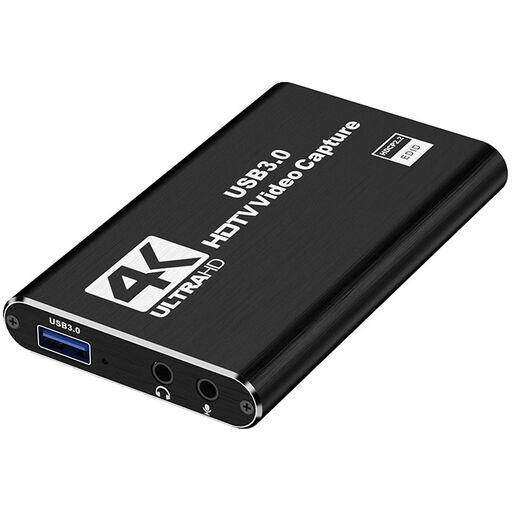
USB 3.0 HDMI capture card, recording up to 1080p60, black
For an HDMI game source when 1080p60 recording is enough.
USB 3.0; HDMI input up to 4K at 30 Hz; recording up to 1080p at 60 Hz.
Joybuy
 No image available
VIELLAN USB 3.0 HDMI video capture card, recording up to 1080p, 4K passthrough
Suitable for an HDMI game source when 1080p recording is enough and you want to pass through a 4K signal.
USB 3.0; video recording up to 1080p; 4K HDMI passthrough.
Joybuy
Frequently asked questions
Do I need a capture card if both games are running on my recording PC?
Usually not: try recording directly with recording software first. According to the OBS Project, you need a suitable capture source to record a separate console signal in OBS.
How do I connect one console while continuing to play on my usual display?
With a card that has HDMI passthrough, connect the console to HDMI IN, HDMI OUT to the gaming display, and USB to the recording computer. Check that the source, display and computer support the selected signal mode, then add the card as a video capture source in OBS.
Why is the PS5 picture black in the capture software?
In an Elgato setup, this can happen if HDCP is enabled. Elgato recommends turning off HDCP on the console for gameplay recording; this doesn’t make protected films or streaming services freely recordable.
How can I check whether my game comparison is usable?
Make a short test recording of both games using the same target resolution, frame rate and audio settings. Check the saved file and its audio separately from what you saw or heard on the gaming display.
Can I publish recordings featuring game footage or identifiable people?
A recording for personal use doesn’t automatically give you permission to publish protected material. The Dutch government distinguishes between a private copy for personal use and distributing material, so check the rights to game footage and music before publishing. According to the Dutch Data Protection Authority, the GDPR may apply as soon as people are identifiable in the footage.


