
Co-op host who wants to stream team audio
You want game audio, team chat and your own microphone to come through clearly on stream. Check which audio route your console or chat app uses; that determines where you need to capture the sound.


If you’re playing the game on the same PC, capturing with OBS may be all you need. For an HDMI feed from a console or second gaming PC, a capture card is one way to send the picture to your streaming computer. Compare HDMI passthrough for your own screen separately from the recording mode. Also check where game audio, team chat and your microphone are routed: OBS Project warns that using the same audio source in multiple places can cause an echo.
You want game audio, team chat and your own microphone to come through clearly on stream. Check which audio route your console or chat app uses; that determines where you need to capture the sound.
You want to use an external HDMI source in OBS. Check the capture card’s connections and signal modes, along with those of your computer.
You want to keep your usual screen mode while streaming. Compare passthrough separately from recording quality.
First, work out whether your game runs on the same PC or comes via HDMI from a console or second computer. Then check your audio sources and preferred screen mode, and compare the recording requirements separately.
| What to consider | What should you check? | Who should consider this? |
|---|---|---|
| Team chat and clear audio | Map out the routes for game audio, team chat and your microphone; make a test recording and check the OBS meters. | If I want both my teammates and my own voice to be heard on stream, I need to know in advance where each audio source comes in. Around 31% of consumers say team audio is their main buying concern. |
| Source, computer and software | Check the HDMI source, available USB port, operating system and OBS source you plan to use. | If I want to connect a console or second gaming PC to my streaming computer, the whole setup needs to work with my equipment. Around 31% of consumers put compatibility first. |
| Your gameplay display | Compare your preferred resolution and refresh rate with the passthrough modes supported by your source, card and screen. | If I want to keep my usual screen mode while playing, I need to check what gets passed through, not just what gets recorded. Around 25% of consumers prioritise keeping their screen mode. |
| Recording quality | Check the recording resolution and frame rate separately, including any software and host requirements. | If I’m mainly judging the captured footage, I need to know which recording mode works with my computer and software. Around 13% of consumers make recording quality their main buying concern. |
For the Elgato Game Capture Neo, Elgato lists passthrough of up to 4K60 and capture of up to 1080p60. So, a screen receiving a higher mode doesn’t automatically mean the recording uses that same mode.
Compare the stated passthrough and capture modes separately with what you want to view and record.
A console headset’s audio output may differ from the HDMI route to the capture card. For a compatible PS4 or PS5 controller headset, Elgato describes a specific Chat Link Pro setup; this isn’t a standard feature of every capture card.
Check the connections for your exact console, headset and capture card setup, then listen back to a short test recording.
Depending on your console, headset and capture card, you may need a suitable extra cable or a separate audio source.
AVerMedia’s stated 4K144 capture for the GC553G2 requires Streaming Center on Windows and MJPEG. Magewell warns that the actual frame rate can depend on the host and resolution.
Check that the stated mode works with the software and computer you plan to use for streaming.
The Game Capture Neo, 4K S and 4K X offer different stated capture and passthrough modes. Compare the exact model with your screen, recording needs and computer.
The Live Gamer MINI GC311 is specified for a Full HD setup, while the Live Gamer ULTRA 2.1 GC553G2 has different capture modes and software requirements.
The Ripsaw HD is worth comparing if 1080p60 recording and its stated 4K60 passthrough suit your setup.
The USB Capture HDMI 4K Plus is designed for setups where you want to capture an HDMI source on a computer, as well as gameplay.
These product picks are designed for an external HDMI source, such as a console or second gaming PC, streamed via a computer. Check the listed input and recording modes separately for your setup.
 No image available
Suitable for a setup that sends an external HDMI source to a PC or laptop.
The product title lists HDMI input up to 4K 30Hz, 1080p60 recording and USB 3.0, so the input and recording modes differ.
 No image available
Designed for capturing an HDMI source on a computer; check that the connections work with your equipment.
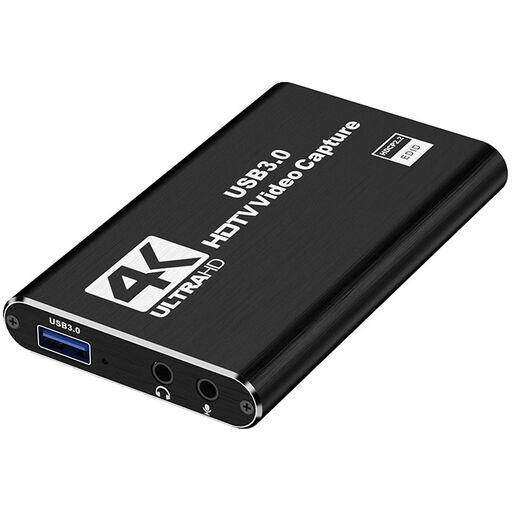
The product title lists 4K HDMI passthrough, capture up to 1080p, USB 3.0, UVC and UAC, plus a microphone and headphone output.
No. For a game running on the same PC, a suitable OBS Game Capture source may be enough. OBS Project describes Video Capture Device as a source for capture cards, among other things; an external HDMI console or second PC uses a different connection setup.
First check where your console or chat app sends its audio, then make a test recording using only the audio sources you need. OBS Project warns that using the same source in both a scene and the global audio settings can cause an echo. For a compatible PS4 or PS5 controller headset, Elgato describes a specific Chat Link Pro connection; it isn’t a universal feature of every capture card.
Passthrough and capture have separate maximums. Elgato specifies passthrough of up to 4K60 and capture of up to 1080p60 for the Game Capture Neo.
No. This can also depend on signal protection and the model’s limitations. AVerMedia states that the GC311 cannot view, record or stream HDCP-protected signals; check the model’s limitations and don’t try to bypass content protection.
Don’t assume you can do so without permission or another valid legal basis. The Dutch government states that you need the creator’s permission to use copyright-protected music. The Dutch Data Protection Authority explains that recognisable people in publicly shared footage may count as personal data, in which case privacy law applies. The rules for a particular stream depend on the rights involved and the circumstances; a capture card does not grant permission.