If both games are running on the same PC, first try an appropriate game or screen source in OBS. For footage from a separate console, you can use a capture device in OBS, as described by OBS Project. Choose a card based on the recording settings you want to save and, if you play on a separate display, its HDMI pass-through. Before you start, make a short test recording with sound from each source: 4K pass-through does not automatically mean 4K recording.
Who is this choice relevant to?
Game footage comparison creator
You want to compare two recordings side by side with similar picture and sound settings. Check that both sources can deliver the recording mode you want; a higher card setting will not automatically make footage from different sources comparable. OBS Project explains how to add video capture sources in OBS.
Console gamer with a separate display
You record footage from a console via a computer, but still want to use your own display while you play. So check both the HDMI pass-through and the mode in which the card actually records. Elgato, for example, makes this distinction in the specifications for Game Capture Neo.
Player providing spoken commentary
You want to combine gameplay with commentary or group chat. Think about how your headset, microphone and game audio will be connected, too; OBS Project explains how to check audio sources and levels in the mixer.
What should you look for in a capture card?
Recording directly on the same computer
Suitable when: the games are running on the computer you’re recording on and OBS can capture them directly.
Trade-off: this option doesn’t require an extra HDMI capture card, but it won’t automatically capture footage from a separate console.
External capture for Full HD
Suitable when: you want to record a separate HDMI source in OBS and 1080p60 is enough for your comparison.
Trade-off: the capture mode and HDMI pass-through are separate specifications; check both for the exact model.
Higher recording or display modes
Suitable when: detail, frame rate or HDR matters, and your source, display, computer and software support the combination you want.
Trade-off: the capture modes listed vary by model and software. Compare the entire signal chain, not just the highest figure.
Internal PCIe capture
Suitable when: you have a desktop PC with the required free PCIe slot, as needed for the Elgato 4K60 Pro MK.2.
Trade-off: an internal card isn’t a straightforward USB solution for a laptop; check your computer’s requirements.
For a game comparison, your choice of card depends on the source, the recording you want and whether you’ll also use a separate gaming display or provide spoken commentary.
| What to consider |
What to look for when buying |
Who should prioritise this? |
| Comparable recordings |
Check the capture resolution and fps for both sources, and match their settings. |
If I want to compare two sets of game footage fairly, I need to be able to use the same recording mode for both. Around 27% of consumers put comparable recording quality first. |
| Source and computer |
Check the source output, available USB or PCIe connections, and support from your computer and software. |
I want to know in advance whether my game source and recording computer will work together, so I can record at all. Around 33% of consumers say compatibility is their top priority. |
| Picture on the gaming display |
Check HDMI pass-through, refresh rate and, if needed, HDR or VRR across the entire signal chain. |
If I play on a separate display while recording, I want to keep my preferred display mode. Around 20% of consumers prioritise their gaming display mode. |
| Game audio and commentary |
Plan the connections for game audio, your headset and microphone; check the audio sources in OBS. |
I want my voice, game audio or group chat to come through clearly in the recording. Around 20% of consumers put audio first. |
Capture card buying pitfalls
-
Confusing 4K pass-through with 4K recording
Pass-through describes what the card can send to a display; recording may have a different limit. For example, Elgato lists up to 4K60 pass-through and up to 1080p60 capture for Game Capture Neo.
For the exact model, check the HDMI input, HDMI output and capture specifications separately.
If you want to save your comparison in 4K, a card with only 1080p capture may mean you need a different recording solution.
-
Looking at the highest fps figure without checking the software
The listed recording mode for the AVerMedia Live Gamer ULTRA 2.1 GC553G2 also depends on the operating system and software you use. AVerMedia lists different modes for Streaming Center on Windows and OBS on Mac.
Only compare modes that are compatible with your operating system, software and signal chain.
-
Choosing a capture card before checking your game source
A card can only capture a suitable output from the source. OBS Project describes different ways to capture game footage; a separate console needs a suitable video signal connection.
First, note the source device for each game and check its actual output. Then choose the card and connections you need.
An unsuitable source connection can make the card unusable for the game you want to capture; you may need extra connections.
Brands and model ranges to consider
Elgato
The Game Capture Neo and HD60 X are external models, while the 4K60 Pro MK.2 is an internal PCIe card. The right choice depends on the recording and pass-through modes you want, as well as your computer.
- Elgato lists up to 1080p60 recording and up to 4K60 pass-through for Game Capture Neo; these figures refer to different functions.
- For the HD60 X, Elgato lists capture up to 1440p60 and pass-through up to 1440p120, among other modes.
- The 4K60 Pro MK.2 requires a suitable desktop PC with a compatible PCIe slot.
AVerMedia
The Live Gamer MINI GC311 is a Full HD model; the Live Gamer ULTRA 2.1 GC553G2 is worth considering for other display and recording settings.
- AVerMedia describes the GC311 as a Full HD model with HDMI pass-through.
- AVerMedia lists a party chat feature and software-dependent capture modes for the GC553G2.
- The higher modes listed for the GC553G2 vary by software and operating system; check which combination applies to your setup.
EVGA
The XR1 lite and XR1 Pro are separate external capture options; compare their listed recording and pass-through modes for each variant.
- EVGA lists 1080p60 recording with 4K60 pass-through for the XR1 lite.
- For the XR1 Pro, EVGA lists 4K30 capture and a built-in audio mixer, among other features.
- The XR1 lite and XR1 Pro specifications aren’t interchangeable; check the exact variant.
Joybuy products for external HDMI capture
The products below are external HDMI capture cards for recording up to 1080p. For each model, check the recording settings, HDMI pass-through and connections for your source and computer.
 No image available
USB 3.0 HDMI capture card, 1080p60, black
Suitable for a setup where you record an HDMI source via USB 3.0 and connect a second display using HDMI loop-out.
The product title lists HDMI input up to 4K 30 Hz, 1080p60 recording and compatibility with PCs and laptops.
The product description mentions HDMI loop-out and a microphone input.
View at Joybuy
 No image available
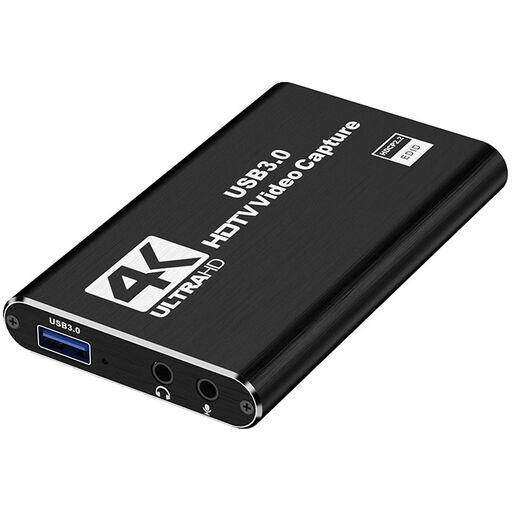
VIELLAN USB 3.0 HDMI Video Capture Card, records up to 1080p
Suitable for a setup where you record an HDMI source via USB 3.0 and want to use the audio connections listed.
The product title lists recording up to 1080p and 4K HDMI pass-through.
The title also mentions UVC and UAC support, a microphone input and a headphone output.
View at Joybuy
Frequently asked questions
Can I record a game comparison on one PC without a capture card?
Yes. For games running on the same computer, first try a suitable game or screen source in OBS. For footage from a separate console, OBS Project describes a capture device as one possible option; this source needs a suitable video signal connection.
How do I test picture and sound before recording both games?
Make a short test recording from each source at a resolution and fps supported by the card. Then check the saved footage and listen to the audio; OBS Project also explains how to use the audio mixer to check levels.
Why might a PS5 recording show a black screen?
HDCP protection can block recording. PlayStation explains how to capture PS5 gameplay via external HDMI with HDCP disabled in the settings. This does not give you permission to capture protected films or streaming services, or to bypass copy protection.
Do I need to check the software or extra connections?
Yes. OBS is free recording and streaming software, but before buying, check that your computer has the USB or PCIe connection you need and that any software for the model is compatible with your operating system.
Can I share a recorded game comparison publicly without restrictions?
Not necessarily. The Dutch Government distinguishes between private use and distributing or making protected material public. A capture card does not give you the right to publish content; for game footage, music and clips you use, check what permission or exemption applies.


