
Reader of plans and reference materials
You look at drawings, PDFs and study materials, and want to read details and compare documents without paying for a more powerful configuration than you need.


When studying canal restoration plans, a screen that lets you compare drawings and text is a sensible starting point; you don’t automatically need powerful graphics hardware just for reading and browsing. If you also need to use GIS software locally, first check which application and operating system are required: QGIS offers installations for Windows and macOS, while Google says Linux isn’t available on every Chromebook. Then weigh screen space, portability, memory and storage against the files you’ll use and the workspace you need.
You look at drawings, PDFs and study materials, and want to read details and compare documents without paying for a more powerful configuration than you need.
You may need to edit maps or spatial data locally. First check which application and platform your assignment requires; those requirements take priority over choosing a screen or storage configuration.
You switch between home and other places to study, and weigh a more compact size against the room a larger screen gives you to read plans.
If you’ll be doing GIS work locally, start with the required software. If you’ll mainly be reading and comparing documents, screen space and a suitable workspace are important considerations. The percentages give a general indication of which priorities consumers put first in these scenarios.
| What to consider | What to look for when buying | Who should give this extra thought? |
|---|---|---|
| Reading plans and text | Compare the screen size, resolution and finish of the exact model. Also check whether you can connect an external screen. | If you want to view drawings alongside study materials, screen space is a priority; around 33% of consumers rank it first. |
| Software compatibility | Find out which applications and file formats your assignment requires. Then check that they work with the operating system and exact configuration. | If you need to use GIS software locally, you’ll want to confirm the required way of working before you buy; around 33% of consumers put software compatibility first. |
| Portability | Balance screen size and weight against how often you’ll carry your laptop around. Check the ports, and look at the testing conditions when assessing battery life. | If you travel between study spaces, a laptop that’s easy to carry may matter more than the largest built-in screen; around 20% of consumers prioritise portability. |
| Total purchase cost | First establish your software and storage needs. Then check the configuration and whether any required adapter or workspace accessory is included. | If you want to weigh up the cost of the laptop and the accessories you need, it’s useful to establish what your assignment requires first; around 14% of consumers put total cost first. |
A laptop that’s suitable for documents and browser-based work won’t necessarily run the GIS software you need to install locally for your assignment.
First find out which application and file-editing capabilities are required, then check that they’re supported on the device you’re considering.
For longer study sessions, screen position, your surroundings and input devices all matter too. A larger screen on its own doesn’t make a complete desk setup.
Think about how you’ll use the laptop, and check that you can connect the screen, keyboard, mouse or stand you need.
A product range may include several generations and configurations. For example, Apple’s current MacBook Air information for the Netherlands covers M5 models, while the student ranking refers to an M4 version.
Compare the full model name, configuration and box contents of the specific offer.
Consider a macOS option if the applications you need run on it. Always compare the generation and full configuration.
The OmniBook range includes, among other options, a 2-in-1 model with a touchscreen; check the specifications of the individual model.
The ASUS name appears on both Chromebooks and Windows laptops; these product types aren’t interchangeable for every assignment.
Lenovo’s study guide highlights the keyboard, screen and switching between sources as things to consider; compare the specific version.
These Windows laptops are selected for reading plans and documents, and for assignments that require a Windows configuration. If you’ll be working with GIS locally, always check the required application and workflow first.
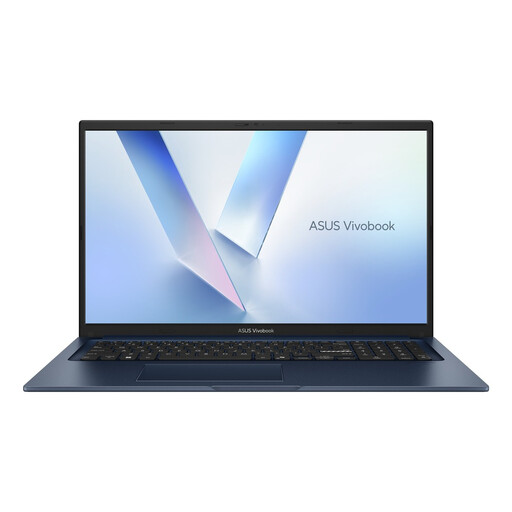 No image available
A large built-in screen may suit you if you want to view plans and documents on a single laptop.
17.3-inch Full HD anti-glare screen; 8 GB RAM; 256 GB SSD; Windows 11 Home; Core 5 320.
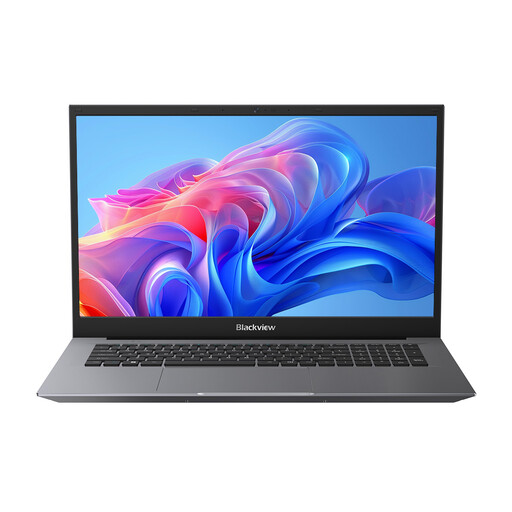 No image available
The screen size may suit you if you want plenty of space for plans on the built-in display.
18.5-inch Full HD IPS screen; Intel Pentium Silver N6000; 16 GB RAM; 512 GB SSD; Windows 11 Pro.
 No image available
An option to compare if you’re looking for an anti-glare screen and Windows for your studies.
1920 × 1200 anti-glare screen; 16 GB RAM; 512 GB SSD; Windows 11 Pro.
 No image available
The screen aspect ratio and resolution may be useful to consider if you view documents side by side.
16-inch anti-glare screen with a resolution of 1920 × 1200 pixels; 32 GB RAM; 512 GB SSD; Windows 11 Pro.
According to the product description, this configuration is sold without a power adapter.
 No image available
A Windows configuration to compare for reading plans and storing study files.
15.6-inch Full HD IPS anti-glare screen; 16 GB RAM; 512 GB SSD; Windows 11 Home; Intel Core 7 150U.
Not just for reading documents. First work out whether you’ll be viewing plans or also using the required, locally installed design or GIS software; then check that application’s hardware requirements. In its general buying advice, Consumentenbond recommends more powerful configurations for demanding work, not for every kind of document use.
Don’t assume you can. QGIS lists Windows, macOS and Linux as installation platforms, not ChromeOS. Google says Linux isn’t always available on Chromebooks and may be blocked on managed devices. So confirm the required workflow before choosing a Chromebook.
Check that your screen position, lighting and input devices suit the place where you study, and watch out for possible reflections. Arboportaal recommends a suitable workspace if you work at a screen for more than two hours; this is workspace advice, not a general buying requirement for students.
For a typical online consumer purchase, ACM ConsuWijzer says you generally have up to 14 days after delivery to change your mind; check the applicable exceptions and returns policy. A faulty product is covered by your legal rights to a product that meets the required standard. The Dutch government says there is no fixed statutory guarantee period that applies to all products in the Netherlands.