
Local filmmaker making a simple edit
You want to select and trim footage, and perhaps add titles or sound, without paying for capacity you don’t need. The Consumers’ Association recommends 16 GB of memory as a starting point for creative work.


Start with your source footage and editing software. For a simple film, 16 GB of memory can be a useful starting point, while Adobe recommends 32 GB or more for Premiere on Windows when working with 4K and higher resolutions. Also consider where you’ll edit and how you’ll play the film at the venue. More capacity, a larger screen and portability are different trade-offs, not reasons to automatically choose the most powerful configuration.
You want to select and trim footage, and perhaps add titles or sound, without paying for capacity you don’t need. The Consumers’ Association recommends 16 GB of memory as a starting point for creative work.
You work with large files or more complex timelines and want to match memory and storage capacity to your software. For Premiere on Windows, Adobe recommends 32 GB or more of memory for 4K and higher resolutions.
You take your laptop with you and want to know in advance how the film will play on the screen and sound system at the venue. So check the required file format and connections before choosing your equipment.
First, decide which software and source footage you’ll use. Then compare the memory and storage with your software’s requirements, and check whether you can connect the laptop at the screening venue.
| Consideration | What to look for | Who is this important for? |
|---|---|---|
| Enough performance | Check the software, project demands and memory; don’t treat recommendations as a guarantee of smooth editing. | I mainly want to finish a short film without paying for demanding effects; around 40% of consumers prioritise sufficient performance without over-specifying. |
| Capacity for 4K | Compare the requirements of your software version with your source footage, effects and available SSD space. For Premiere on Windows, Adobe recommends 32 GB or more of memory and 8 GB of GPU memory for 4K and higher resolutions. | For large 4K files or more complex timelines, I want to follow my editing software’s requirements; around 30% of consumers prioritise capacity for a demanding 4K project. |
| Working on the go | Compare the screen size, weight and connections of the exact configuration, and allow for any adapters you may need. | I want to be able to select and edit my footage in different locations; around 20% of consumers put portability first. |
| Connecting for a screening | Ask the venue which connection, file format and audio setup it requires. Test your export and keep a separate copy. | Before the event, I want to know how the film will play on the screen and sound system at the venue; around 10% of consumers make this connection their top priority. |
Requirements vary depending on your source footage, software version and project. Adobe, for example, distinguishes between its recommendations for HD and for 4K and higher resolutions.
Compare your source footage and software with the specifications of the exact configuration before you decide.
If the memory in a configuration that can’t be upgraded later proves insufficient, you may need a different laptop.
According to ASUS, the ASUS ProArt P16 H7606GP we examined does not come with a power adapter. The right connection for the screen or sound system depends on what’s available at the venue.
Check what’s included with the exact configuration you’ve chosen, and ask the venue in advance which cables and connections you’ll need.
Depending on the laptop you choose and the equipment at the venue, you may need a suitable power supply, adapter or cable.
The MacBook Air M5 we examined is a portable macOS option for mainly simple editing. Consider a suitable MacBook Pro configuration if your project or venue requires different connections.
The ASUS ProArt P16 H7606GP we examined is a Windows creative laptop with a 16-inch screen and a dedicated GPU.
The Yoga Pro 9i Gen 11 83SF003UMH we examined is a Windows option for a more demanding editing project.
Compare these laptops for editing your canal film, looking at memory, storage, operating system and how you plan to show it. The configurations listed differ, so check that their features suit your software and source footage.
 No image available
A macOS configuration to compare if you want to use this software environment and your editing project needs the listed memory and storage.
According to the product name: M5 Pro, 24 GB of memory and a 1 TB SSD. Check in advance which connection you’ll need at the screening venue.
 No image available
The listed memory and SSD capacity make this a configuration worth comparing if you work with large projects.
The product name lists 128 GB of RAM, a 1 TB SSD and NVIDIA RTX Spark N1X. Check the full configuration and the connection you’ll need for your screening.
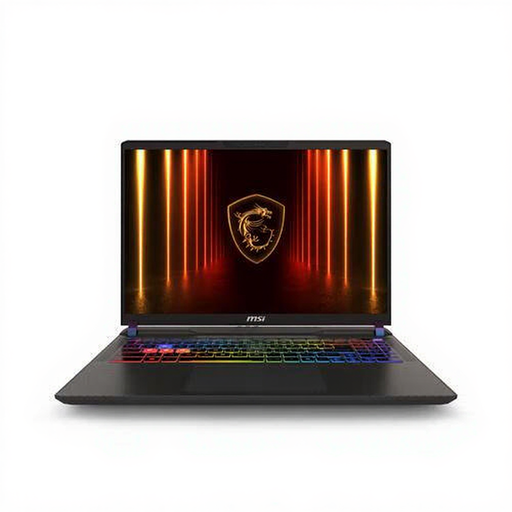 No image available
Compare this configuration with your editing software’s requirements and the connections you’ll need at the screening venue.
The product name lists 16 GB of DDR5 memory, a 1 TB SSD and NVIDIA GeForce RTX 5080. According to the product description, the power adapter must be purchased separately.
 No image available
The listed memory and storage can help you compare configurations for larger projects. Make sure your choice suits your software.
The product name lists 32 GB of memory, a 1 TB SSD and NVIDIA RTX Spark N1X. Check that this specific configuration suits your editing and connection needs.
 No image available
A macOS configuration to compare if you mainly want to do simple editing on the go and don’t need to use demanding effects.
The product name lists 16 GB of memory and a 512 GB SSD. According to the product description, a USB-C power adapter isn’t included; check that you have enough space for your source files.
The Consumers’ Association lists 16 GB as a useful guide for creative work. If you use Adobe Premiere on Windows for 4K or higher resolutions, Adobe recommends 32 GB or more. So base your choice on your footage and software, not just on the length of the finished film.
In Premiere, you can create proxy files for compatible video clips: lower-resolution copies that you can edit with. Adobe describes this as a way to handle large amounts of footage; keep the original files for your final workflow.
Not necessarily. According to Blackmagic Design, the free version of DaVinci Resolve can edit and finish films up to Ultra HD 3840 × 2160 at 60 frames per second. Check that the features and file formats you need are supported, and that the software version works with your operating system.
For online purchases, there is generally a cooling-off period that, according to ACM ConsuWijzer, ends 14 days after delivery. You’re also covered by the statutory guarantee if a product used normally doesn’t do what you could reasonably expect; the seller is responsible for this. This is different from a fixed statutory guarantee period of two years.
According to the Dutch government, you need the creator’s permission to use and share other people’s copyright-protected material. Check the rights for each clip and the terms of the screening separately.