
Teacher demonstrating camera controls
You want your pupils to be able to follow your hands, buttons and settings on the table. The shooting angle, focus and framing are more important than a large shot of your face.


If you mainly want to show hands, buttons and camera controls, a document camera is a good choice for recording via a computer. A webcam is handy if you want to switch between yourself and the tabletop during a computer-based lesson. If you want to record without a computer connected throughout, consider a standalone camera. Whichever option you choose, test the framing, focus at your working distance, secure mounting and how clearly your voice can be heard.
You want your pupils to be able to follow your hands, buttons and settings on the table. The shooting angle, focus and framing are more important than a large shot of your face.
You switch between talking to the camera and showing materials. Choose a setup that lets you make this transition without unnecessarily interrupting your lesson.
You want to save the lesson as a video file without relying on a connected computer while recording. Storage and positioning on the small table are also important.
Choose this option: if you mainly film hands, buttons or demonstration materials and can record via a computer. According to IPEVO, the V4K PRO 120 has autofocus from 10 cm and a specified capture area of up to 440 × 330 mm.
Bear in mind: the specified capture area does not tell you whether small details will be readable in your frame. You’ll also need a suitable computer and recording workflow.
Choose this option: if you already teach via a computer and want to switch between yourself and materials on the table. Logitech describes the MX Brio as having a downward-facing Show Mode.
Bear in mind: Show Mode does not guarantee a straight-down view or readable controls. Also check that a suitable mount will sit securely on your table.
Choose this option: if you want to record without a computer connected throughout, or regularly film yourself and objects. Canon lists 4K recording and microSD compatibility among the features of the PowerShot V10.
Bear in mind: a built-in stand or product-presentation mode does not prove that the camera can be positioned securely directly above your work area. Check the mount and working distance.
| What to consider | What should you check? | Who is this most important for? |
|---|---|---|
| Clarity of the demonstration | At your intended working distance, make a test recording with moving hands and the smallest detail you want to explain. | If I’m demonstrating small buttons or text, I want them to be clearly visible in the recording. Around 29% of consumers put readable details first. |
| Shooting angle and table space | Measure the available space and check that the base, clamp or tripod can safely reach the required height without getting in the way. | If my table is small, I want to keep the demonstration steady in frame without losing my workspace. Around 23% of consumers prioritise positioning and framing. |
| Clear audio | Record from your usual speaking distance and listen back with the background noise you expect during the lesson. | If the camera is pointed at my hands, I want pupils to be able to hear my explanation clearly. Around 18% of consumers put clear audio first. |
| Recording without a computer | Check whether you record using computer software or onto a memory card, and test the recording workflow for your planned lesson. | If I don’t want to connect a computer while filming, I want to know how the camera saves the recording. Around 18% of consumers prioritise standalone recording. |
| Available table lighting | Film the same actions under the lighting you use during lessons, then check the details, shadows and colours. | If I’m using my existing table lighting, I want to see in advance how hands and materials will look. Around 12% of consumers prioritise getting usable footage in the available light. |
A high stated resolution does not prove that a small control will be readable at your chosen distance and framing.
First decide what you need in the frame and test the smallest detail you want to teach.
Canon describes the PowerShot V10 as having both a built-in stand and a separate tripod mount. The stand alone therefore does not guarantee that the camera will sit securely directly above your work area.
Before buying, check which mount you need and whether the camera will remain stable in that position.
The IPEVO V4K PRO 120 uses a USB/UVC connection to a computer, so recording depends on having a suitable computer workflow.
Check the whole process in advance: connecting, recording and saving the video file.
The Dutch Government states that there is no fixed statutory guarantee period in the Netherlands. So a stated two-year period does not describe the statutory rule.
Check what additional guarantee is offered and how to contact the seller if something goes wrong.
The V4K PRO 120 is a USB document camera for a computer setup focused on work at the table.
The MX Brio is a webcam for computer-based lessons where you also want to show materials on your desk.
The PowerShot V10 is a compact standalone recording option for teachers who also want to film themselves.
The ZV-1 II is a compact vlogging camera for teachers who want to alternate between showing themselves and objects while explaining.
This selection includes webcams for computer-based lessons and compact cameras for video recording. For each model, check that the table setup, recording workflow and framing you want are suitable for your lesson.
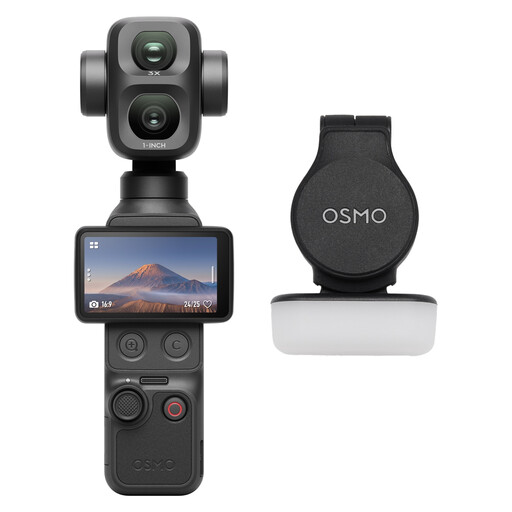 No image available
A vlogging combo to consider if you’re looking for a compact camera. Before buying, test whether it can capture the table angle you need.
The product information lists a 20 mm f/2.0 lens. According to the description, 4K/240 fps is only available in slow-motion mode.
 No image available
A webcam for computer-based lessons. The product information also mentions sharing projects and objects.
Autofocus and two built-in omnidirectional microphones are listed. Assess the table framing and how clearly your voice can be heard from your usual speaking distance.
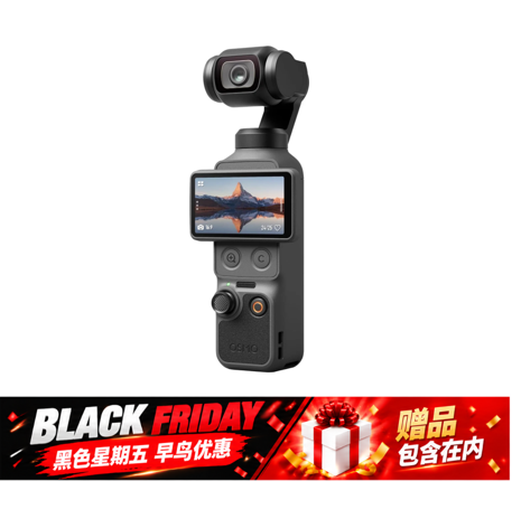 No image available
A compact vlogging camera to consider if you’re looking for a standalone recording solution. Check that the mount is suitable for filming above a small table.
The product name mentions built-in storage and a rotating screen. Check that the storage and power supply will suit the length of your lesson recordings.
 No image available
A webcam for computer-based lessons or presentations. Check that the fixed framing suits the area you want to show on the table.
The product name lists 4K UHD, 8 MP, autofocus and dual built-in microphones.
 No image available
A webcam for online lessons or computer-based streaming. Check whether the supplied clip or a tripod can achieve your preferred angle over the table.
The product information lists a noise-cancelling microphone. Make a test recording to hear how your voice sounds at the chosen distance.
Make a test recording with the materials in their actual position and the camera at the planned height. Check the smallest button or text in the saved footage; a stated resolution or maximum capture area is not enough to confirm this.
Not necessarily. Logitech describes the MX Brio as having a downward-facing Show Mode and a 1/4-inch tripod mount. Check that your chosen clamp or tripod can safely reach the required position on your table.
You can with a standalone camera, but check what storage and power each model requires. A USB document camera such as the IPEVO V4K PRO 120 works with a computer, so test the full recording workflow in advance.
If the GDPR applies to the recording and publication, you need a lawful basis for including identifiable people. The Dutch Data Protection Authority often cites consent as an appropriate lawful basis and says that consent from parents is required for pupils under 16. A different exemption may apply to a recording that remains strictly private.
For distance purchases from a business, you generally have a 14-day cooling-off period, according to the Dutch Government. Check the terms of the specific purchase; online purchases from private sellers are not covered by this rule.