
Artist filming their creative process
You want to start or stop recording without reaching for the camera. Canon, Sony and Nikon describe video control for specific camera models, so check that yours is compatible.


Before choosing a remote, check that your exact camera model can start and stop video recording; a photo shutter release won’t necessarily do this. First try a compatible camera app. For a fixed setup, consider a suitable wired remote; if you need more freedom to move, look at a wireless option, checking the connection or pairing requirements.
You want to start or stop recording without reaching for the camera. Canon, Sony and Nikon describe video control for specific camera models, so check that yours is compatible.
You’re working with a camera on a tripod and can decide whether a suitable cable or an existing camera app would work for your setup. Canon describes remote control via Camera Connect for compatible cameras.
As well as filming the process, you want to take photos of the completed drawing. Nikon describes separate photo and video controls for the ML-L7; check which functions are available for each model.
A good choice when: your camera and phone support remote control together and you want to try it without buying an extra accessory. Canon describes Camera Connect for compatible cameras.
Consider: check that the app can control video recording with your camera model, and test the connection in advance.
A good choice when: your camera is in a fixed position, the connection is compatible and you can operate it from your drawing spot within the cable’s reach.
Consider: a cable limits how far you can move. Also check video support and any model or firmware requirements. Panasonic lists such requirements for certain cameras with the DMW-RS2.
A good choice when: you want to stay by your paper and the manufacturer confirms support for your exact camera and video control. Canon, Sony and Nikon describe wireless control for specific models.
Consider: check pairing and functions for your camera model; don’t rely on the brand name alone.
| What to consider | What should you check? | Who is this important for? |
|---|---|---|
| Starting and stopping video | For your camera and remote combination, explicitly check video functionality—not just whether the shutter can be operated remotely. | If I want to film my drawing process, I need to control recording from my workspace; that’s why around 39% of consumers prioritise video control. |
| Freedom to move | Compare a wired connection with wireless control, and check pairing in your own setup. | I don’t want to keep walking over to the camera while I’m drawing; around 31% of consumers place the greatest importance on freedom to move. |
| Fixed setup | Check the connection, cable reach and whether the remote supports video with your camera model. | When my camera stays in one place, I want to operate it easily from where I’m drawing; around 15% of consumers put this need first. |
| Equipment you already own | Before choosing a separate remote, test whether your camera app can control the video recording you want remotely. | If my phone and camera can already do this, I want to try that combination first; around 15% of consumers prioritise making use of equipment they already own. |
To film your drawing process, the remote must be able to start and stop video recording. A stated photo function doesn’t prove that it can.
Check video support for your exact camera model before choosing a remote.
If the remote can’t start recording, you may still need a different one.
Manufacturers list specific compatible camera models; the brand name alone doesn’t confirm that the combination will work.
Check the full camera model, connection and any firmware requirements.
Choosing an incompatible remote could mean you need a different remote or connection.
Canon describes Camera Connect as an option for compatible cameras, so an app may already offer remote control for your setup.
First, make a short test recording with your own camera and phone, and check that the app controls the video recording you want.
A successful test could save you from buying an accessory you don’t need.
The functions below apply to the product ranges and compatible camera models mentioned. Check the requirements for your exact camera.
Canon describes the Canon BR-E1 as a Bluetooth remote for taking photos and recording video wirelessly with specific camera models.
Sony describes the RMT-P1BT as a wireless remote for supported cameras, including film recording and a status indicator light.
Nikon says the ML-L7 has separate photo and video buttons for specific cameras.
Panasonic describes the wired DMW-RS2 as a video option for compatible LUMIX cameras.
The RR-100 is a wired option for taking photos with supported X or GFX cameras.
These products are for smartphone setups using a tripod and Bluetooth control. They are not confirmed as remotes for a standalone camera, so first check that you’re filming with a smartphone.
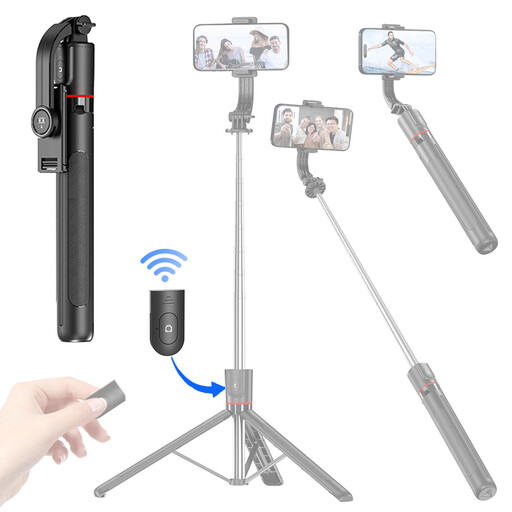 No image available
For a smartphone setup where you want to trigger photos or video remotely.
Extendable stick with a 360° rotating phone holder and Bluetooth remote.
The phone holder is specified for smartphones from 4,7 to 6,0 inches.
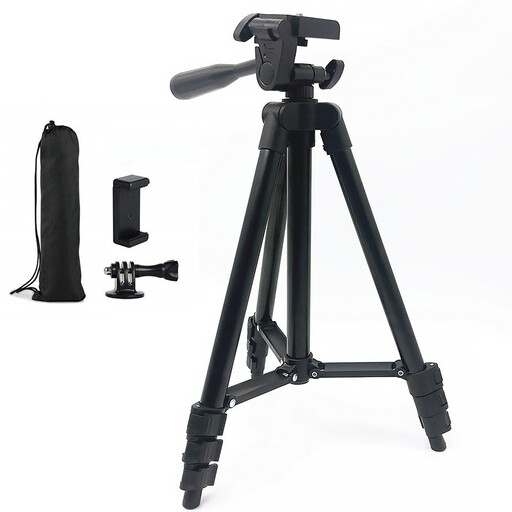 No image available
For hands-free filming when you want to control your smartphone remotely.
Foldable phone tripod with adjustable height and a Bluetooth remote.
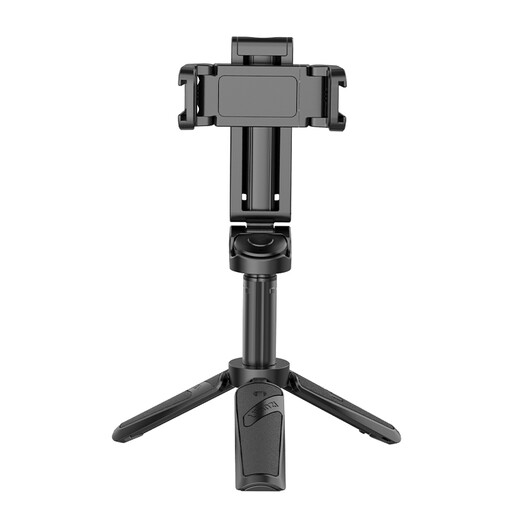 No image available
For hands-free smartphone filming with a mini tripod and extendable stick.
The product name lists dual cold shoe mounts and use with iPhone and Android.
In windy conditions or on uneven ground, use the tripod only at its lowest height and secure your phone firmly.
Check the compatibility information for your full camera model and make sure the combination can start and stop video recording. Nikon lists separate photo and video buttons for the ML-L7 with specific cameras; check which functions the remote supports with your model.
Make a short test recording from your workspace and check starting, stopping and the camera’s position. If you’re using a wireless remote, check the pairing too. If the video button on a Panasonic DMW-RS2 doesn’t work properly, Panasonic describes a firmware update as a solution; check the information for your camera model.
Not necessarily. Canon describes remote control via Camera Connect for compatible cameras. Before choosing an accessory, test whether the app can also control the video recording you want with your camera.
If you create and publish images on behalf of a business or organisation for commercial purposes, the Dutch Data Protection Authority says the GDPR applies. Bear this in mind if other people can be recognised in the footage.