
Teacher demonstrating brushwork
You want students to be able to follow small movements on the pottery from a fixed position. Test the framing and focus from the actual distance to your work.


Start by deciding whether you’ll mainly film brushwork at a fixed table, move between spots during a demonstration or teach using a computer. A mirrorless camera gives you a choice of lenses for a fixed setup, a compact gimbal camera is easier to move around, and a webcam suits computer-based teaching. Whichever option you choose, test the focus and framing from the actual distance you’ll be filming at; a high video resolution alone doesn’t tell you whether small details will be clearly visible.
You want students to be able to follow small movements on the pottery from a fixed position. Test the framing and focus from the actual distance to your work.
You move between the worktable and a presentation during the lesson. A setup that’s easy to move may suit you better than a camera aimed at just one fixed position.
You already use a computer for lessons and want to show the worktable during a video call. Check that the connection and camera angle suit your setup.
A good fit if: you want to put together a fixed worktable setup and can choose a lens to suit the distance and framing you need.
Bear in mind: the camera body alone won’t tell you how close a particular lens can focus.
A good fit if: you regularly switch between yourself and the worktable during demonstrations.
Bear in mind: check that the fixed lens and focusing distance let you show your brushwork from your chosen position.
A good fit if: you teach directly from a computer.
Bear in mind: the camera needs a suitable computer connection and a useful mounting angle.
| Buying consideration | What to look for | Who should consider this? |
|---|---|---|
| Seeing brushstrokes clearly | Measure the distance to the pottery, then test focus and framing at that distance. DJI gives a focusing range starting at 0.2 m for the Osmo Pocket 3; Elgato gives a minimum focusing distance of 10 cm for the Facecam Pro. With a mirrorless camera, it depends on the lens you choose. | If I want to show the brush tip and glaze clearly, I test the work surface from the spot where the camera will be placed. Around 31% of consumers say seeing small brushstrokes clearly is their main buying concern. |
| Camera position during the lesson | Try out your planned movements and recording time in advance. A fixed setup and a movable camera meet different filming needs; power and storage also need consideration. | If I move between my presentation and the worktable while teaching, I want to adjust the camera position without constantly interrupting the lesson. Around 25% of consumers prioritise freedom of movement and lesson length. |
| Clear spoken instructions | Make a test recording from your usual speaking distance and listen back to it. Check that a microphone is compatible with your chosen camera and connection; the Consumers’ Association recommends an external microphone input for camcorders. | If students need to follow spoken instructions, I want to assess the sound from where I teach. Around 25% of consumers give clear spoken instructions top priority. |
| Live teaching via a computer | Check the USB connection and the angle towards the worktable. Elgato specifies USB 3.0 or higher and USB-C for the Facecam Pro; Logitech describes a Show Mode for the MX Brio that can be tilted towards desk work. | If I want to use the camera during a computer-based lesson, the pottery needs to be clearly visible from that setup. Around 19% of consumers say computer-based live teaching is their main buying concern. |
Resolution doesn’t confirm that the camera will focus at your available working distance or frame the whole piece of pottery properly.
Measure the distance between the lens and your work, then test focus and framing on a practice piece before choosing a setup.
With a mirrorless camera, you may need a different lens; you might also need to adjust the camera mount.
A webcam is designed for use with a computer. Your computer’s specifications, the connection and the camera angle all affect whether your work can actually be seen clearly.
Check the connections and try out your planned worktable setup in advance.
You’ll need a suitable computer connection and may also need mounting equipment or the right cable setup.
The DJI Osmo Pocket 3 has no built-in storage; you’ll also need to check the sound separately to make sure your instructions are clear.
Make a short recording from your usual speaking and working distance, then play back the video and audio. Also check that a microSD card is recognised.
The Pocket 3 needs a compatible memory card; adding a separate microphone setup may mean extra set-up work.
The ZV-E10 II is an APS-C camera with an interchangeable E-mount lens, for a worktable setup you can put together yourself.
The EOS R50 combines photo and video features with interchangeable RF/RF-S lenses and, according to Canon, can be used as a webcam via USB.
The Osmo Pocket 3 is a compact gimbal camera for teachers who move between positions during a demonstration.
The Facecam Pro is a webcam for lessons recorded or streamed using a suitable computer.
The MX Brio is designed for computer-based presentations and, according to Logitech, can be tilted towards desk work using Show Mode.
This selection includes compact vlog and gimbal cameras for filming on the move, as well as a webcam for a computer setup. Whichever camera you choose, test whether the pottery is in focus and fully in frame from the position you plan to use.
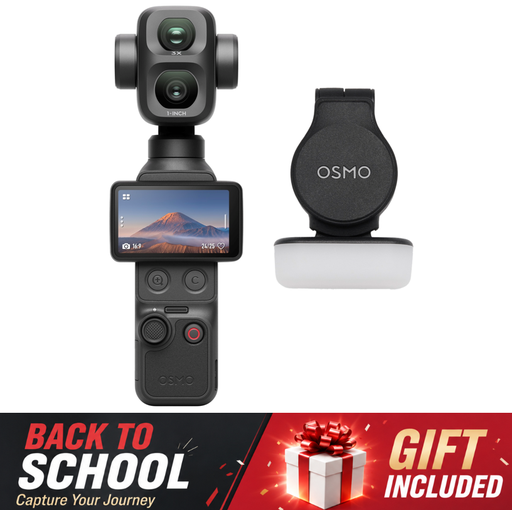 No image available
A compact gimbal camera to consider if you move between positions during demonstrations.
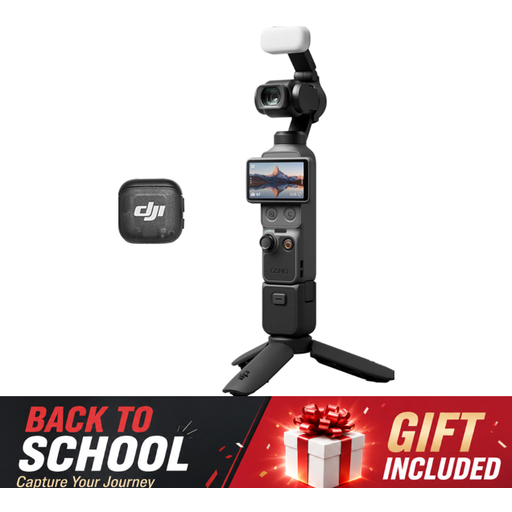 No image available
A pocket gimbal camera to consider if you want to put together a movable camera setup.
The product title lists 4K/240fps, 3-axis stabilisation, 2× lossless zoom and 107GB of built-in storage.
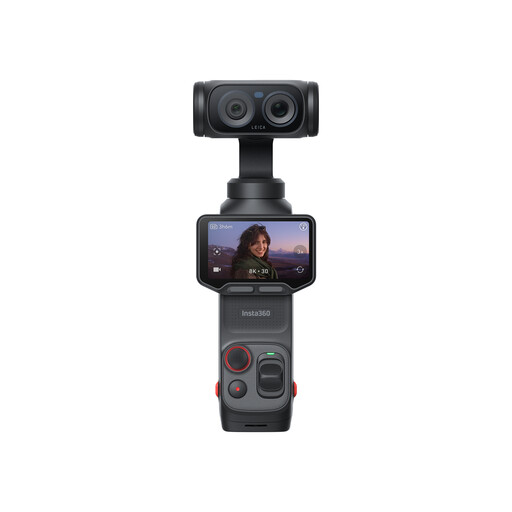 No image available
A vlog camera to consider if you move between positions while filming.
 No image available
A webcam to consider if you teach via a computer; it isn’t a standalone recording camera.
The product title lists 4K UHD, autofocus, two built-in microphones and a privacy cover.
No image available
A compact gimbal camera to consider if you move between positions during lessons and want to record spoken instructions.
The product title lists 4K/120fps video, 3-axis stabilisation and an included microphone. DJI gives this model a focusing range starting at 0.2 m; a microSD card is needed for storage.
Measure the distance between the lens and the pottery, then test the whole work surface from that position. DJI and Elgato’s stated minimum focusing distances apply to the Osmo Pocket 3 and Facecam Pro respectively; with a mirrorless camera, you’ll need to check the lens you choose.
Yes, you’ll need a microSD card to store your own recordings. DJI states that the Osmo Pocket 3 has no built-in storage; before the lesson, check that the card is recognised and make a short test recording.
Contact the retailer. According to the Dutch government, statutory consumer rights apply alongside any manufacturer’s warranty; there is no fixed statutory warranty period in the Netherlands. What you could reasonably expect from the product is taken into account when assessing a problem.
That depends on how the video is used and the circumstances. The Dutch Data Protection Authority distinguishes between strictly private use and wider publication or commercial use. If other identifiable people appear in the footage, processing their personal data under the GDPR requires a valid legal basis; don’t assume that filming in a home studio automatically counts as private use.