Choose based on what your students need to see: a webcam is well suited to teaching from a fixed position at your computer, while a mirrorless camera with an interchangeable lens gives you more freedom to frame both your face and camera details. A camcorder lets you zoom without changing lenses, while a compact gimbal camera is ideal for demonstrations where you move around. For your setup, also check speech clarity, mounting, power and the final framing.
Who is this guide for?
Teacher demonstrating camera details
You want to show buttons, settings or an action clearly, so you can tailor your lens, shooting distance and framing to the demonstration. Canon Netherlands, Sony Netherlands and DJI describe systems with a range of lens and distance options.
Live teacher at a computer
You mainly teach from a fixed position and want to work directly with your teaching or recording software. Logitech describes Show Mode on the MX Brio, which lets you show your desk.
Teacher who moves around the studio
You demonstrate from different angles and are weighing up moving footage with stabilisation against a fixed camera that you reframe. DJI describes the Osmo Pocket 3 as having a built-in three-axis gimbal.
What should you look for when choosing?
Take a test recording from where you plan to position the camera. This lets you assess the picture, sound and workflow in your own studio.
Webcam connected to your computer
Choose this option: if you mainly teach or record live from a fixed position. Logitech lists Show Mode for the MX Brio, as well as 4K at 30 fps or 1080p at 60 fps.
Bear in mind: you’ll need to connect it to your computer and mount it so it frames both you and your work surface clearly. Show Mode doesn’t guarantee that small details will be easy to read.
Mirrorless camera with an interchangeable lens
Choose this option: if you want to select your own lens and working distance for a mix of wide and close-up shots. Canon Netherlands lists RF and RF-S lenses, plus microphone and headphone connections; Sony Netherlands describes E-mount lenses and USB streaming for the ZV-E10 II.
Bear in mind: the body and lens kit are different configurations. Canon says the EOS R50 V doesn’t have in-body image stabilisation.
Camcorder with a fixed zoom lens
Choose this option: if you want to switch between wider and tighter shots from one position without changing lenses. Panasonic specifies 24× optical zoom for the HC-VX3.
Bear in mind: Panasonic lists the 25 mm wide-angle setting only for certain recording modes. Zoom alone doesn’t prove that a small detail will appear in focus from where you’re filming.
Compact gimbal camera
Choose this option: if you move around with the camera during lessons. DJI specifies a three-axis gimbal and a minimum focusing distance of 20 cm for the Osmo Pocket 3.
Bear in mind: the lens is fixed and you’ll need a microSD card for storage. Standard 4K video and 4K slow motion at 120 fps are different modes.
| Consideration |
What to look for when buying |
Who should pay extra attention? |
| Showing details |
Frame a test shot of the smallest detail you want to explain, from the planned mounting position. |
If you want to show buttons or settings close up, you’ll want to know whether they’re readable from where you’ll be filming. Around 33% of consumers prioritise showing details. |
| Spoken explanations |
Check the audio connections and make a test recording from the planned speaking distance. |
If your lesson involves a lot of talking, you’ll want your voice to be clear in your room. Around 27% of consumers prioritise spoken explanations. |
| Computer workflow |
Test the camera with your computer and teaching software, and check that it captures both your face and your work surface. |
If you teach directly from your computer, you’ll want to be able to use the camera in your live setup. Around 20% of consumers mainly choose this workflow. |
| Movement and recording time |
Try out the planned movements and lesson length, and check the power supply, recording mode and storage. |
If you move around the studio or record for a long time without a break, you’ll want to know whether the setup is suitable for that session. Around 20% of consumers prioritise movement or recording time. |
Common buying mistakes
-
Focusing only on the 4K label
A high resolution doesn’t automatically mean that a button or small setting will be readable from where you’re filming. Your lens, shooting distance and framing all play a part.
Before choosing a configuration, test the smallest detail in your lesson from the planned camera position.
-
Assuming a camera body is a complete teaching setup
A camera with interchangeable lenses needs a suitable lens, and you’ll need to assess your chosen equipment and workflow separately for audio, mounting and storage.
Check exactly what’s included in the kit and make a list of everything you need for your recording and audio workflow.
You may need to buy a suitable lens, microphone, mount or storage medium separately.
-
Confusing the highest video setting with the standard lesson mode
DJI says that 4K at 120 fps on the Osmo Pocket 3 is slow motion; Panasonic lists the 25 mm wide-angle setting for certain recording modes.
Compare the specifications in the mode you actually plan to use for your lesson.
Camera brands to consider
Canon
The EOS R50 V is a video-focused mirrorless camera for a studio setup where you choose the lens and audio connections yourself.
- Canon Netherlands lists RF and RF-S lenses, a microphone input, a headphone output and webcam use via USB-C.
- The EOS R50 V doesn’t have in-body image stabilisation; the lens and other components aren’t automatically included with the camera body.
Sony
The ZV-E10 II offers an E-mount setup with interchangeable lenses for those who want to frame their own lesson shots.
- Sony Netherlands lists 4K 60p and USB streaming for this model.
- The body and a kit with the 16–50 mm power zoom lens are different configurations. Choose a lens that suits your close-up shots.
Logitech
The MX Brio is a webcam for computer-based teaching and demonstrations of desk work.
- Logitech lists 4K at 30 fps, 1080p at 60 fps and Show Mode.
- Show Mode and Logitech’s claims about picture quality don’t independently confirm that small camera details will be readable in every setup.
Panasonic
The HC-VX3 is a camcorder with a built-in zoom lens, so you can film without changing lenses.
- Panasonic specifies 24× optical zoom and USB-C power.
- The stated 25 mm wide-angle setting applies only to the specified recording modes.
DJI
The Osmo Pocket 3 is a compact gimbal camera for demonstrations where you move the camera around.
- DJI specifies a three-axis gimbal and a minimum focusing distance of 20 cm.
- The lens is fixed and you’ll need a microSD card for storage. 4K at 120 fps is slow motion, not the standard 4K recording mode.
Products for your home studio
This selection includes compact gimbal cameras for demonstrations where you move around, and webcams for a fixed computer setup.
 No image available
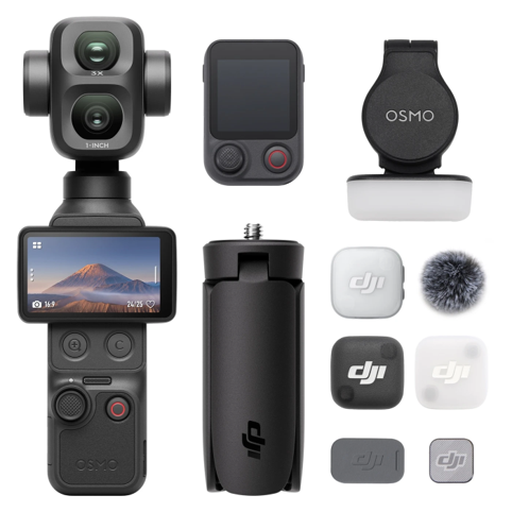
Osmo Pocket 4P, Vlog Combo, Black
A compact gimbal camera for demonstrations where you move around.
The product information lists 3-axis stabilisation and subject tracking.
20 mm f/2.0 wide-angle lens; the stated 4K/240fps mode is slow motion.
Joybuy
 No image available
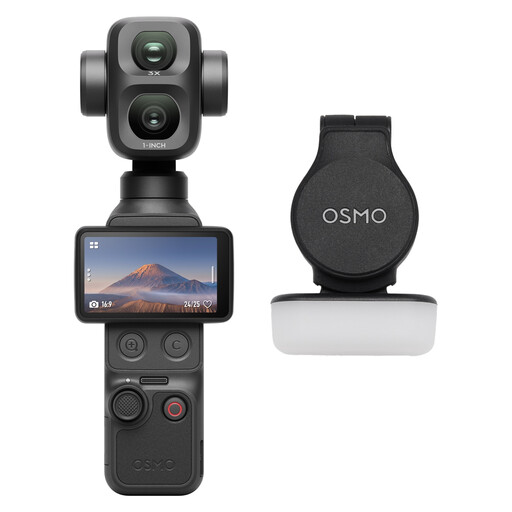
Osmo Pocket 4P, Standard Combo, Black
A compact camera for wide-angle shots during studio demonstrations.
The product information lists a 20 mm f/2.0 wide-angle lens and a 1-inch CMOS sensor.
The stated 4K/240fps mode is slow motion.
Joybuy
 No image available
Razer Kiyo V2 X webcam, Quartz
A webcam for teaching from a fixed position at your computer.
The product information lists resolutions up to 1440p and autofocus.
Also listed: USB connection, built-in stereo microphone and 1/4-inch tripod mount.
Joybuy
 No image available
AOC 4K PRO webcam
A webcam for fixed-position recording with spoken explanations.
The product information lists 4K video, PDAF autofocus, dual microphones and a 75° field of view.
Also listed: a desktop tripod and USB-A and USB-C connections.
Joybuy
 No image available
AOC 4K webcam with microphone, Black
A webcam for teaching or recording from a fixed position at your computer.
The product information lists 4K UHD video and a 99° field of view.
Also listed: USB plug-and-play, an adjustable viewing angle and a built-in microphone with noise reduction.
Joybuy
Frequently asked questions
How can you check before buying whether camera buttons will be clear on screen?
Make a test recording of the smallest detail from the planned mounting position, then view it on the screen your students will use to watch the lesson. A zoom factor, Show Mode or 4K label alone won’t tell you whether the detail will be clear in your setup.
Can you record a long lesson without extra equipment?
It depends on the model, recording mode and lesson length. Check the power supply and storage for your setup: Panasonic describes USB-C power for the HC-VX3, while DJI says the Osmo Pocket 3 records to an inserted microSD card.
What are your rights when buying a camera online?
According to ACM ConsuWijzer, online purchases generally come with a cooling-off period of up to 14 days after delivery, subject to legal exceptions. You’re also entitled to a product that meets your reasonable expectations; the legal guarantee isn’t simply a fixed two-year period for every camera.
Can you film students and publish the lesson?
It depends on the purpose, the people involved and the applicable legal basis. The Dutch Data Protection Authority describes an exception for use solely for personal or household purposes within a private setting. For wider publication or filming identifiable people for business purposes, you need a GDPR legal basis, and consent isn’t the only possible basis.


