
Teacher filming themselves
You stand in front of the white background and occasionally hold a camera or lens up to show it. Before you start, check how the focus shifts and how your voice sounds from where you teach.


If you film yourself and regularly hold a camera or lens up in front of it, start by considering focus, sound, and control over exposure and white balance. A mirrorless camera with a suitable lens also lets you choose your framing. A camcorder may suit a long, fixed shot, while a webcam could work well for teaching through a computer and a compact gimbal camera for moving demonstrations. Test your complete setup with the lighting and lesson length you actually use: a white background or a 4K label alone does not guarantee a clear, easy-to-follow demonstration.
You stand in front of the white background and occasionally hold a camera or lens up to show it. Before you start, check how the focus shifts and how your voice sounds from where you teach.
You record a continuous demonstration. Check that the recording settings, power supply and storage are suitable for the planned lesson length.
You teach through a computer and want to set up or control the camera from your workstation. Check that the camera and the software you want to use fit the way you work.
Choose this if: you want to adjust the framing to suit the distance between the camera, teacher and demonstration materials.
Bear in mind: check which lens and audio equipment are included with the version you choose; a camera input is not a microphone.
Choose this if: built-in zoom and storage options are important for recording a fixed lesson. Canon lists 20× optical zoom and two card slots for the LEGRIA HF G70.
Bear in mind: the HF G70 has a fixed lens; check the recording settings, power supply and storage for the planned lesson length.
Choose this if: you teach through a computer and want to set up the camera from your workstation. Logitech lists software controls for settings including white balance, ISO and shutter speed on the MX Brio.
Bear in mind: you’ll need a computer and compatible software; the MX Brio’s stated 4K recording is at 30 fps, while 1080p is at 60 fps.
Choose this if: you move around while teaching or film handheld demonstrations from different angles. DJI specifies a built-in lens and three-axis gimbal for the Osmo Pocket 3.
Bear in mind: a fixed lens means you can’t choose another lens, so try out the framing for a fixed lesson setup too.
| What to consider | What should you check? | Who is this important for? |
|---|---|---|
| Exposure and colour | Check the white balance and exposure with the lights in your video setup. Make a test recording of the background, teacher and equipment. | I want white and the colours of the equipment being demonstrated to look right under my lighting. Around 29% of consumers put colour and exposure first. |
| Focus and framing | From the planned tripod position, test a focus shift from your face to an object you’re holding up, and check that your hands and equipment stay in shot. | When I show a camera or lens, I want both my face and the object to be in focus and fully in shot at the right moment. Around 29% of consumers prioritise focus and framing. |
| Speech audio | Check whether the version has a suitable microphone input, then listen back to a test recording from where you’ll be speaking. | I want my explanations to be easy to hear, even when I turn to show equipment. Around 24% of consumers put speech audio first. |
| Lesson length and workflow | Compare your planned lesson length with the specification for the video mode you’ve chosen. Test the power supply, storage or computer connection in advance. | If I’m recording a long lesson or teaching through a computer, I want my recording or streaming workflow to suit the task. Around 18% of consumers put lesson length and workflow first. |
The background and the subject each need separate attention. An example of flash lighting for a white-background portrait doesn’t prove that the same setup will work for continuous video.
Make a video test recording and assess the background, your face and the demonstration materials together.
Depending on the test recording, you may need separate continuous lighting.
Resolution and recording time depend on the setting you choose. Nikon lists around 35 minutes in 4K and up to 125 minutes in Full HD/24p/25p at 25 °C for the Z 30; actual recording time also depends on factors such as battery life and internal temperature.
Compare the specifications for the exact video format and lesson length you plan to use.
An interchangeable lens will only work for your setup if the subject fits in the frame from the distance available. A microphone input won’t record sound by itself using an external microphone.
Check what’s included with the exact version and test the framing and sound from their final positions.
You may need to buy a suitable lens or microphone separately.
Canon offers examples of both mirrorless camera and camcorder setups for lessons.
The ZV-E10 II is a mirrorless camera option if you want to choose a lens to suit your lesson setup.
The MX Brio is a webcam option for lessons taught through a computer.
The Osmo Pocket 3 is a compact option for moving demonstrations or handheld recording.
The Z 30 is another mirrorless camera option if you want to choose a lens to achieve your preferred framing.
These Joybuy products suit different ways of filming a photography lesson, from a computer webcam to cameras for demonstrations and handheld recording. Check the model name and listed accessories for each version.
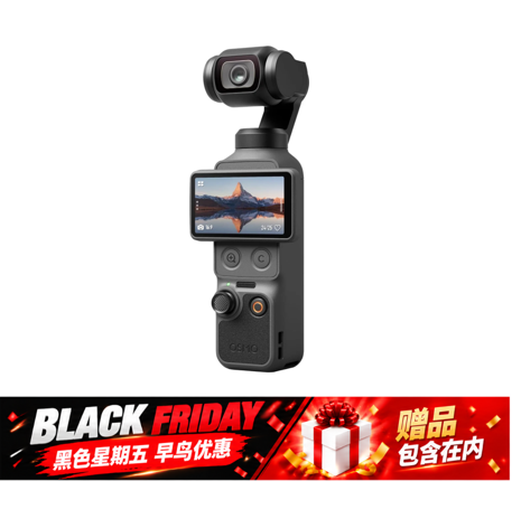 Image unavailable
The product name mentions stabilisation for handheld recording, which could suit moving demonstrations.
The product name lists 4K/240 fps, three-axis stabilisation, 2× lossless zoom and 107 GB of built-in storage.
 Image unavailable
A webcam could suit a lesson taught through a computer; check in advance that the software you want to use fits your workflow.
The product name lists 4K UHD, 8 MP, autofocus, two built-in microphones and a privacy cover.
 Image unavailable
A zoom lens can help you adjust the framing to suit the distance between the camera, teacher and demonstration materials. This is the ZV-E10, not the ZV-E10 II.
The product name lists a 16–50 mm zoom lens. According to the product information, a memory card and adapter/charger are not included; check what comes with this version.
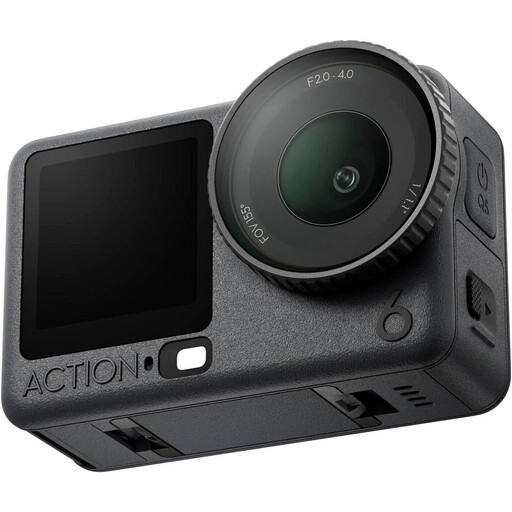 Image unavailable
An action camera could suit a lesson where you film moving demonstrations. Check that the framing works for your fixed recording position.
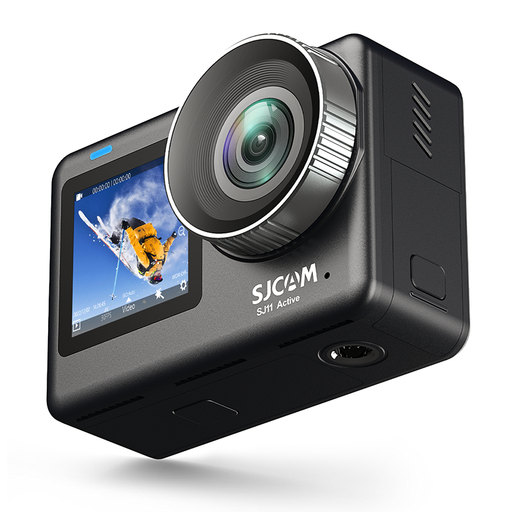 Image unavailable
The product name describes a camera with two screens and 4K video at 30 fps; check that the framing suits the distance and setup for your lesson.
Make a test recording with the lighting you plan to use and adjust the white balance if needed. Canon explains that a white wall can look yellow or green under different types of artificial light; also check the exposure on yourself and the object you’re showing.
Don’t assume it will work without testing. Canon’s example of high-key portrait lighting uses flashes for photography; for continuous video, test the lighting and the balance between background and subject light in your actual setup.
Test the planned recording settings, power supply, storage and audio for a representative section of the lesson. Nikon notes that the Z 30’s possible recording time depends in part on battery life and internal temperature, and gives different times for Full HD and 4K.
Report the fault to the seller. According to the Dutch government, statutory guarantee applies alongside any manufacturer’s warranty; there is no fixed statutory guarantee period in the Netherlands. What you could reasonably expect from the product and the cause of the fault both affect your rights.
For schools making and publishing identifiable images of pupils, the Dutch Data Protection Authority describes consent and security as obligations under the GDPR. For a pupil aged 16 or over, the school asks the pupil for consent; for a younger pupil, it asks their parents. In other teaching or publishing contexts, the applicable legal basis for processing personal data must be assessed separately.