
Tutorial creator filming from a fixed overhead angle
If you mainly film a single sheet of paper and both hands at the same table, you’ll benefit from a frame that keeps the work surface in view and a mount suited to your chosen position.


Start with your setup: the paper, your hands and each fold need to stay clearly in frame from a stable position. A webcam suits recording through a computer, a mirrorless camera works well for switching between different compositions with the right lens, and a camcorder offers a straightforward video setup with built-in zoom. Whichever you choose, check the working distance, mounting options, colour under your own lighting and how clearly your instructions can be heard.
If you mainly film a single sheet of paper and both hands at the same table, you’ll benefit from a frame that keeps the work surface in view and a mount suited to your chosen position.
If you switch between the whole work surface and small folds, you could choose a mirrorless camera with a lens suited to the working distance available. Canon and Sony offer interchangeable-lens models for this.
If you narrate the steps, check the audio as well as the picture in your final setup. Canon says the LEGRIA HF G70 has an input for an external microphone.
A good fit if: you want to record directly through a computer at a fixed work table.
Bear in mind: a desk view doesn’t guarantee that the whole sheet will fit in frame from your position. Check the framing, connection and recording software. Logitech describes Show Mode for desk work and specifies 4K at 30 fps for the MX Brio.
A good fit if: you want to film both the full work surface and smaller folds using different compositions.
Bear in mind: the camera body alone won’t tell you whether the lens can focus at your working distance; check the mounting options too. Canon states that the EOS R50 V does not have in-body image stabilisation.
A good fit if: you want a self-contained video setup with a built-in lens and zoom.
Bear in mind: zoom isn’t automatically useful when filming at a fixed table. Check whether you can show both the whole sheet and the details you want from the available height. Canon specifies 20× optical zoom for the LEGRIA HF G70.
| Buying priority | What should you check? | Who is it for? |
|---|---|---|
| Keep the sheet and your hands in frame | At the intended mounting height, check that the whole sheet and both moving hands remain visible. Also check the mount and its load capacity. | If I want to show the whole folding step, the paper mustn’t disappear out of frame. Around 36% of consumers prioritise seeing the paper and both hands clearly. |
| Small folding details | Check that the lens can focus at the available distance and that you can move from a full view of the work surface to a close-up without losing sight of it. | When small folds need to be clearly visible, I want to show the detail and then return to the whole sheet. Around 29% of consumers give close-up detail the highest priority. |
| Clear spoken instructions | Make a test recording from your actual speaking and camera positions. Listen back and check whether the model can use the external microphone you want. | If I’m explaining things as I fold, my voice needs to be easy to follow. Around 21% of consumers prioritise clear spoken instructions. |
| Recording through a computer | Check that the connection, software and visible framing all work with the computer setup you plan to use for the tutorial. | If you want to keep using your existing computer workspace, recording directly may matter more than setting up a separate camera. Around 14% of consumers make computer recording their top priority. |
Resolution alone won’t tell you whether the whole sheet will be visible from your working distance or whether your instructions will be recorded clearly.
Before deciding based on resolution, test a full sheet, a small fold and your spoken instructions in the same setup.
Nikon states that the Z 30 can record for up to 125 minutes in Full HD under certain conditions; its footnote gives around 35 minutes for 4K.
Check the conditions for the video mode you plan to use, then make a test recording that matches the intended tutorial length.
Logitech describes Show Mode for showing work on a desk. That doesn’t automatically mean the whole sheet will stay in frame from your mounting position; mounts also have height and load limits.
Check the framing at your actual table and make sure the mount can safely support your chosen camera and lens.
Canon offers two options for this type of setup: the EOS R50 V mirrorless camera with an RF mount, and the LEGRIA HF G70 camcorder with built-in zoom.
The ZV-E10 is a mirrorless camera with an interchangeable E-mount lens, making it worth considering if you want to tailor the angle of view to your table.
The MX Brio is a webcam option for recording through a computer. Logitech describes Show Mode for working at a desk.
The Z 30 is a mirrorless camera for video and, according to Nikon, supports an external microphone.
This selection includes webcams for recording through a computer and a mirrorless camera with a zoom lens for switching between a full view and close-up detail.
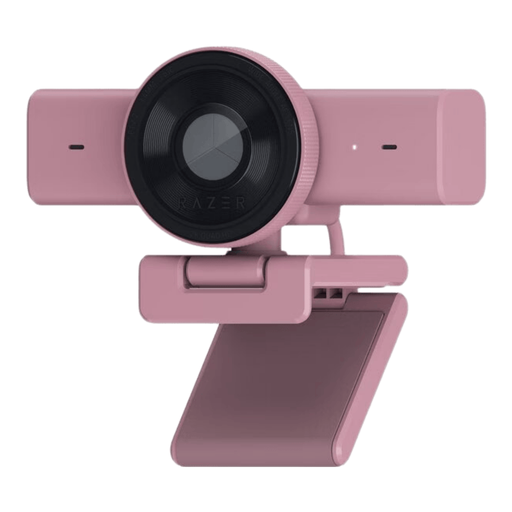 No image available
A webcam option for recording a tutorial through a computer.
The product name specifies USB and 1440p/1080p at 60 FPS.
Check that the connection suits your computer; the product information lists Windows 10/11 and USB-A.
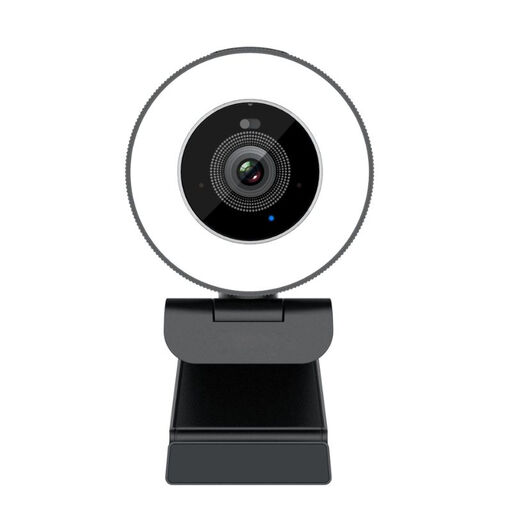 No image available
A webcam option for recording through a desktop computer.
The product name specifies 8MP, autofocus, dual built-in microphones and a privacy shutter; it’s also listed as EU Version.
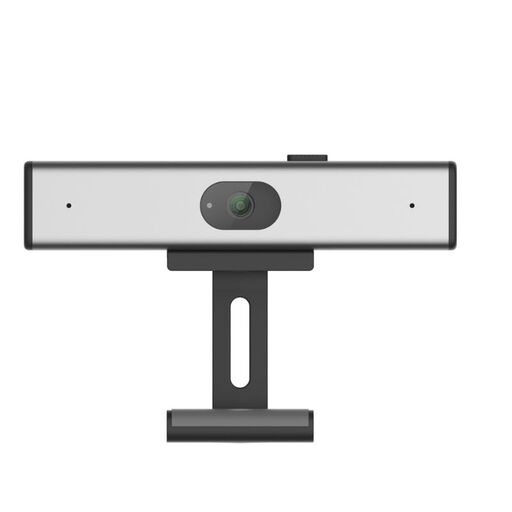 No image available
A webcam option for computer recording if you’re looking for a QHD model.
The product name specifies a noise-cancelling microphone and a clip mount for a desktop or laptop; it’s also listed as EU Version.
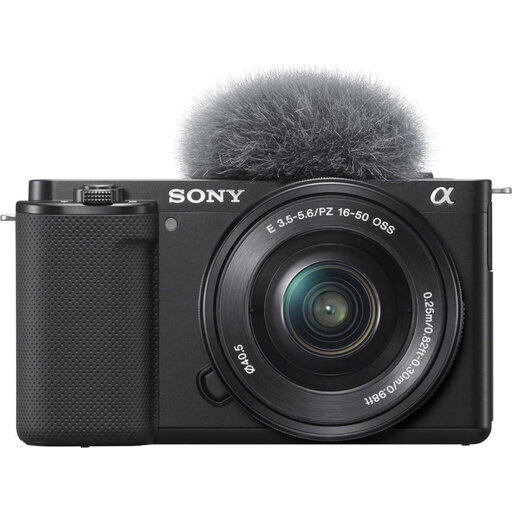 No image available
A mirrorless camera option for switching between a full view and close-up detail with a zoom lens.
The product information lists 4K video, a vari-angle screen and Product Showcase Setting. An adapter/charger and SD card are not included, according to the information.
 No image available
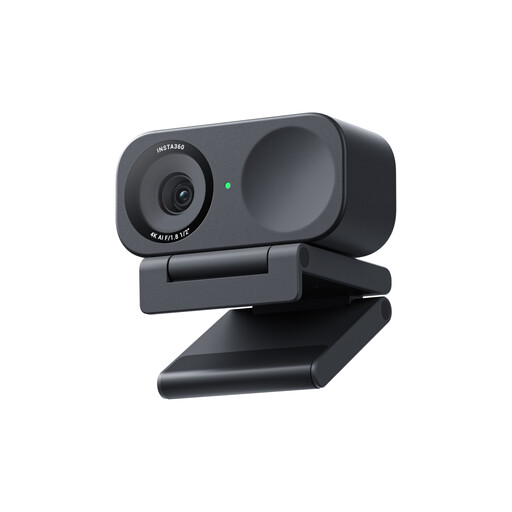
A webcam option if you’re looking for a computer-based recording setup.
The product name specifies 4K, a 1/2-inch sensor, HDR and use with PC or Mac. The product information states that ARM-based Windows systems are not currently compatible.
Not necessarily: the whole sheet, your hands and the important folds need to be visible. Test the framing at the actual table height, and check the permitted weight and mounting method if you’re using an arm.
Make a test recording under the lighting you plan to use for the tutorial and check the colour of the paper. Nikon explains that automatic white balance and a setting based on a white card can produce different results in certain lighting conditions. Check the settings and lighting in your own setup.
Not unless you’ve checked the conditions for the video mode you’ve chosen. Nikon states that the quoted 125 minutes for the Z 30 applies to Full HD under the stated conditions, and gives around 35 minutes for 4K. For other cameras, check their recording conditions, power supply and storage.
According to the Dutch Data Protection Authority, the GDPR applies when a business films identifiable people and publishes the footage for business purposes; you’ll need a lawful basis under the GDPR. Consent is one possible example, but it isn’t the only lawful basis. Whether this applies to your tutorial depends on who is actually identifiable in the footage.
Don’t assume they do. Dutch government information states that the statutory 14-day cooling-off period does not apply when a business buys a product, and that consumer guarantee rules do not apply to B2B sales. Check the applicable sales and guarantee terms before placing your order.