
Filming at a small worktable
You want to see from above while filming whether your hands and knitting stay in frame, without having to place a large screen next to your work.


If you’re filming from above a small table and mainly want to check your hands, stitches and framing, a compact HDMI field monitor with focus-assist tools is better suited to the job than a monitor-recorder. A recorder is worthwhile if you also need a separate recording workflow. Before buying, check that your camera outputs the right video signal and that the screen, mounting, cables and power supply will work with your setup.
You want to see from above while filming whether your hands and knitting stay in frame, without having to place a large screen next to your work.
You want to check fine details and lighting while filming, so you’re looking for focus and exposure-assist tools.
You want more than just a live view, and are also considering recording via the monitor and the storage you’ll need for it.
Best suited to: a small room where you mainly want to see your hands, your work and whether they’re in focus.
Trade-off: a smaller screen takes up less space, but gives you less viewing area; it doesn’t replace a recorder.
Best suited to: checking focus or exposure as well as framing, for example when the light from a window changes.
Trade-off: check the features of the exact version and make sure the screen position and power supply will work with your setup.
Best suited to: a lesson workflow that includes a separate recording.
Trade-off: you’ll also need to match the camera output, recording format and storage media.
| What to consider | What should you check? | Who should pay particular attention? |
|---|---|---|
| Framing and table space | Compare the screen size and mounting points of the exact version with the space where you want to position the screen. | If I want to keep my hands and work in frame without filling up my small table, I prioritise space and positioning. Around 36% of consumers are most concerned about framing and table space. |
| Focus and exposure | Check whether the model has focus peaking and the exposure-assist tools you want; also view the image in the lighting conditions you’ll be filming in. | If I want to see fine stitches clearly and the light might change, focus and exposure-assist tools matter to me. Around 29% of consumers prioritise checking detail and lighting. |
| Connection and power | Compare the camera output and selected video signal with the monitor input; also check the power supply, cables and included accessories. | If I want to connect my camera without any hassle and power the monitor while filming, I check that the combination will work carefully. Around 21% of consumers make connection and power their main priority. |
| Separate recording | Decide whether you need a separate recording, then check the exact model’s supported camera format and storage media. | If I want to make a separate recording as well as save the camera file, I look for a recorder that works with my camera and storage. Around 14% of consumers say external recording is their main concern. |
The model features mentioned are manufacturer specifications and don’t, by themselves, confirm whether a particular combination will work with your camera. For example, Portkeys specifies a 5-inch, 1920 × 1080 screen, HDMI input and focus peaking for the PT5 II. Feelworld lists focus peaking, zebra and false colour among the F6 Plus’s features, while Osee lists peaking and waveform for the Lilmon 5. Check that the features and connections of the exact version suit the way you work.
A supported input signal and the screen’s physical resolution are two different things. Portkeys lists support for 4K30p and a screen resolution of 1920 × 1080 for the PT5 II.
Check the input signals and screen resolution separately for the exact model.
According to Atomos, controlling camera focus via the Shinobi II screen is limited to supported camera models.
Check the full camera model and the required connection before taking this feature into account.
Monitors can have different power options. For recording with the Blackmagic Video Assist 5-inch 12G HDR, Blackmagic lists an SD card or USB-C storage.
Check what power supply, cables and storage your chosen setup requires, and what’s included with that version.
Depending on your setup, you may need an extra power supply, cables or storage.
The PT5 II is a compact HDMI monitor for anyone looking for a screen with basic image-assist tools.
In the version described, the F6 Plus offers a compact HDMI screen with focus and exposure-assist tools.
The Lilmon 5 combines a 5.5-inch HDMI screen with peaking and waveform for extra image monitoring.
The Shinobi II is an HDMI monitor with a stated high brightness and camera control for certain supported models.
The Video Assist series includes monitor-recorders for creators who want to record separately as well as monitor their footage.
This selection consists of portable external screens. Before buying, check that your camera’s video output and connection are compatible with your chosen screen; the product details don’t confirm that these screens are camera monitors.
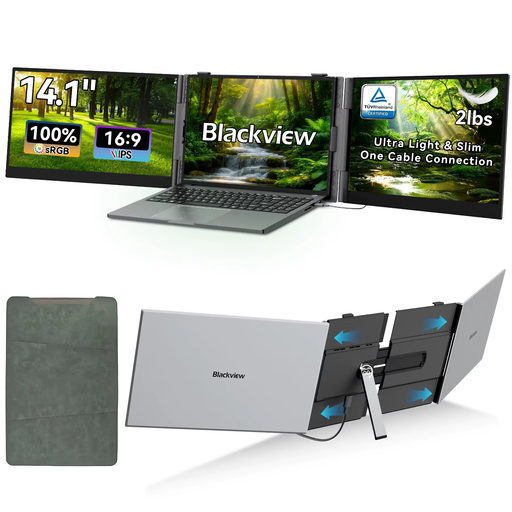 No image available
A portable external screen for a table setup; check that your camera provides a compatible video signal and connection.
According to the product name: 14-inch, 1920 × 1080, IPS, 60 Hz and 16:9. The stated laptop compatibility doesn’t confirm that a camera can be connected directly.
 No image available
A portable screen for anyone who wants more viewing area at the table; check your camera’s video output and the connection required.
The product name lists a 16-inch WUXGA IPS screen and USB-C. Check whether it can connect to your camera.
 No image available
This portable screen could be an option if you want a larger image to view; first check that the connections are compatible with your camera and setup.
The product name lists a 16-inch QLED screen, 2560 × 1600, 16:10, Mini HDMI and Type-C. These details alone don’t confirm camera compatibility.
 No image available
A portable external screen for a table setup; check that your camera can send a compatible video signal to this screen.
The product name lists a 16-inch IPS screen with 2560 × 1600, HDMI and USB-C. The connection alone doesn’t guarantee compatibility with your camera.
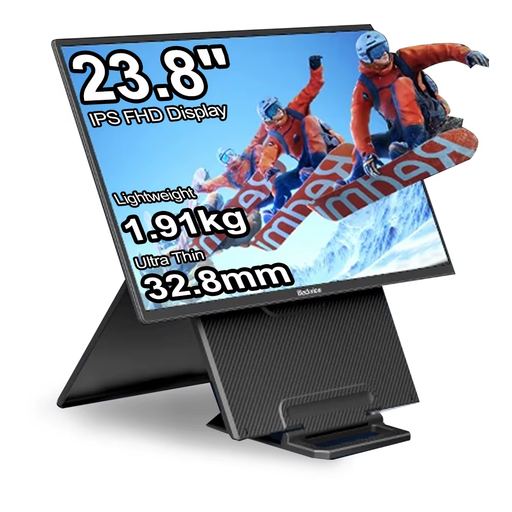 No image available
This larger screen needs more space around your worktable; check the dimensions of your setup and your camera’s connection.
The product name lists a portable HDR LCD monitor with a 100 Hz refresh rate. Check which connections and features are compatible with your camera.
No, check the specific camera and monitor first. Compare the camera’s video output, connection and selected output settings with the monitor’s inputs and supported formats; an HDMI input alone doesn’t confirm full compatibility.
First, set the framing so your hands and work stay in view. Then use focus peaking if your chosen model has it, and make a short test recording beforehand to check your setup.
Only if a separate recording suits the way you work. Blackmagic lists recording as a feature of the Video Assist; if you’re considering a recorder, also check that the camera output, recording format and storage suit your workflow.
According to ACM ConsuWijzer, when you buy a product online you generally have a statutory cooling-off period of up to 14 days after delivery, although exceptions may apply. The Netherlands Authority for Consumers and Markets says that the seller is responsible for the statutory guarantee if a product is faulty.
Respect the privacy of anyone who can be recognised in the footage. The Dutch Data Protection Authority considers recognisable people in footage to be personal data and points out that the private-use exemption doesn’t apply when footage is shared more widely. Before publishing, consider which GDPR lawful basis applies; if in doubt, film only your own hands and work.