If your camera records the footage itself and you mainly want to check the focus and framing of small coin details, a compact HDMI monitor with focus and exposure aids is a good place to start. Choose a monitor-recorder only if you also want to record a separate video file. Check that the HDMI signal, power supply and screen positioning work with your camera and setup, too: a monitor is no substitute for suitable coin lighting or a camera that can focus at close range.
Who is a camera monitor for filming coins for?
Filming coin details
When you’re shooting close-ups, you’ll want to check during filming that small features are in focus and stay within the frame. Focus peaking can help you assess the sharpness of the incoming image, but it doesn’t focus the lens for you.
Creating content at a lit workbench
You may be filming under work lights or beside a window and want to assess the exposure on screen without confusing it with the lighting on the coin. Coin Photography Studio describes coins as reflective and difficult to light.
Creating content with a separate recording workflow
If you want to record a separate file as well as view the camera feed, you’ll need a monitor-recorder that’s compatible with the camera signal, recording format and type of storage you need. That’s a different choice from a monitor that simply displays the image.
What should you look for in a camera monitor?
When filming a coin walkthrough, your choice largely depends on what you want to check first: detail and framing, exposure, practical connections or separate recording.
| What to consider |
What to look for |
Most relevant for |
| Focus and framing |
Compare screen size, panel resolution and aids such as focus peaking or image magnification. Also check that your camera outputs the required video signal. |
If I want to keep small coin details in sharp focus, I’ll prioritise a useful monitoring image; around 36% of consumers put focus and framing first. |
| Exposure and screen visibility |
Check which aids are available, such as waveform, histogram or false colour, and assess the screen in the lighting conditions where you work. Adjust the lighting on the coin separately. |
When I want to assess reflections and highlights without confusing the coin lighting with the monitor’s screen brightness, exposure matters; around 29% of consumers give it top priority. |
| Connections and setup |
Check your camera’s HDMI signal and frame rate against the monitor input, as well as the cables, mounting and power supply you’ll need. A supported input signal doesn’t automatically tell you anything about the panel resolution. |
If I want to connect the monitor to my camera and setup without any surprises, I’ll check the signal, power supply and mounting; around 21% of consumers prioritise this practical setup. |
| Separate recording |
First decide whether you need a separate file. If you’re considering a recorder, compare the camera signal, recording format and suitable storage medium for the exact model. |
If I also want to create a recording file outside the camera, a compatible recorder function is important; around 14% of consumers put separate recording first. |
Common points to watch out for
-
Assuming a 4K input means a 4K panel
A monitor may accept a 4K signal even though its screen has a lower resolution. The panel resolution may therefore differ from what you’d expect based on the input alone.
Check the supported HDMI signals and panel resolution as separate specifications.
-
Choosing a viewing monitor when you want to record externally
A standard monitor displays the camera signal, but doesn’t necessarily record a separate file. A recorder has its own requirements for the signal, recording format and storage.
First decide whether you need external recording, then check the capabilities of the exact model. A recorder may need compatible storage, so check which format it supports.
-
Assuming an HDMI connection lets you control the camera
An HDMI video connection doesn’t prove that camera control will work with your camera model. A 2024 review of the Atomos Shinobi II by Amateur Photographer noted that the camera control still needed improvement.
Check the full camera model and the required connection separately from the video connection.
-
Confusing a brighter screen with better lighting on the coin
The stated brightness of a monitor screen doesn’t change the reflections on the coin you’re filming. Screen visibility and the light on your subject are two separate parts of your setup.
Assess the screen where you’ll be filming and adjust the lighting on the coin separately.
Brands to compare
Portkeys
The PT5 II is a compact HDMI monitor for anyone looking for on-camera focus and exposure aids.
- Portkeys says the PT5 II has a 5-inch screen with 1920 × 1080 pixels, peaking, waveform and a stated maximum brightness of 500 nits.
- Portkeys notes that software varies by version, so check which model you’re comparing.
Atomos
The Shinobi II combines a compact viewing monitor with a higher stated brightness and camera control for supported cameras.
- Atomos specifies 1500 nits and lists power via an NP-F/L-Series battery or USB-C PD.
- Atomos says there’s no built-in battery. Check camera control compatibility with your exact model; Amateur Photographer noted in a 2024 review that this feature still needed improvement.
FEELWORLD
The F6 PLUS is an HDMI monitor with focus and exposure aids; compare other F6 models separately.
- FEELWORLD lists features for the F6 PLUS including focus assist, histogram, false colour and HDMI input and output.
- Product listings refer to both 5.5 inches and 6 inches. Check the screen size and exact model before comparing products.
Viltrox
The DC-550 Pro II is worth comparing if you’re looking for a 5.5-inch screen with HDMI input and output.
- For the II model, Viltrox specifies 1400 nits and HDMI 2.0 up to 4K60.
- The stated brightness isn’t an independent visibility test. Don’t confuse the II model with the older DC-550 Pro.
Blackmagic Design
The Video Assist range is worth considering if your workflow requires external recording as well as monitoring.
- According to Blackmagic Design, the 5-inch 3G has an SD card recorder and supports signals up to 1080p60.
- The 5-inch 12G HDR supports different, higher formats. Choose according to the recording file and camera signal you need; the models aren’t interchangeable.
Product choice for filming with a smartphone
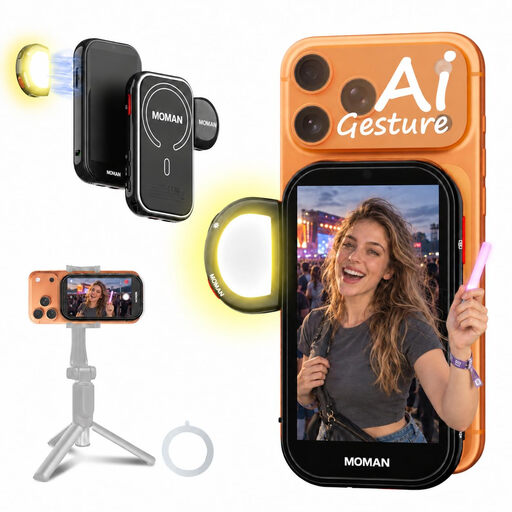
This product is designed for a filming setup with a compatible smartphone rear camera and a separate screen for viewing the composition. It isn’t a general-purpose HDMI camera monitor, so check phone compatibility before considering this option.
 No image available
Moman M4 AI Selfie Monitor, black
An option for viewing your composition on a separate screen while filming with a supported smartphone rear camera.
The product description lists a 4.02-inch screen, wired or wireless mirroring, gesture control, and functions for horizontal mirroring, rotation and different aspect ratios.
According to the product information, the model works with iPhone 7–17 and supported Android phones. A wired Android connection requires HCCast; Google Pixel isn’t supported.
View at Joybuy
Frequently asked questions
Can a camera monitor remove reflections from coins?
No. A monitor helps you assess the incoming image and exposure, but reflections also depend on the lighting and filming setup. Coin Photography Studio describes coins as reflective subjects that are difficult to light.
Does a 4K HDMI input mean the monitor has a 4K screen?
No. According to Portkeys, the PT5 II supports a 4K UHD signal up to 30p, while its panel has 1920 × 1080 pixels. Also check that your camera outputs a supported signal.
What should you check before connecting a monitor to your camera?
Compare the HDMI signal set on your camera with the input on the exact monitor model. Also check which cable, mounting and power supply will work with your setup, and follow the manufacturer’s instructions.
Does the Atomos Shinobi II have a built-in battery?
No, Atomos doesn’t list a built-in battery for the Shinobi II. The manufacturer lists power via a compatible NP-F/L-Series battery or USB-C PD; check which power accessories are included with the specific listing.
When do you need a monitor-recorder?
Choose a monitor-recorder if you want to record a separate file as well as view the camera feed. Then check that the recording formats and storage for the exact model are compatible with your camera signal and workflow.


