
Teacher filming stitches from above
Your main focus is the knitting between your hands. Start by looking at a stable overhead setup, then check the framing on your own table.


If your main aim is to show stitches and hand movements, start with an adjustable document camera. For a computer-based lesson where you talk and occasionally show your work, a webcam may be suitable. A mirrorless camera gives you a choice of interchangeable lenses and recording formats, but requires more thought about the lens, mounting, sound, power and storage. Whichever setup you choose, make a test recording to check that your hands and stitches are in focus and framed well from your working distance.
Your main focus is the knitting between your hands. Start by looking at a stable overhead setup, then check the framing on your own table.
You want to be able to show yourself and your work easily while you talk. Check the camera angle, connection and controls in the software you use.
If you want to record both wide shots and close-ups, consider the lens and the complete recording setup, not just the camera body.
| What to consider | What should you check? | Who is this important for? |
|---|---|---|
| Stitches and hands in shot | Check the framing at the actual mounting height and make sure the camera focuses on your knitting. | If I want viewers to follow both my stitches and hand movements, I want to see how the frame looks at my own workstation. Around 33% of consumers prioritise an overhead view. |
| Live teaching | Check the computer connection and that the camera works with your teaching or recording software. Test the tilted angle too. | If I want to talk and show my work during a lesson, I look for a setup that suits my computer and teaching software. Around 27% of consumers prioritise live computer-based lessons. |
| Wide shots and close-ups | Check the exact lens and what’s included in the kit, then make a test recording from your preferred working distance. | For edited lessons, I want to be able to switch between a wide shot and individual details. Around 20% of consumers prioritise the flexibility to record this way. |
| Clear sound and lighting | Make a test recording to assess the sound, shadows from your hands and how the yarn’s colour appears. | If my instructions need to be easy to follow and my knitting needs to stay visible, I check the sound and lighting together. Around 20% of consumers prioritise clear sound and lighting. |
A resolution figure doesn’t tell you how large a stitch will appear in your frame, or whether both hands will stay in shot.
First decide on the camera angle, working distance and framing you want. Then compare the recording modes supported.
The position of your monitor and work surface determines the angle. A webcam pointing down won’t automatically show all your knitting.
Test the framing with your hands where you plan to film. Check whether you need a suitable mount.
You may need a separate mount to achieve the angle you want.
The body alone won’t determine whether the chosen lens shows your knitting large enough from your working distance.
Check the exact lens and what’s included in the kit against the framing you want.
You may need a suitable lens or other recording equipment.
Document cameras for recording physical work on a computer; the V4K PRO 120 is one option to explore for an adjustable overhead view.
Webcams for computer-based lessons; Logitech says the MX Brio has a mode for showing your desktop.
Adjustable webcams for a fixed computer setup; the Facecam Pro has variable focus.
Mirrorless cameras with interchangeable lenses for different types of lesson recording; the EOS R50 is the camera considered here.
Mirrorless cameras with interchangeable lenses; the ZV-E10 II uses E-mount lenses.
This selection focuses on webcams and cameras for computer-based video. For a knitting lesson, check for yourself whether the setup shows your stitches and hands from the angle you want.
 No image available
This USB webcam is designed for computer-based recording and video calls. Make a test recording to check whether your work surface is clearly in shot from the available position.
The product name lists Full HD 1080P, USB Plug & Play and a built-in microphone. The product description mentions a swivelling lens and a flexible tripod foot.
 No image available
This desktop webcam is designed for computer-based recording. Test whether its fixed position also gives you a useful view of your knitting.
The product name lists 4K UHD, 8 MP, autofocus, dual built-in microphones and a privacy cover. The variant is listed as EU Version, Black.
 No image available
This clip-on webcam is designed for computer use. Check that the mount suits the position and angle you need to film your knitting.
The product name lists 2K QHD, a noise-cancelling microphone and the variant EU Version, Silver.
 No image available
The product description positions this model for video conferencing and collaboration. Check that the setup suits your recording space and the view of your knitting you want.
The product description lists a 120-degree field of view, USB and built-in microphones. The product name specifies 3840 × 2160 pixels at 30 fps.
 No image available
The product description mentions DeskView for computer use. Make a test recording to check whether the camera frames your hands and stitches well from your chosen position.
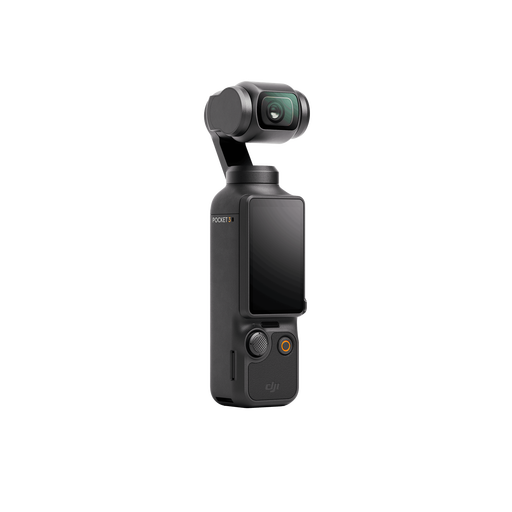
The product name lists a 1-inch CMOS sensor, 4K/120 fps video, 3-axis stabilisation, tracking and an included microphone.
You can with a computer-based setup, provided the camera angle and your teaching or recording software are suitable. Logitech describes Show Mode for showing your desktop on the MX Brio. Make a test recording to check that your hands and stitches stay large enough in shot.
Check the computer port, whether the camera appears in your recording software, the framing and any shadows on your work surface. IPEVO lists USB-A and USB Video Class for the V4K PRO 120; its stated maximum capture area is 440 × 330 mm.
Check which lens comes with the version you choose and whether you already have a suitable mount, audio equipment, power supply and storage. Canon and Sony describe models with interchangeable lenses; a video resolution on its own doesn’t confirm that the lens will frame your knitting from the distance you want.
No. The Netherlands Authority for Consumers and Markets states that there is no fixed period for the statutory guarantee in the Netherlands. Factors including what you could reasonably expect from the product under normal use are taken into account. Any additional commercial guarantee is separate.
Not necessarily. The Dutch Data Protection Authority states that the GDPR applies when recognisable footage is made and published on behalf of a business or organisation for professional or commercial purposes. This requires a legal basis under the GDPR, and consent is one option. The exception for publishing solely for personal or household purposes applies only in limited circumstances.