When choosing a camera for teaching knitting at home, start with the angle and image you need: a document camera is designed to show work on a table, while a webcam is suited to lessons taught via a computer. A mirrorless camera or camcorder may work for recording lessons separately, but check the focus, mounting, sound and storage too. The features manufacturers list won’t automatically tell you whether stitches will be clearly visible in your setup, so make a test recording.
Who is this guide for?
Teachers who want to show stitches from above
You want viewers to be able to follow your hands and knitting. A stable overhead view is therefore a good starting point; IPEVO describes the V4K PRO 120 as having an adjustable arm and the ability to record from above.
Teachers who teach live
You want to explain things during a computer-based lesson and show your work on the table. Logitech describes the MX Brio as having Show Mode for desk work, while OBSBOT lists an adjustable desk mode for the Tiny 2.
Creators making recorded lessons
You record lessons to share later and want to think ahead about sound, storage and your recording setup. Canon lists USB webcam use for the EOS R50, and SD card slots and a microphone input for the LEGRIA HF G70.
What should you look for when choosing?
Document camera above the work table
Choose this option if: stitches and hand movements are the main focus, and you’re filming or teaching via a computer.
Bear in mind: a wide angle of view can show a lot of the table, but check that individual stitches still appear large enough in the frame.
Webcam connected to your computer
Choose this option if: live interaction and switching between yourself and the table are important.
Bear in mind: tilting a webcam won’t automatically give you a sharp close-up; check the framing, lighting and visibility of the stitches.
Mirrorless camera with interchangeable lens
Choose this option if: you want to film yourself as well as your knitting, and adjust the lens and setup to suit your needs.
Bear in mind: the right lens and working distance need to suit your recording angle; a video resolution figure won’t tell you whether a small stitch will be clear.
Camcorder for recording independently
Choose this option if: you want to record lessons onto a memory card and need an input for an external microphone.
Bear in mind: zoom can’t replace a suitable mounting angle; check that you can position the camera securely above the work table.
| What to consider |
What should you check? |
Who is this important for? |
| Stitches and hands in view |
Set up a test frame at your intended working height and check the angle of view, focus, shadows and mounting. |
I want viewers to be able to follow the stitches and my hand movements clearly. Around 33% of consumers put this first. |
| Teaching live |
Check that the camera works with your teaching or recording software, and that switching views keeps the stitches visible. |
When I teach live, I want to be able to show my explanations and work on the table in the same computer setup. Around 27% of consumers prioritise teaching live. |
| Clear explanations |
Record a short explanation from your planned camera position and listen back; if you’re using a separate microphone, check the connection. |
I want students to be able to follow my explanations while watching the needles. Around 20% of consumers consider clear instruction the main priority. |
| Recording a full lesson |
Test your chosen recording settings for the length of a full lesson, and check storage, power and where the recording will be saved. |
Before recording a lesson, I want to know how my chosen camera and recording method handle storage and power. Around 20% of consumers prioritise uninterrupted recording. |
Pitfalls to avoid when choosing
-
Choosing based on ‘4K’ alone
A stated resolution doesn’t tell you how large a stitch will appear in the final image. The wide angle of view on the IPEVO V4K PRO 120 makes it especially worthwhile to check the actual framing.
Set the camera up at the height you plan to use and test whether the needles and stitches are clearly visible in the frame.
If the chosen angle doesn’t work, you may need a different mount or recording position.
-
Assuming Show Mode guarantees a close-up
A feature for showing desk work doesn’t prove that fine stitches will be easy to make out in your image.
Check how the specific model frames and focuses on your knitting; don’t choose based on the feature name alone.
-
Leaving accessories and sound until after you choose a camera
A mirrorless camera and a camcorder need different recording setups. A lens, memory card, mount or microphone input won’t automatically solve mounting and audio clarity issues.
Make a list of the equipment you’ll need in advance and check what comes with the version you choose.
Depending on your setup, you may need to buy a suitable lens, memory card, mount or separate microphone.
-
Confusing a manufacturer’s warranty with your statutory rights
A manufacturer’s warranty isn’t the same as your statutory rights. According to the Dutch government, there is no fixed statutory warranty period in the Netherlands; if a product is faulty, the seller must provide a solution.
Check the terms of any manufacturer’s warranty separately, and contact the seller if you have a problem with a product.
Brands to consider
These brands offer different types of camera setups; the features mentioned apply to the specific models and product ranges described here.
IPEVO
Document cameras for showing work on a table, with the V4K PRO 120 as an example of a model with an adjustable arm and USB connection.
- According to IPEVO, the V4K PRO 120 offers an overhead view, autofocus and a built-in microphone.
- Check that the stitches remain large enough in the frame; these features don’t automatically apply to other IPEVO cameras.
Logitech
Webcams for computer-based lessons; Logitech describes Show Mode for desk work on the MX Brio.
- According to Logitech, tilting the MX Brio is one way to share work on your desk.
- A desk view alone doesn’t prove that fine stitches will be clearly visible; check the result with the specific model.
OBSBOT
Computer-based PTZ webcams, including the Tiny 2 with adjustable camera and desk modes.
- OBSBOT lists autofocus, manual focus and a minimum focusing distance of 10 cm for the Tiny 2.
- Desk mode requires a software setting; the listed features don’t guarantee that your chosen knitting setup will work straight away.
Canon
Mirrorless cameras and camcorders, with the EOS R50 and LEGRIA HF G70 as two different examples.
- Canon lists UHD 4K/30p and USB webcam use for the EOS R50; for the HF G70, Canon lists two SD card slots and a 3.5mm microphone input.
- For the R50, match the lens and mounting to your working distance; for the HF G70, check that the card and mounting suit your recording plan.
Elgato
Webcams for computer setups; the Facecam Pro is a specific model to consider if you want manual focusing options.
- Elgato lists autofocus and variable manual focus from 10 cm for the Facecam Pro.
- These specifications apply to the Facecam Pro and don’t show how stitches will look in your camera setup.
Joybuy products
These Joybuy products are aimed at video recording and computer-based instruction. For teaching knitting at home, pay particular attention to whether the mounting, framing and focus suit filming work on a table.
 No image available
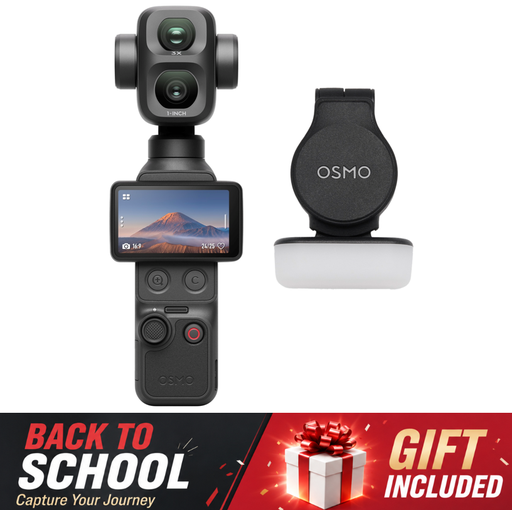
Osmo Pocket 4P – Standard Combo, Black
May suit anyone who wants to record lessons as video; check in advance that you can position the camera securely above the work table.
The product description lists a 1-inch CMOS sensor and a 20mm f/2.0 wide-angle lens.
According to the product description, 4K/240fps is only available in slow-motion mode.
Joybuy
 No image available
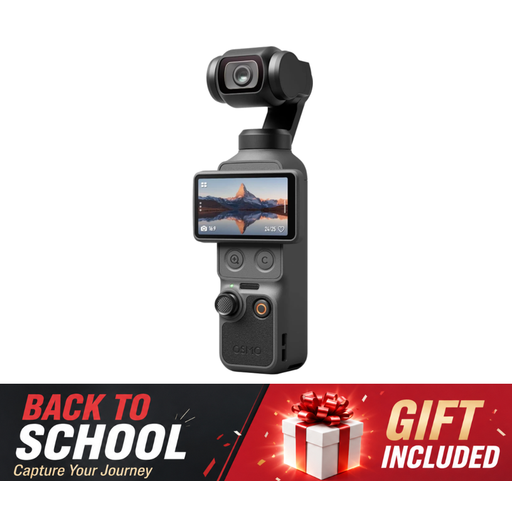
DJI Osmo Pocket 4 – Standard Combo
May be worth considering if you want to record lessons as video; check that the camera captures your work on the table clearly from your chosen mounting angle.
The product description lists a 1-inch CMOS sensor, 4K video, 3-axis stabilisation, 2× lossless zoom and 107GB of built-in storage.
The product title also mentions a 2-inch rotating screen.
Joybuy
 No image available
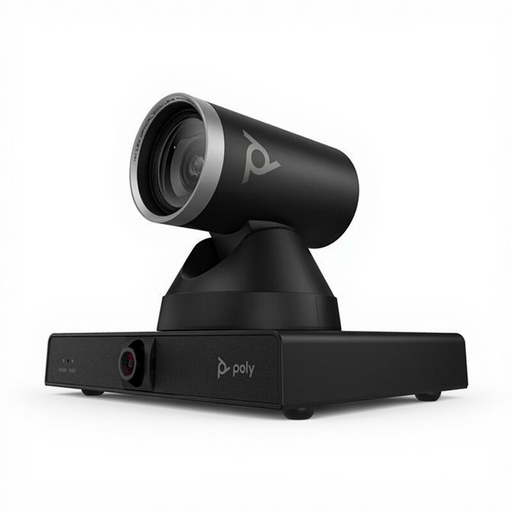
HP Poly Studio E60 Smart Camera 4K MPTZ
May suit computer-based instruction; check that the mounting and camera controls work for the overhead view you want.
The product description lists 4K video, PTZ control and 12× optical zoom.
The specified installation needs to be sturdy enough to support the weight of 1.79 kg.
Joybuy
 No image available
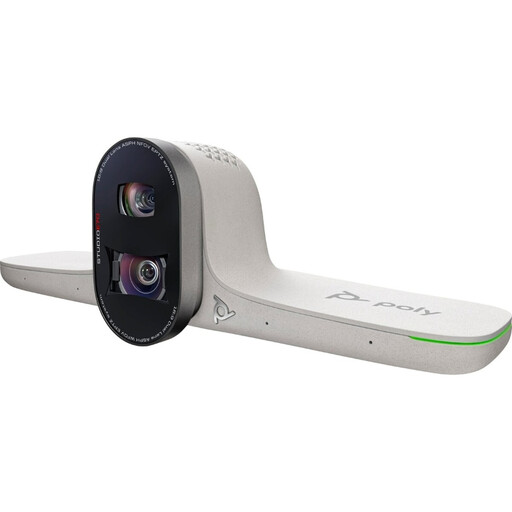
HP Poly Studio E70 Smart Camera
May be of interest if you want to use video in a computer-based setup; check that the camera’s position shows your work area clearly.
The product description lists a dual camera, 7.3× digital zoom and a field of view from 93° to 111°.
The product description also mentions tracking and framing features.
Joybuy
 No image available
Philips 4000 Series 4K UHD Webcam – EU Version, Black, SPL6408BT/00
May suit a computer-based lesson; check that the clip fits your screen and that the webcam gives you a clear enough view of your work area.
The product title lists autofocus and built-in dual microphones. The product description mentions USB-A and a universal clip mount.
Joybuy
Frequently asked questions
How can you check whether the stitches are in focus?
Make a test recording of the yarn and needles from the height you plan to use. Watch it on a screen similar to the one your students are likely to use, and check the focus, the size of your work in the frame and any shadows from your hands.
Do you always need a standalone video camera for a live knitting lesson?
No. A document camera or webcam may also suit a computer-based setup. IPEVO lists a USB Type-A connection for the V4K PRO 120, and Logitech describes sharing desk work with the MX Brio; also check your software and the actual framing.
What should you consider when it comes to costs and warranties after buying?
Check which lens, memory card, mount or microphone your chosen setup needs, and what comes with the product. According to the Dutch government, there is no fixed statutory warranty period in the Netherlands; if a product is faulty, the seller is responsible for providing a solution. Any manufacturer’s warranty is separate.
Can you publish a knitting lesson featuring other identifiable people?
This depends, among other things, on who you film and how you share the video. According to the Dutch Data Protection Authority, the household exemption does not automatically apply if identifiable people outside a very limited personal circle appear in the video. Business or commercial recording and publication require a legal basis under the GDPR; consent is one possible example, but it isn’t the only possible basis.


