
Focusing on small repair details
You want to show screws, contacts or actions up close. Check the focusing distance of the complete camera and lens combination, as well as the framing at your working distance.


Start with the smallest action you want to show and the distance at which the camera can sit above your work surface. A USB webcam suits a fixed computer setup, a mirrorless camera lets you choose from interchangeable lenses, and a compact gimbal camera is particularly useful if you also want to capture moving footage. Test your setup to check that small parts appear in focus and at a suitable size.
You want to show screws, contacts or actions up close. Check the focusing distance of the complete camera and lens combination, as well as the framing at your working distance.
You want to capture your hands and the item you’re working on from a stable angle, without having to hold the camera during the repair. Check that the mount is suitable for your workspace.
You also want to record explanations or use your computer during longer repair steps. Factor in audio, connectivity and storage, and test your complete recording setup beforehand.
Suitable for: a fixed workbench setup where you record using a computer. Elgato lists autofocus from 10 cm for Facecam Pro; Logitech describes a mode on MX Brio for pointing the webcam down at your desk.
Keep in mind: check computer and USB compatibility, the mount and the framing. Elgato states that Facecam Pro has no built-in microphone.
Suitable for: small parts or changing compositions where you want to choose a suitable close-up lens. Canon EOS R50 supports RF and RF-S lenses; Sony ZV-E10 II uses E-mount lenses.
Keep in mind: the camera body alone doesn’t determine how close you can focus. Check the exact lens, working distance and whether the complete setup will fit above your desk.
Suitable for: anyone who wants to capture moving explanatory footage as well as fixed shots. DJI lists product showcase and continuous autofocus modes for Osmo Pocket 3.
Keep in mind: DJI specifies a minimum subject distance of 20 cm for Osmo Pocket 3. Test from that distance to see whether the smallest parts appear large enough; the gimbal isn’t a substitute for a suitable mount above your workspace.
| What to consider | What to look for | Who it matters most to |
|---|---|---|
| Getting small parts in focus | Measure the distance from the lens to the item you’re working on, and check the focusing distance and framing for the exact camera and lens combination. | If I want to show screws or contacts clearly, I need to know whether they’ll appear in focus and at a suitable size from my working distance. Around 36% of consumers put these details at the top of their list of buying concerns. |
| A fixed camera angle and hands-free filming | Check the mount and make a test recording from the planned height, showing both the item you’re working on and your hands. | When I need both hands to carry out a repair, I want a stable image that doesn’t obscure what I’m doing. A fixed, practical camera angle is the top priority for around 29% of consumers. |
| Recording via a computer | Check the required USB connection, operating system and recording settings against your computer. | If I want to use my existing home-working computer, I need to know whether the camera will connect to it and fit into my recording workflow. Around 21% of consumers start by checking computer compatibility. |
| Audio and longer recordings | Check whether a microphone is built in or can be connected, where footage is stored and whether the power supply is suitable for your planned recording time. | For anyone who wants to record explanations or capture longer repair steps, clear audio and a suitable recording workflow matter most. Around 14% of consumers prioritise this combination. |
When filming small parts, the focusing distance can matter more than the stated video resolution. DJI specifies a minimum subject distance of 20 cm for Osmo Pocket 3; Elgato lists autofocus from 10 cm for Facecam Pro.
Measure the available distance and try out the framing to check that the smallest relevant part appears in focus and at a suitable size.
Close-up capability also depends on the lens you choose. Canon lists RF and RF-S lenses for EOS R50; for Sony ZV-E10 II, check the specifications of the specific lens too.
Check the exact kit, lens mount, focusing distance and magnification before assessing your setup.
A suitable lens and mount may need to be bought separately.
A stand that lets you point the webcam at your desk doesn’t guarantee that your work and hands will be clearly in shot. Elgato also states that Facecam Pro has no built-in microphone.
Test the camera angle, focus and audio where you’ll actually be filming the repair.
With Facecam Pro, you’ll need a separate microphone to record spoken explanations.
Facecam Pro is a USB webcam for a fixed computer setup where close-range focusing matters.
MX Brio is designed for anyone who wants to show their work surface as well as record using a computer.
EOS R50 is a camera body for use with a suitable RF or RF-S lens.
ZV-E10 II is an option with interchangeable E-mount lenses for anyone who wants to choose a lens for wide shots or close-ups.
Osmo Pocket 3 is a compact camera with a fixed lens for anyone who also wants to capture moving footage of the repair process.
These webcams are designed for recording via a computer or for a fixed camera setup at your workspace. Make a test recording first to check the framing, focus and audio for your repair.
 Image unavailable
Suitable for anyone who records via a computer and wants to attach the webcam to a laptop or monitor.
1080p Full HD; autofocus; 78° field of view; two built-in microphones; adjustable clip.
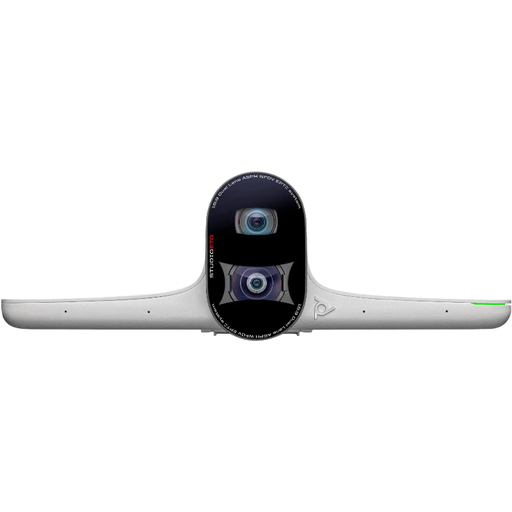 Image unavailable
Suitable for anyone who wants to use a camera in a fixed position and record the footage via a computer.
The product description lists two cameras, 4K video, digital zoom and a 93° to 111° field of view. It also mentions freestanding or wall-mounted installation and connection to a computer via USB-C.
 Image unavailable
Suitable for anyone looking for a desktop webcam with autofocus and built-in microphones for recording via a computer.
4K UHD; autofocus; two built-in microphones; privacy cover.
 Image unavailable
Suitable for anyone looking for a PC webcam that can be mounted on a monitor, laptop or tripod.
2K QHD video; noise-cancelling microphone; USB connection.
 Image unavailable
Suitable for anyone who wants to connect a camera in a fixed position to a computer; test the framing beforehand to make sure it works for your workbench.
3840 × 2160 at 30 fps; 120° field of view; built-in microphones; USB connection to a computer.
No, 4K alone doesn’t guarantee this. First check whether the camera can focus at your planned distance and whether the part appears large enough in the frame. Elgato lists autofocus from 10 cm for Facecam Pro; DJI specifies a minimum subject distance of 20 cm for Osmo Pocket 3.
First decide where your work and hands will be, then test the framing from the intended mounting position. Logitech describes a mode on MX Brio for pointing the webcam down at your desk, but check for yourself that all the necessary actions remain in shot.
That depends on the camera and the audio setup you want. Elgato states that Facecam Pro has no built-in microphone; DJI lists three built-in microphones for Osmo Pocket 3. Make a test recording to check whether the sound is clear enough in your workspace.
When you buy as a consumer in the Netherlands, the product must meet what you can reasonably expect from it. The Dutch government states that there is no fixed statutory warranty period; if there’s a problem, contact the retailer. The assessment depends on factors including the product and the cause of the fault.
The Dutch Data Protection Authority describes an exception for footage you keep private or share only with a very limited circle. If other identifiable people appear and you share the video more widely or for business purposes, this exception doesn’t apply; before recording and publishing, consider which GDPR legal basis you need.