
If you mainly film your work from above
You want viewers to see your hands, brush and ceramics from above. On a small desk, the space taken up by an arm or base often matters more than how easy the camera is to carry around.


If you mainly want to film your hands and ceramics from above, start by considering the camera angle and the space on your desk. An adjustable USB document camera works differently from a webcam tilted downwards. A webcam is a good fit for recording on a computer and occasionally showing your work; consider a standalone camera if you also want to film from other angles. Before choosing, check each model’s focusing distance, mounting options and audio features.
You want viewers to see your hands, brush and ceramics from above. On a small desk, the space taken up by an arm or base often matters more than how easy the camera is to carry around.
You want viewers to hear you explain what you’re doing and occasionally see the work on your desk. In that case, it’s important that the camera works with your computer and connections, and suits the space available for filming.
As well as the painting process, you want to film yourself or moving footage, so you’ll need space for a separate camera setup.
Best for: a lesson where you show your hands and ceramics while recording on a computer.
Bear in mind: you’ll need a computer, a USB connection and space for the arm and base. Check they’ll fit alongside your work.
Best for: mainly showing yourself on a computer and occasionally bringing your work into shot. Logitech describes a Show Mode for the Brio 500, which lets you tilt the webcam downwards.
Bear in mind: the screen position and camera angle determine whether a three-dimensional object is clearly visible.
Best for: filming from several fixed positions, such as your work and yourself.
Bear in mind: a fixed lens limits your choice of angle; with a mirrorless camera, the angle and equipment you need also depend on the lens you choose.
Best for: capturing moving footage as well as a fixed painting demonstration.
Bear in mind: stabilisation isn’t a substitute for mounting the camera above your work for a fixed shot. Check the focusing distance and framing too.
| What to consider | What should you check? | Who should pay extra attention? |
|---|---|---|
| Overhead view and focusing | Measure your work area and check the exact model’s focusing distance, camera angle and mounting options. | If I want to keep my hands and the whole ceramic object in shot, the camera position is my first concern; around 36% of consumers give the overhead view top priority. |
| Setup on a small desk | Check the USB type, computer compatibility, cable length and whether the camera can point downwards from where you’ll be sitting. | If I want to record using my existing computer with as little rearranging as possible, a suitable connection and compact setup matter; around 29% of consumers prioritise a simple computer setup. |
| Clear commentary | Make a short test recording from where you’d normally speak, then check the audio and any microphone connections. | If viewers need to follow my commentary while I work, clear audio comes first; around 21% of consumers make sound quality and control their top priority. |
| Other angles | Decide whether you’ll mainly film a stationary overhead view or also want moving footage; then check the mounting options and focusing distance. | If I want to film from other angles as well as record the lesson, I’ll benefit more from a setup I can move; around 14% of consumers give changing angles top priority. |
A camera may focus at close range, but that doesn’t mean your hands, lens and the whole ceramic object will fit clearly in shot from the position available to you.
Mark out where the camera will go and check both the distance to the object and the space needed for an arm, base or tripod.
A desk mode doesn’t guarantee that a tall bowl or delicate brushstroke will be visible from every screen position.
Check your desk and object measurements to make sure the webcam can point down far enough.
A manufacturer’s warranty alone doesn’t determine your statutory rights with the seller.
Keep your proof of purchase and product description. If a product develops a fault during normal use, contact the seller; ACM ConsuWijzer explains your statutory rights.
The V4K PRO is a USB document camera for demonstrating hands-on work through a computer.
The Brio 500 is a webcam for anyone recording on a computer who sometimes wants to show work on their desk.
The ZV-1F is a standalone compact camera with a fixed wide-angle lens.
The EOS R50 V is a mirrorless camera for anyone who wants to choose lenses and connect audio equipment.
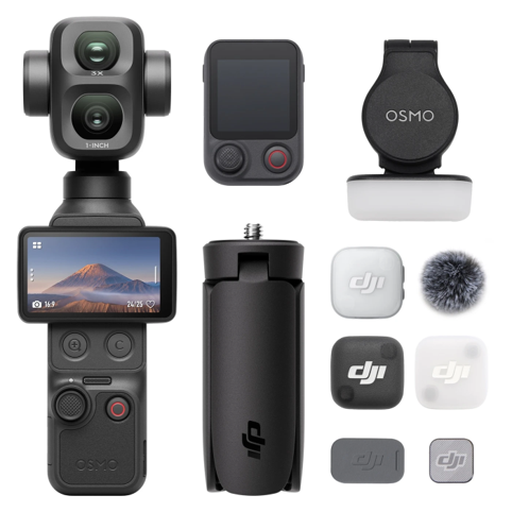
The Osmo Pocket 3 is a compact pocket camera for creators who also want to film from moving angles.
This selection includes pocket cameras and webcams for recording a painting lesson on a computer.
 No image available
A pocket camera for recording on its own; check that you can position it securely at the right height for filming your ceramics.
The product description lists a 1-inch CMOS sensor, a 20mm wide-angle lens and 4K video. 4K/240fps is listed for slow-motion recording only.
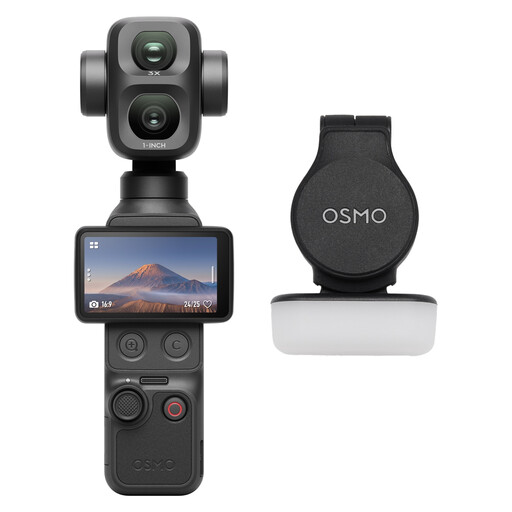 No image available
A pocket camera for recording video on its own; decide in advance how you’ll position it above or beside your work.
The product description lists a 1-inch CMOS sensor, a 20mm wide-angle lens and 4K video. 4K/240fps is listed for slow-motion recording only.
 No image available
An option for recording on a PC or laptop; check whether the flexible base gives you a useful angle for filming your ceramics from your desk.
The product description lists 1080p video, a built-in omnidirectional microphone, a 120° lens, a 360° rotating lens and a flexible tripod base.
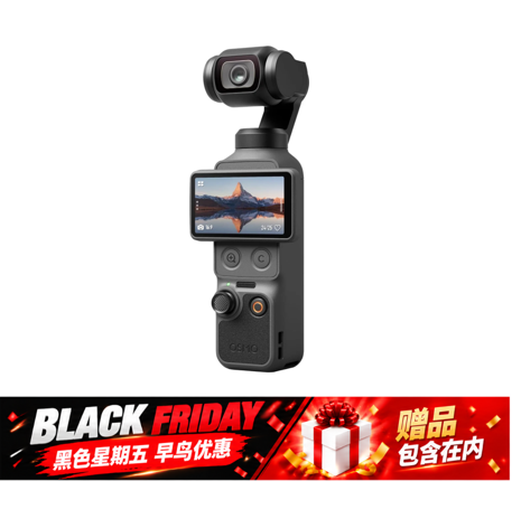 No image available
A pocket camera for recording on its own; check that the focusing distance and framing you want suit the distance from your camera to your work.
The product title lists 4K video, 3-axis stabilisation, 2× lossless zoom, 107GB of built-in storage and a 2-inch rotating screen. It also lists 4K/240fps.
 No image available
A webcam for recording on a computer; check that the included clip mount suits the position you want to film your work from.
The product title lists 4K UHD, autofocus and two built-in microphones. The product description mentions USB-A, a clip mount and a privacy cover.
Measure your work surface and decide where to position the camera first. Compare this with the focusing distance and adjustability of the exact model: IPEVO lists focusing from 10 cm for the V4K PRO, while Sony gives the ZV-1F’s focusing distance as around 5 cm from the front of the lens. Take a test recording with your hands in shot too.
Check that the connection is compatible with your computer and that your recording software works with the camera. IPEVO lists USB-A and an attached 150 cm cable for the V4K PRO; allow for the distance to your computer when setting it up.
Contact the seller about your statutory rights. According to ACM ConsuWijzer, what you can reasonably expect depends on the product; statutory rights and any manufacturer’s warranty are not the same thing.
That depends on how you use the footage. According to the Dutch Data Protection Authority, identifiable images are personal data. Private use that stays private or is shared only with a very small group is different from wider publication or commercial use. If you film or publish footage of others outside that private context, consider the applicable legal basis and obligations under the GDPR. The specific consent rules the Authority describes for schools don’t automatically apply to an individual student.