
Teacher who mainly films their hands
You want to show the paper, pen nib and movements without taking up too much space on your work surface. IPEVO, ELMO Europe and Epson describe document cameras for showing paper and teaching materials.


For calligraphy lessons at a small table, a document camera is a natural choice if you mainly want to show paper and your hands from above via a computer. A tilting webcam is better suited to online teaching where you want to switch between yourself and the desk; a compact or mirrorless camera is worth considering if you also want to record independently. For any model, check that the framing, focus, connection and mounting options suit your workspace.
You want to show the paper, pen nib and movements without taking up too much space on your work surface. IPEVO, ELMO Europe and Epson describe document cameras for showing paper and teaching materials.
You want to show your desk during a video call and perhaps switch back to yourself. Logitech describes Show Mode for sharing notes and sketches on your desk.
You also want to record outside video calls and have more choice over framing or sound. Sony and Canon describe cameras with video recording and audio features.
A good fit if: you mainly want to show paper and your hands from above via a computer.
Check: the stated capture area and the space taken up by the base and arm need to suit your table.
A good fit if: you want to switch between yourself and the desk during an online lesson.
Check: tilting down does not guarantee a straight-down view; check the framing and focus from your intended position.
A good fit if: you want to film away from a fixed computer setup too, and use a built-in zoom lens.
Check: you’ll still need a stable position above the table; check the framing from there.
A good fit if: you film other things as well as your work surface, and lens choice or separate audio connections are important to you.
Check: the lens, mounting setup and working distance all need to work together; more adjustment options don’t automatically make the setup simpler.
| What to consider | What to look for | Who it matters most to |
|---|---|---|
| Work surface and hands in shot | Compare the writing area you need with the capture area, and allow for the base, arm and mounting height. | If I want to keep the paper, pen nib and both hands in shot without blocking my writing space, framing comes first. Around 36% of consumers in this choice context give it their highest priority. |
| Sharpness of the nib and lines | Check the focus at your actual writing distance and test fine lines with a moving hand. | When students need to follow small strokes, I want to know how sharp the pen nib stays while writing. Around 29% of consumers in this choice context prioritise that clarity. |
| Connection for live lessons | Check that your computer, port and teaching software support the camera, and find out how to switch between camera views. | If I teach via a computer, I want to use the camera as part of my teaching setup without any fuss. Around 21% of consumers in this choice context prioritise their computer workflow. |
| Recording independently and explaining | Check how recordings are saved and whether the audio setup suits your lessons. | When I record lessons in advance, I want to film without a fixed live-teaching setup and make sure my explanations are easy to hear. Around 14% of consumers in this choice context prioritise independent recording and sound. |
For the IPEVO V4K, the stated maximum speed of 30 fps applies to live video at Full HD; that specification does not automatically apply at the maximum resolution.
Compare the resolution and frame rate for the video mode you actually plan to use during lessons.
Logitech’s Show Mode is designed for sharing work on your desk, but it doesn’t guarantee that all your paper will be in shot or that the pen nib will stay in focus.
Test the webcam from its planned position, with the whole sheet of paper and both hands in shot.
With a mirrorless camera, framing and working distance also depend on the lens and mounting setup. According to Canon, the Canon EOS R50 V kit with RF-S 14–30mm lens does not include a USB-C charger.
Check what’s included and try the planned position above the table before choosing.
The V4K is a USB document camera for showing paper via a computer.
The MX-P3 is a document camera with USB, HDMI and SD recording options.
The MX Brio is a webcam for computer-based lessons where you also want to show your desk.
The ELPDC07 is a USB visualiser for teaching materials and objects.
The EOS R50 V is a mirrorless camera for creators who want to shoot different types of footage and use interchangeable lenses.
The ZV-1 II is a compact vlogging camera with a built-in zoom lens for filming away from your writing desk.
These Joybuy picks include webcams for computer-based lessons and compact cameras for video recording. For calligraphy, check in particular that the camera can keep your pen, hands and paper in shot from the planned mounting position.
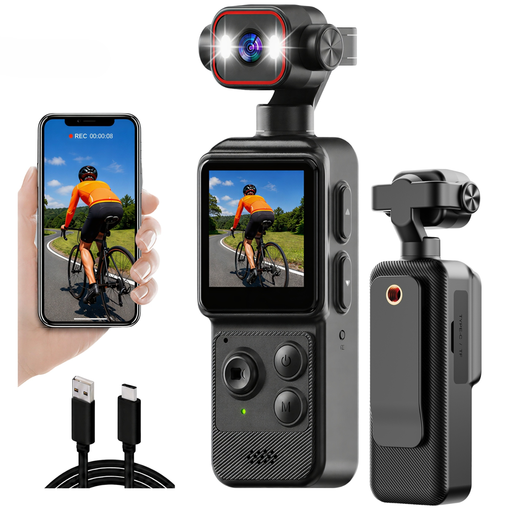 No image available
A clip could be useful if you have somewhere to attach it; check whether that position above your work surface gives you a stable image.
The product name lists 4K, a 1.54-inch display, app control, an LED light and a 1200 mAh battery.
 No image available
Could suit computer-based lessons if the mounting position gives you the view of the paper and hands you need; also check that your teaching software supports it.
The product name lists Full HD 1080p, a microphone and a USB connection.
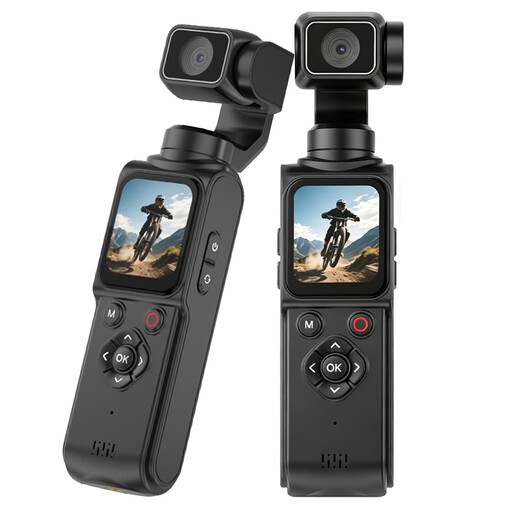 No image available
The rotating lens could be useful if you want to adjust the viewing direction; check whether the included tripod gives you a practical overhead position on your table.
The product name lists a lens that rotates through 330°, a 1.72-inch touchscreen and Type-C.
 No image available
Could suit computer-based lessons if your monitor or laptop position gives you the framing you need; check the viewing angle with the paper and hands in shot.
The product information lists a fixed 78° field of view and an adjustable clip for mounting on a laptop or external monitor.
 No image available
Could suit online teaching if the webcam position captures enough of your work surface; check the framing from where you use your computer.
The product name lists 8 MP, autofocus, two built-in microphones, a privacy cover and the EU version in black.
Measure the area that needs to stay visible while you write and compare it with the capture area from the camera’s intended position. IPEVO lists a maximum of 342 × 255 mm for the V4K; ELMO gives 374 × 281 mm for the MX-P3 in 4:3. Leave room for the camera base and your writing arm too.
IPEVO says the V4K uses USB-UVC and is designed for Mac, PC and Chromebook. Also check that your computer and teaching software recognise the camera. For the ELMO MX-P3, you can also compare its documented USB and HDMI outputs.
Set the camera up at your actual writing distance and test it with moving hands and fine lines. ELMO lists a minimum focus distance of 100 mm and one-touch autofocus for the MX-P3; Epson lists one-touch autofocus for the ELPDC07.
Check which recording, mounting and power accessories are included; Canon says the EOS R50 V kit with RF-S 14–30mm lens does not include a USB-C charger. According to ACM ConsuWijzer, online consumer purchases generally come with a cooling-off period of up to 14 days after delivery, with some exceptions. In the Netherlands, your statutory guarantee depends on what you could reasonably expect from the product.
According to the Dutch Data Protection Authority, a legal basis under the GDPR is required when identifiable footage is made and published on behalf of an organisation. For schools, the regulator explains that a student aged 16 or over must give their own consent if the school films them in an identifiable way and publishes the recording. This guidance does not offer a general conclusion for other situations.