
Teacher with a fixed worktable
You want pupils to be able to follow the placement of paper, cut-outs and hands clearly. Focus on framing and focusing at the distance you plan to use.


For teaching live from a fixed computer setup, a webcam is a practical choice. For recording independently and matching the lens to your work surface, a mirrorless camera is a better fit. A compact gimbal camera is worth considering if you regularly change your camera angle. Test it with your own lighting to check that the whole work surface stays in focus, your instructions are easy to hear and the footage doesn’t flicker.
You want pupils to be able to follow the placement of paper, cut-outs and hands clearly. Focus on framing and focusing at the distance you plan to use.
You film independently under artificial light and want to avoid distracting bands of light in your recordings. An adjustable setup can be important if you need to change the frame.
You want to share your work surface while delivering instructions through your computer. The connection, camera position and clear audio are all important considerations.
A good fit if: you mainly teach live or record from a fixed computer setup.
Bear in mind: the required computer port and any software limitations.
A good fit if: you want to create a fixed recording setup and choose a lens to suit your working distance.
Bear in mind: the camera body, lens and mount all form part of the setup, so check what’s included with the version you choose.
A good fit if: you regularly change your camera angle while recording lessons.
Bear in mind: a fixed lens offers less flexibility when adjusting the frame at a fixed mounting height; stabilisation is no substitute for a suitable overhead mount.
| What to consider | What should you check? | Who is this important for? |
|---|---|---|
| Work surface and details | At your planned mounting height, test a frame that includes the whole sheet and the smallest movements. With a mirrorless camera, check the lens you’ve chosen and its focusing distance. | If I want to show both the whole collage and small cut-outs, I need to know what will stay sharp and visible in one frame. Around 31% of consumers give highest priority to the work surface and small movements. |
| Flicker under artificial light | Test with the lights and dimmer setting you’ll use during the lesson. For areas with a 50 Hz mains frequency, Sony recommends a shutter speed of 1/50 or 1/100 of a second to help prevent flicker; this won’t guarantee results with every light. | If I’m filming under my own lights, I want to avoid distracting bands or changes in brightness. An estimated 31% of consumers prioritise stable footage under artificial light. |
| Clear instructions | Make a test recording from your usual speaking position and play it back. Check that your setup and any microphone you use are suitable for the distance between you and the camera. | If I’m explaining each step as I demonstrate it, my voice needs to be easy to follow alongside the view of the work surface. Around 23% of consumers consider clear instructions their main priority. |
| Connection and lesson format | Decide whether you’ll be sharing live or recording independently. For a webcam, check the required port, operating system and settings used by your lesson app. | If I’m teaching directly through my computer, I want the camera and lesson app to fit the way I already work. Around 15% of consumers give this computer workflow highest priority. |
Even at a high resolution, the framing, distance and focus determine how much detail is actually visible.
Before choosing a camera or lens, test both the smallest movement and the whole collage sheet at your intended working distance.
Connections and available software can vary by operating system. Logitech specifies USB-C with USB 3.0 for the MX Brio. For ChromeOS and Linux, the manufacturer describes basic UVC support only, without Logitech software functionality.
Check the port, operating system and settings you need for your lesson app.
Stabilisation and a fixed angle of view don’t guarantee that the whole table will be visible from your preferred position.
Check the mount and test a frame of the whole sheet before using the camera for an overhead view.
Worth considering if you teach a collage class directly from a computer and want a camera designed for desktop use.
An option to explore if you want to put together a mirrorless camera setup with a lens of your choice for recording at a fixed table.
An interchangeable-lens option if you want to put together a fixed video setup.
Worth considering if you also regularly film from different angles, as well as showing the work surface.
Another mirrorless camera option to consider if you’re looking at a compact Micro Four Thirds setup.
This selection includes webcams for computer-based lessons and a compact gimbal camera for recording from different angles. Check that each camera’s mounting options, framing and connection suit your lesson setup.
 No image available
A webcam option for computer-based lessons where you want to show your work surface; make a test recording to check that the framing and audio work well in your setup.
 No image available
A 4K UHD webcam for a computer setup; test the framing to check that the whole work surface stays in focus.
Resolution as stated in the product name: 4K UHD.
 No image available
A 2K QHD PC webcam for computer-based lessons; check that the framing at your mounting height shows both the collage sheet and the actions you want to demonstrate.
Resolution as stated in the product name: 2K QHD.
 No image available
A webcam for computer-based lessons where you want to show desk work; check that the camera can frame the whole collage sheet from your mounting position.
The product name specifies 4K.
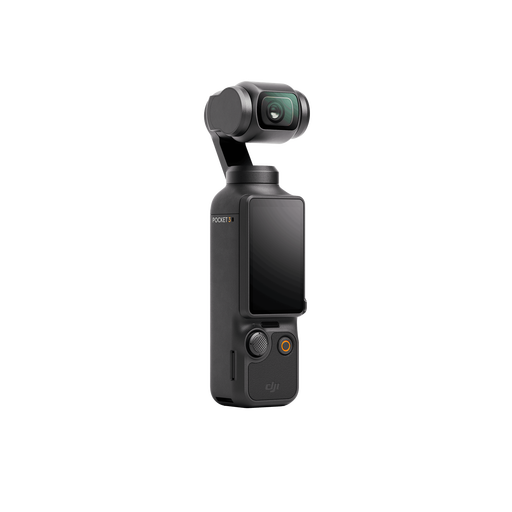 No image available
A compact gimbal camera for lessons where you switch between camera angles; the gimbal is no substitute for a suitable overhead mount.
The product name specifies a 1-inch CMOS sensor and 4K/120fps video. The fixed lens offers less flexibility when adjusting the frame to suit a fixed mounting height.
Start by recording a test with the lights you’ll use during the lesson. In an environment with a 50 Hz mains frequency, Sony recommends a shutter speed of 1/50 or 1/100 of a second as a starting point; some lights or dimmer settings may still call for a different approach.
No. Logitech describes Show Mode as a way to point the webcam at desk work during a call. Test it with your mount, paper size and lesson app to see whether you can get the framing and focus you want.
For a consumer purchase in the Netherlands, the seller must offer a solution if the product doesn’t meet what you could reasonably expect. The Dutch government says there is no fixed statutory warranty period in the Netherlands; check any manufacturer’s warranty or additional cover separately.
When creating and publishing images that identify pupils, a school must comply with the applicable privacy rules. The Dutch Data Protection Authority states that pupils aged 16 or over give consent themselves; for younger pupils, their parents must give consent. For recordings without identifiable people or made outside a school setting, you’ll need to determine separately which privacy rules apply to the recording and its distribution.