
Card trick demonstrator
You mainly want to show your hands and cards from above. Framing and sharpness on the table matter more to you than having your face in shot.


For card tricks performed mainly on a table, a document camera with an adjustable arm is an obvious choice. If you often switch between showing your face and the cards, a webcam with a desk view may suit you better. Then measure the distance to the cards and check that the whole playing area fits in the frame. Manufacturers’ resolution and frame-rate specifications apply to specific video modes; they are not real-world tests using playing cards.
You mainly want to show your hands and cards from above. Framing and sharpness on the table matter more to you than having your face in shot.
You talk to viewers and switch to the table during a trick. Your main concern is how easily you can switch between these camera views.
You record card movements repeatedly, so you want to compare each model’s focusing distance, frame rate and mounting options.
| What to consider | What to look for | Who should pay extra attention? |
|---|---|---|
| Sharpness and table view | Measure the distance from the lens to the cards and check that the playing area fits within the stated focusing range and frame. | I want both the cards and my hands to be easy to follow, without the area of the table in shot making the cards look too small. Around 31% of consumers prioritise sharpness and framing at the table. |
| Switching camera views | From where you sit, check how much of the table is visible and whether you can easily switch back to a face-on view. | When I’m explaining a trick and then want to show the cards, I don’t want to spend ages readjusting the camera. Around 25% of consumers say that switching between a face and table view is their top priority. |
| Motion handling | Compare resolution and fps together, and check which video mode your recording or calling software uses. | For fast card moves, I mainly want to know whether the movement remains easy to follow. Around 19% of consumers say motion handling is their main consideration. |
| Changing light | Check a test image under your desk lighting and look out for reflections on the cards. | The lighting in my home office can vary; I want to know whether the cards will remain clear under my own lighting. Around 13% of consumers focus mainly on handling changes in lighting. |
| Connection and setup | Check that your computer and software support the camera, and that the included mount suits the angle you need. | I want to get started without a complicated connection and know in advance whether my setup will work. Around 12% of consumers make easy installation and mounting their top priority. |
For the IPEVO V4K, IPEVO states a maximum of 30 fps at Full HD and up to 15 fps at its highest stated resolution. These maximums don’t apply at the same time.
Compare resolution and frame rate as a combination for the video mode you actually plan to use.
Elgato specifies fixed focus with a range of 30–120 cm for the Facecam MK.2. OBSBOT states a minimum focusing distance of 10 cm for the Tiny 2; this specification applies to that model.
Measure the planned distance from the lens to the cards and compare it with the specifications for the exact model.
Insta360 describes DeskView for the Link 2 as a temporary view of the table from the screen. That’s not the same as a separate overhead mount; the manual also distinguishes between the models that support DeskView and Overhead Mode.
Check the exact model name, camera angle and mount to make sure they suit the overhead view you want.
The V4K is a USB document camera for anyone who mainly wants to show items on a table.
The Link 2 is a webcam option if you want to show a temporary view of the table from your screen.
The Brio 500 and StreamCam are different models with different features.
The Facecam MK.2 is designed for a streaming setup where the distance to the camera falls within its focusing range.
The Tiny 2 is a webcam option if a short focusing distance is important to you.
Compare these cameras with your card setup. Before choosing, pay particular attention to the distance to the cards, the framing and the video mode you need.
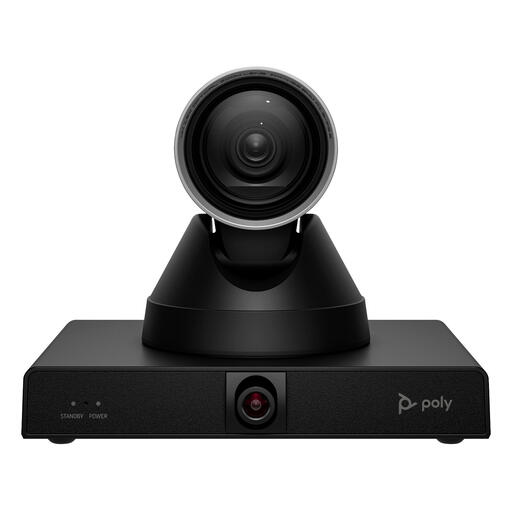 Image unavailable
If you want to adjust the framing remotely, check whether this model suits your table view and camera angle.
The product name lists 4K MPTZ and 12x Optical Zoom. Check the focusing distance and view of the entire playing area for your setup.
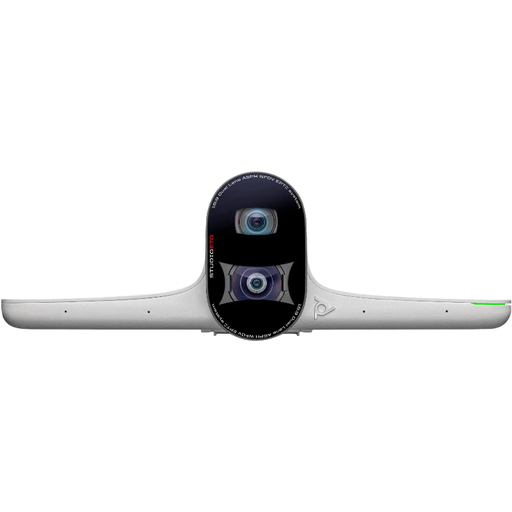 Image unavailable
If you’re considering this camera for card demonstrations, first check that the focusing distance and framing suit your table setup.
 Image unavailable
If autofocus matters for your table setup, check with a test image that the cards appear sharp at the planned distance.
The product name lists 4K UHD, autofocus and a built-in privacy cover.
 Image unavailable
If you’re mounting it on a screen, consider this model if the clip suits your setup. Also check whether the cards will be clearly in shot from that height.
The product name lists 2K QHD and a noise-cancelling microphone.
 Image unavailable
If you’re considering a camera for a wider setup, check that your table and playing area fit properly in the frame.
The product name lists 3840 x 2160 pixels and 30 fps. Check the framing and video mode with your own recording software.
No, not automatically: the frame rate depends on the video mode you choose. For the V4K, IPEVO lists up to 30 fps at Full HD and 15 fps at its highest stated resolution. Also check that the cards appear sharp and large enough in the frame.
Not without checking the camera angle and mount. Insta360 describes DeskView for the Link 2 as a temporary view of the table from a laptop or monitor. Test from your screen height to see whether the cards are clear and sharp enough.
Measure the distance from the lens to the cards and take a test image with your hands at the furthest points of the playing area. Also check that your software recognises the camera and that the selected video mode suits your recording.
For a consumer purchase in the Netherlands, the product must meet the legal requirements; the Dutch government states that there is no fixed statutory guarantee period. For a distance purchase, you generally have a 14-day cooling-off period. Check the terms of your specific purchase, and distinguish your legal rights from any manufacturer’s guarantee.
First check which privacy rules apply to your publication. According to the Dutch Data Protection Authority, the exception for personal or household use only applies when footage stays private or is shared with a very limited group. If other people are identifiable in the video, check which GDPR legal basis applies before publishing it.