Choose a card reader that supports your camera’s exact card format and connects to the device you want to import your photos to. Then consider UHS-II: this interface is mainly relevant when both your SD card and the reader support UHS-II. Before you set off, check that the import function works, and wait until the transfer is complete before disconnecting.
Who is this choice for?
SD photographer with a laptop
Wants to import SD photos while travelling and is choosing between a compact UHS-I reader and a UHS-II reader, based on their card and laptop port. The SD Association explains the differences between these card interfaces.
Photographer with a phone or tablet
Wants to import without a laptop and checks that the connection, any adapter and the import function work together. Apple explains which camera adapters to use and how to import photos on iPhone and iPad.
Photographer with a CFexpress camera
Needs a reader that matches their CFexpress Type A or Type B card. Sony says the MRW-G2 supports Type A and SD; SanDisk’s product specifications state that the PRO-READER CFexpress is designed for Type B.
What should you look for when buying?
Compact SD or microSD reader
Suitable for: importing from SD or microSD to a compatible USB-C device, when UHS-II isn’t essential.
Bear in mind: according to Anker, the slots on the USB-C 2-in-1 described here support UHS-I; check compatibility with your device.
UHS-II reader for SD
Suitable for: a UHS-II SD card, if you want to make use of this interface when importing.
Bear in mind: check that both the card and reader support UHS-II; choose a model with a microSD slot if you use that format too.
Specialist CFexpress reader
Suitable for: cameras that use CFexpress Type A or Type B, depending on the card format.
Bear in mind: Type A and Type B are not interchangeable. The Sony MRW-G2 described here supports Type A and SD, while the SanDisk Professional PRO-READER CFexpress is for Type B.
| What to consider |
What to look for |
Who should consider this? |
| Card format |
Compare the reader’s slot with the card in your camera; for CFexpress, check whether it’s Type A or Type B. |
If I want to read my camera card directly while travelling, I first check the exact format. Around 36% of consumers prioritise support for the right card. |
| Connection and import device |
Check your device’s port, any adapter you may need, and the import function on your phone, tablet or laptop. |
If I want to import without a laptop, the reader also needs to work with my mobile device and its import function. Around 29% of consumers prioritise the connection and importing to the device they’ve brought with them. |
| Transfer time |
Compare the UHS interface on your SD card and reader, and check the connection on your import device. |
If I want to transfer lots of photos in a limited amount of travelling time, I check the interfaces on the card, reader and device. Around 21% of consumers prioritise transfer time. |
| Keeping photos intact |
Wait until the import is complete and use your device’s eject function before disconnecting the reader. |
If I want to keep my originals safe while travelling, I check that the import is complete before removing the card. Around 14% of consumers make careful transfers their top priority. |
Common mistakes
-
Assuming all camera cards are SD cards
Not all CFexpress readers are designed for the same card type. A reader for Type B won’t automatically work with Type A or SD.
Check the label on your camera card and confirm which format the exact reader model supports.
If the card format doesn’t match, you may need a second, compatible reader.
-
Assuming USB-C guarantees fast imports
The shape of the connector alone doesn’t tell you which card interface or transfer speed the reader and device support.
Check the card interface, the reader’s specifications and the import device’s port separately.
-
Removing the card as soon as the photos appear
Seeing your photos doesn’t always mean the transfer is complete. Disconnecting too soon could result in data loss.
Check that the import is complete and safely eject the card or reader before disconnecting it. Microsoft recommends safely removing hardware to prevent data loss.
Brands to consider
Anker
The USB-C 2-in-1 card reader described here is designed for SD and microSD.
- According to Anker, both of the slots described support UHS-I.
- These specifications don’t confirm UHS-II support or compatibility with every phone.
Kingston
The MobileLite Plus SD is designed for SD cards, including UHS-II.
- Kingston specifies USB 3.2 Gen 1, SD UHS-II and backwards compatibility with UHS-I.
- The specifications cited don’t mention a microSD or CFexpress slot.
Lexar
According to Lexar, the Professional USB-C Dual-Slot Reader combines SD and microSD slots with UHS-II support.
- Lexar mentions backwards compatibility with UHS-I and an activity light.
- The read speed of up to 312 MB/s is a claim made by Lexar, not the result of an independent real-world test. Performance doesn’t automatically depend on the reader alone.
Sony
The MRW-G2 is designed for CFexpress Type A and SD cards.
- Sony specifies support for CFexpress Type A and SD UHS-II/UHS-I.
- The CFexpress version is Type A, not Type B.
SanDisk Professional
According to SanDisk, the PRO-READER CFexpress is designed for CFexpress Type B.
- SanDisk specifies a 10 Gbps USB-C port and a write-protect switch.
- The reader described isn’t a general-purpose SD reader and isn’t designed for CFexpress Type A.
Card readers and related products
These Joybuy products are designed for SD cards and importing via USB-C. Check which card format and connection suit your camera and device for each model.
 No image available
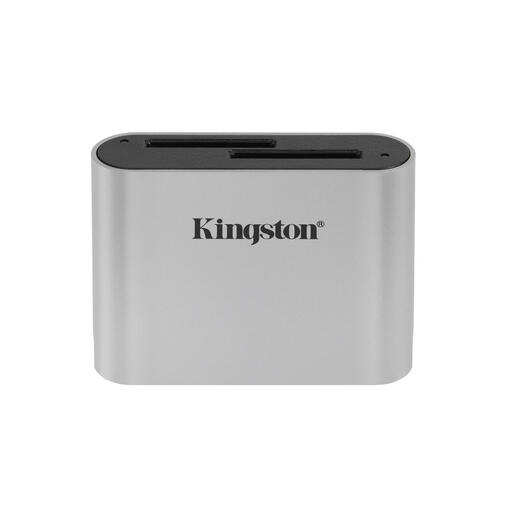
Kingston Technology Workflow Dual-Slot SDHC/SDXC UHS-II Card Reader
An option to consider if you want to import photos from SDHC or SDXC cards using a USB-C cable.
The product name mentions UHS-II and USB 3.2 Gen 1. The product description warns against removing the reader during data transfer.
Joybuy
 No image available
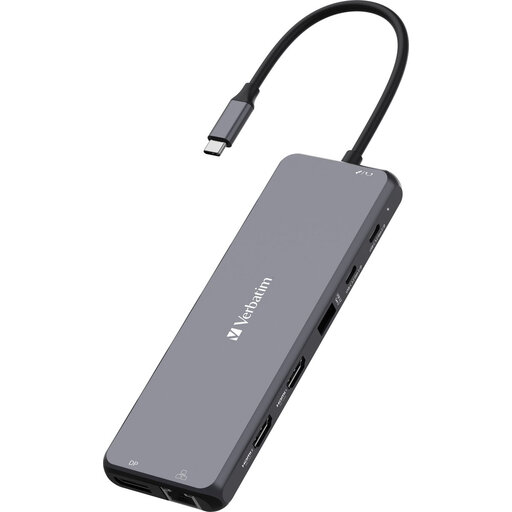
Verbatim CMH-13 USB Type-C hub
A related option if you’re looking for a USB Type-C hub with SD and microSD support.
The product information lists SD and microSD card types and connection to a USB-C port. Check that the connection and card support suit your import device.
Joybuy
Frequently asked questions
Can I import photos directly from my camera to an iPhone or iPad?
Yes. Apple explains how to import from an SD card using the camera adapters it recommends, including a USB-C to SD card reader and a Lightning to SD card reader. Choose a connection that suits your device and follow the import steps in Photos. These instructions don’t confirm that every third-party card reader will work with every model.
Do I need a UHS-II reader for a UHS-II SD card?
Not just to import photos. To use the UHS-II interface, both the card and the reader need to support UHS-II. Also check the connection on the device you’re importing to.
When can I safely remove a card reader from a Windows laptop?
Wait until the import is complete, then use the ‘Safely Remove Hardware and Eject Media’ function before disconnecting. Microsoft recommends safely removing hardware to prevent data loss.
What are my rights in the Netherlands if a card reader I bought online doesn’t work properly?
According to the Dutch government, you’re entitled to a product that works properly, and the seller must resolve any problem with a faulty product. Many online purchases also come with a 14-day cooling-off period, subject to exceptions. This cooling-off period is separate from your statutory guarantee.


