Start with the camera height, mounting and framing: these determine whether your hands and the whole card will be in shot at the same time. A webcam suits teaching or recording through a computer, a mirrorless camera lets you choose from interchangeable lenses, and a camcorder has a fixed zoom lens. With any set-up, test the focus, lighting, audio recording and power supply for the duration of your lesson.
Who is this camera set-up for?
Maker filming their hands from above
You want viewers to follow the whole card and every action. So start by considering the mounting, camera height, framing and lighting. De Videomakers and MOJOGEAR cover these points for tutorial videos and overhead filming.
Teacher working live from a computer
You want to switch between explaining and showing your work on the table during the lesson, using a camera that fits into your computer workflow. For computer recording, the selected video and audio sources also matter, as explained by OBS Project.
Maker creating detailed or longer lessons
You show small components or record a whole lesson in one go. Test the working distance, focus, audio recording and power supply as parts of one complete set-up. MOJOGEAR also discusses lighting, microphones and camera mounting for overhead filming.
What should you look for when choosing?
Webcam connected to a computer
Suitable for: teaching live at the same table or recording directly on a computer.
Bear in mind: your computer, connection and software are all part of the set-up. A tilting webcam does not guarantee a straight-down overhead view.
Mirrorless camera with a suitable lens
Suitable for: anyone who wants to adjust the framing or working distance using an interchangeable lens.
Bear in mind: a camera body without a lens is not a complete recording set-up, and a lens’s specifications do not automatically apply to other lenses.
Camcorder with a fixed zoom lens
Suitable for: anyone who wants to switch between a wider view and a tighter frame without changing lenses.
Bear in mind: a wide zoom range does not prove that you can get the close-up you want from your camera height.
| What to consider |
What should you check? |
Who is this important for? |
| Full, stable overhead view |
Test the framing at your planned camera height, the mounting above the table, and shadows cast by the camera and your hands. |
If you want viewers to follow your hands and the whole card at the same time, prioritise the overhead view. Around 36% of consumers put this at the top of their list when buying. |
| Recording on a computer |
Check the connection and system requirements for the exact model. Make a test recording with your chosen software and microphone. |
If you want to teach live or record directly on your computer, check that the camera and audio source fit your workflow. Around 29% of consumers give computer recording top priority. |
| Small details and working distance |
Using your chosen lens, test both the smallest details and the space your hands need. Check how the focus works. |
If small decorations or text need to be clearly visible, first test the framing and distance with the exact lens. Around 21% of consumers put detail at the top of their list. |
| Uninterrupted lesson with clear audio |
Make a test recording for the planned lesson length, check the power supply, and listen back while working on a card. |
If you want to make a lesson without recording interruptions and with easy-to-follow spoken explanations, test the picture, sound and power supply together. Around 14% of consumers prioritise continuity and clear explanations. |
What to watch out for when buying
-
Assuming a tilting webcam guarantees an overhead view
A webcam angled downwards may show your desk, but that does not prove the whole card will be in shot from your set-up.
Test the actual camera angle and framing before choosing a model.
You may need a suitable mount to position the camera as you want.
-
Judging a camera body as if every lens takes the same close-up
The lens mount and magnification are separate specifications. The stated magnification for the Canon RF-S 18-45mm applies to that lens; it does not automatically apply to every EOS R50 bundle.
Check the full bundle name and test the lens actually included at your working distance.
If the supplied lens is not suited to your preferred working distance, you may need a different compatible lens.
-
Confusing the Sony ZV-E10 with the ZV-E10 II
The Joybuy product page we found names the ZV-E10 without II. That is not the same as a product page for the ZV-E10 II.
Compare the full model and kit name before ordering a camera.
-
Focusing only on image resolution
Clear audio and a reliable power supply also matter when recording a lesson. You need to select an audio source for computer recordings.
Record a full test session and watch and listen to it before finalising your set-up.
A suitable microphone or power solution may be part of the set-up.
Camera brands to consider
Elgato
The Facecam Pro is a webcam for recording via a computer. Elgato lists 2160p60, autofocus and manual focus.
- Elgato states a focusing range starting at 10 cm and USB 3.0 or higher.
- These specifications do not show whether a whole card will fit in shot at every mounting height.
Logitech
The MX Brio is a computer webcam. Logitech describes Show Mode, which lets you show desk work by tilting the camera downwards.
- Logitech lists adjustable white balance and exposure.
- Test whether the tilted position works for the fixed overhead view you need for your lesson.
Canon
The EOS R50 is a mirrorless camera with an RF and RF-S lens mount. Your choice of lens helps determine the framing and working distance you can use.
- Canon lists manual focus for the camera body.
- Specifications for an individual lens, such as the RF-S 18-45mm, do not automatically apply to every EOS R50 bundle.
Sony
The ZV-E10 II is a mirrorless camera with an E-mount. Sony lists 4K 60p; the Dutch kit described includes an E PZ 16-50mm F3.5-5.6 OSS II lens.
- You can include the kit lens when testing your preferred framing and working distance.
- Check the full model name: the ZV-E10 without II is not automatically the same camera.
Panasonic
The HC-VX3 is a camcorder with a fixed zoom lens, for anyone who wants to try a different frame without changing lenses.
- Panasonic Netherlands lists 24× optical zoom and a USB-C connection.
- Check the version and test whether you can get the close-up you want from your working distance.
Webcams for recording on a computer
These products are webcams for recording via a computer. For each model, check how the mounting and framing will work with your work table.
 No image available
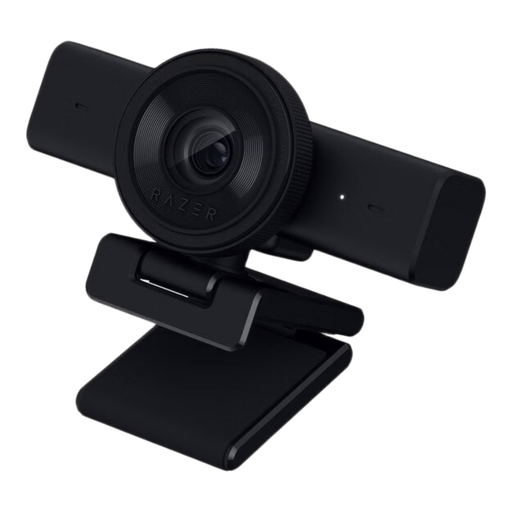
Razer Kiyo V2 X webcam
An option if you want to use a webcam with OBS on your computer.
The product description lists 1440p, 1080p at 60 FPS, autofocus and manual focus.
The description lists Windows 10 (64-bit) and Windows 11 as supported operating systems.
View at Joybuy
 No image available
AOC webcam for PC, 4K
The product description mentions computer use and streaming. Check whether the adjustable angle suits your table set-up.
The description lists 4K video, a 99° field of view and a built-in noise-cancelling microphone.
According to the description, the webcam can be placed on a monitor, desk or tripod.
View at Joybuy
 No image available
Logitech HD Pro Webcam C920e
A webcam option if you want to record your explanations on a computer and capture audio too.
The product description lists 1080p video, autofocus, built-in microphones and a fixed 78-degree field of view.
The description mentions an adjustable clip for a laptop or external monitor, and a USB connection to a computer.
View at Joybuy
 No image available
Philips 4000 Series 4K UHD Webcam, SPL6408BT/00
Check whether the supplied mount and framing suit the overhead view you want to record.
The title and description list 4K video, autofocus and dual built-in microphones.
The product name includes EU Version.
View at Joybuy
 No image available
Philips 2K QHD PC webcam, SPL6308S/00
A webcam option for computer recording or livestreaming. Check how the card is framed at your chosen mounting position.
The product description lists 2K QHD video and a noise-cancelling microphone.
According to the description, the webcam can be attached to a monitor or laptop screen with a clip, or placed on a tripod.
View at Joybuy
Frequently asked questions
How can you check whether the camera shows the whole card and your hands?
Set the camera at the intended height and make a test recording of a complete action. Check the edges of the frame, focus and shadows before fixing the set-up in place.
Can you use a webcam directly for a live lesson?
A supported webcam can be added to OBS as a video source. Check the connection, the camera selected in the software and the separate audio source in advance. For the Facecam Pro, Elgato lists USB 3.0 or higher as a system requirement.
Do you need to buy a different lens to show small details on a card?
Not necessarily. First test the lens actually supplied, using your preferred framing and working distance. For the separate RF-S 18-45mm lens at 45 mm, Canon lists a maximum magnification of 0.16× with autofocus and 0.26× with manual focus. These figures do not apply to every lens or kit.
Who can help if a camera bought in the Netherlands is faulty?
According to the Government of the Netherlands, a product must meet reasonable expectations, and the seller must provide a solution if it is faulty. The Netherlands has no fixed statutory warranty period; a manufacturer’s warranty is an extra.
Can you publish your card-making lesson if other people are recognisable in the footage?
First consider which privacy rules apply to your situation. The Dutch Data Protection Authority considers recognisable people in footage to be personal data, and says the exception for personal or household use does not apply if you share footage more widely. You need an appropriate legal basis for including recognisable participants or guests. According to the Dutch Data Protection Authority, consent is often the appropriate legal basis.


