
Card maker filming their work from above
You want to keep your hands and paper in one steady frame without the camera taking over your small work surface. IPEVO and ELMO specify a maximum capture area for the document cameras mentioned here.


For a class focused on the card, your hands and the steps involved, a document camera is a natural first choice. Look at both the capture area and the space taken up by its base. A webcam is more suited to a computer-based class where you also want to show yourself; a phone or interchangeable-lens camera needs a suitable, stable mount. Whatever your setup, check that the whole workspace is in focus and in frame, and that the connection and recording method suit your class.
You want to keep your hands and paper in one steady frame without the camera taking over your small work surface. IPEVO and ELMO specify a maximum capture area for the document cameras mentioned here.
You teach using a computer and want to switch between appearing on screen and demonstrating work on your desk. Logitech describes Show Mode for the MX Brio for this purpose.
As well as close-ups of cards, you film other scenes and want to choose your own lens and camera angle. Sony lists interchangeable lenses for the ZV-E10 II.
A good fit if: you mainly want to show your hands, card and materials from above, and teach using a computer.
Bear in mind: the camera base takes up table space, and the capture area needs to cover your entire workspace.
A good fit if: you want a top-down view and the option to record without a computer. ELMO lists SD card recording for the MX-P3.
Bear in mind: check the resolution and frame rate for the recording method you choose.
A good fit if: your computer is already part of the class and you want to switch between showing yourself and your desk work.
Bear in mind: tilting a webcam downwards doesn’t guarantee a straight top-down view. Test the angle, focus and framing.
A good fit if: you want to try out the framing that works using equipment you already own.
Bear in mind: the stand needs to be stable, and a phone’s features won’t automatically give you a straight top-down view.
A good fit if: you want to make videos beyond tabletop recordings and choose your own lens and mount.
Bear in mind: your chosen lens and mounting height will affect whether you can focus on and show the entire work surface.
Start with the framing you need and the table space available. Then choose how you’ll record and check the focus, connection and lighting where you’ll be working.
| What to consider | What to look for when buying | Who is this important for? |
|---|---|---|
| Top-down view and table space | Measure the entire work area and compare it with the stated capture area and the space needed for the base or clamp. IPEVO lists a maximum of 354 × 266 mm for the DO-CAM; ELMO lists 374 × 281 mm for the MX-P3 at 4:3. | If the card, tools and both hands need to stay in view at once, you’ll need framing that fits without crowding your work surface. Around 36% of consumers prioritise framing and table space. |
| Sharp card details | Check the focus at your mounting height and the distance from the camera to the card. IPEVO lists autofocus for the DO-CAM; ELMO lists one-touch focusing for the MX-P3. Elgato specifies a fixed-focus type for the Facecam 4K, with a range of 30–120 cm at 4K. | When stamping, cutting or positioning things precisely, you’ll want to follow small movements without losing sight of the wider work area. Around 29% of consumers prioritise clear details. |
| Recording method | Decide whether you need video through USB in teaching or recording software, or want to record independently. ELMO lists recording to a PC or SD card for the MX-P3; IPEVO specifies a USB connection to a computer for the DO-CAM. | If you teach directly through a computer, USB may suit the way you work; for recording without a computer, on-camera storage matters. Around 21% of consumers prioritise a straightforward recording workflow. |
| Lighting and clear audio | Make a test recording at your workspace and check the microphone position and any shadows cast by your hands or a lamp. Logitech lists integrated microphones for the MX Brio; ELMO lists a built-in microphone and white LED for the MX-P3. | If you talk through what you’re doing, you’ll want your voice to remain clear and important steps to stay out of shadow. Around 14% of consumers prioritise lighting and spoken instructions. |
For the IPEVO DO-CAM, the stated 30 frames per second applies to Full HD. ELMO lists different frame rates at different resolutions for the MX-P3 via USB.
Check the resolution and frames per second together for the connection and recording mode you actually plan to use.
Logitech describes Show Mode on the MX Brio as a way to share desk work. That doesn’t tell you whether your table, hands and card will appear in a straight top-down view with your chosen stand.
Test the angle, the far edge of the table and whether your hands are visible before settling on a mounting position.
If your existing mount can’t reach the position you need, you may need a separate, suitable stand.
With the Sony ZV-E10 II, focusing at close range will depend in part on your chosen lens and the height at which you mount the camera.
Check the specific lens option, focusing distance, framing and mount together as one setup.
A complete setup may require a suitable lens and stable mount as well as the camera body.
The DO-CAM range is worth considering if you want to show paper-based work on a computer using an adjustable USB document camera.
The MX-P3 is a document camera for a tabletop view, with the choice of a computer connection or recording to an SD card.
The MX Brio is a webcam option for computer-based classes where you also want to show yourself and occasionally tilt the camera towards your desk.
The Facecam 4K is a webcam option if you want to choose your own stand, camera angle and connection.
The ZV-E10 II is an interchangeable-lens camera for creators who want to film scenes beyond a lesson at the table.
These Joybuy cameras and webcam may be a useful starting point for recording a card-making class. Check that the mount and framing suit your table for each model.
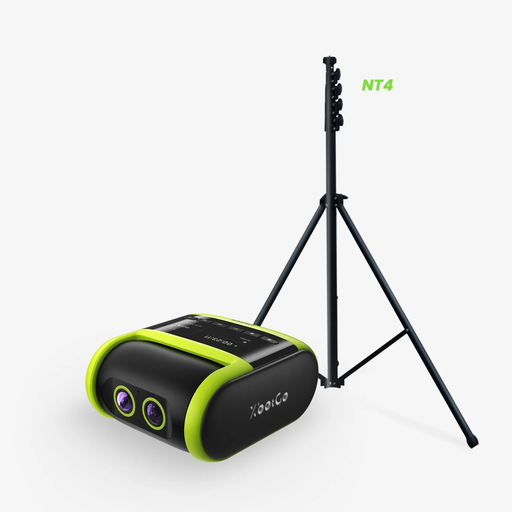 No image available
If you’re considering this camera for tabletop recording, check whether the stand allows for a stable top-down view and whether automatic tracking suits your recording needs.
The product information lists 4K video, automatic tracking, a 1/4-inch tripod mount and an included NT4 tripod.
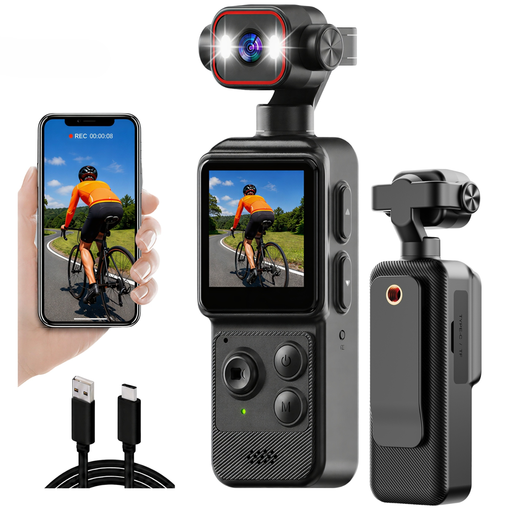 No image available
The clip and the mini tripod mentioned may raise different mounting questions, so check how you can position the camera safely and directly above your work surface.
The title lists 4K video, a 1.54-inch screen, a 140° wide-angle lens and a 1200 mAh battery.
 No image available
This webcam may suit you if you work through a computer. Check whether the included mount gives you the angle you need above your small table.
The product information lists Full HD 1080p, 30 frames per second, a 120° lens, a microphone and a flexible tripod base.
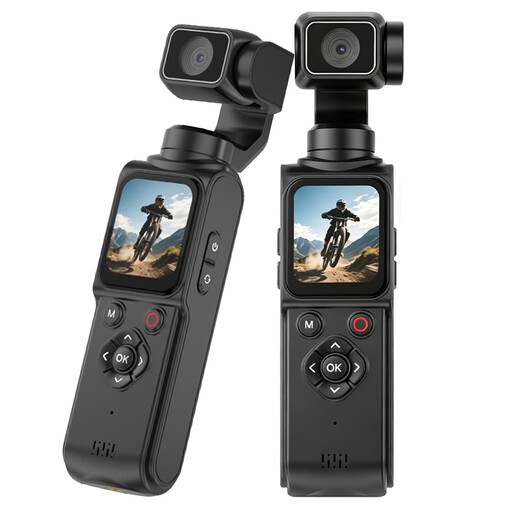 No image available
If you’re considering a compact camera, check that your chosen mount will keep the lens steady and pointed at your work surface.
The title lists 4K video, 64 MP, a 330° rotating lens, a 1.72-inch touchscreen, a tripod and Type-C.
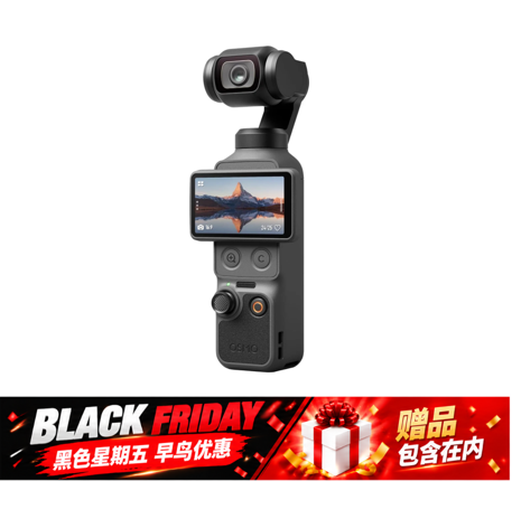 No image available
This pocket camera offers several recording features. Check separately whether you can achieve a stable mount and the top-down framing you need.
The title lists a 1-inch CMOS sensor, 4K video up to 240 fps, 3-axis stabilisation, 107 GB of built-in storage and a 2-inch rotatable screen.
First, measure the area that needs to stay visible throughout the activity and compare it with the capture area from the camera position you have in mind. The maximum areas listed by IPEVO and ELMO apply to the specific models mentioned, so make a test recording with your own materials.
It depends on the model. ELMO lists recording to a PC or SD card for the MX-P3, while IPEVO specifies a USB connection to a computer for the DO-CAM. Also check what power supply and storage you’ll need for your planned lesson.
Make a short test while moving your hands as you normally would, then move the light source or stand if needed. A built-in LED, such as the one ELMO lists for the MX-P3, doesn’t guarantee shadow-free lighting across your own work surface.
If the GDPR applies to recording and publishing identifiable people, you’ll need a valid legal basis for processing. The Dutch Data Protection Authority lists consent as a common legal basis. The exception for purely personal or household use doesn’t automatically apply to wider publication or business use.
When you buy online as a consumer, you generally have up to 14 days after delivery to change your mind. You’re also covered by the legal guarantee if, under normal use, the product doesn’t do what you could reasonably expect. The retailer is your point of contact. Check the terms and any applicable exceptions before you buy.