
Calligrapher filming from above
You want to show the paper and pen strokes in a stable frame without the camera getting in the way of your writing hand. IPEVO’s product specifications describe an adjustable stand and a capture area for the V4K.


If your main aim is to show paper and pen strokes from above, a document camera is designed for work on a desk. A tilting webcam is better suited to live demonstrations during a video call. For videos you record yourself, a mirrorless camera gives you a choice of interchangeable lenses and recording modes, but you’ll also need to check the lens, mounting and any extra equipment required. A high stated resolution alone doesn’t guarantee that fine lines will be clear in your set-up.
You want to show the paper and pen strokes in a stable frame without the camera getting in the way of your writing hand. IPEVO’s product specifications describe an adjustable stand and a capture area for the V4K.
You want to show work on your desk quickly during a video call and check what’s in frame. Logitech describes Show Mode on the MX Brio as a way to share notes and sketches.
You want to tailor the lens and recording mode to a permanent home set-up and are happy to put in some extra work installing it. Canon and Sony describe mirrorless cameras with interchangeable lenses and a range of video features.
A good choice if: you mainly want to show paper from above on a computer, for example during a lesson or recording.
What to consider: check that the paper and space for your hand fit within the capture area. IPEVO lists a maximum of 15 fps at 3264 × 2448 and up to 30 fps at Full HD for the V4K.
A good choice if: you want to switch easily between yourself and your calligraphy on the desk during a video call. Logitech describes Show Mode on the MX Brio for this purpose.
What to consider: angling the camera down doesn’t automatically give you a straight-down view. Logitech specifies 4K at 30 fps or 1080p at 60 fps for the MX Brio; check the framing with your own paper and pen strokes.
A good choice if: you edit your own videos and want more choice of lens and recording mode. Canon lists an RF mount for the EOS R50; Sony lists recording formats up to 4K 60p for the ZV-E10 II.
What to consider: assess the lens, working distance, stable mounting and any recording accessories you need as a complete set-up. Stated video specifications don’t show how calligraphy will look on your desk.
| What to consider | What should you check? | Who is this important for? |
|---|---|---|
| Paper and hand in frame | Compare the size of your paper and the space you need for your hand with the capture area, camera height and mounting. | I want to show all my paper and write freely without the camera getting in the way; around 36% of consumers say a usable frame is their main need. |
| Fine lines and movement | Compare resolution and fps within the same recording mode, and try the image with the smallest letters you usually write. | If I want to show both fine strokes and the movement of my pen clearly, I look at both settings together; around 29% of consumers prioritise detail in lines and movement. |
| Live demonstrations | Check the connection, that your software recognises the camera as a video source, and the view from your intended camera position. | I want to show my work during an online lesson without having to manage a complicated set-up; around 21% of consumers give live demonstrations top priority. |
| Recording videos independently | Check the exact lens or kit, mount, working distance and mounting equipment you need before choosing a camera body. | For edited videos, I want to be able to tailor the lens and recording settings to my permanent workspace, even if that means extra set-up; around 14% of consumers prioritise this level of control over recording. |
For the IPEVO V4K, IPEVO lists a lower maximum frame rate at the highest resolution than at Full HD. A mode with more detail won’t necessarily show pen movements more smoothly.
Compare resolution and fps for each recording mode, then check a sample frame with both fine lines and moving pen strokes.
Logitech describes Show Mode on the MX Brio as a way to show desk work during a call; the final viewing angle depends on your set-up.
Check from your intended camera position that the paper, pen tip and your hand remain visible.
A camera with an interchangeable lens needs one that suits your recording distance; an overhead view may also require a separate mount.
Check the exact kit contents and the complete set-up before choosing a model.
Depending on the set you choose, you may need a suitable lens, mount and recording accessories.
Document cameras for documents and desk work; the V4K is an option for a USB overhead view.
Webcams for calls and streaming; the MX Brio is worth considering if you also want to show desk work during a call.
Mirrorless cameras with interchangeable lenses; the EOS R50 is an option if you want to make other types of video as well as calligraphy footage.
Video-focused mirrorless cameras with interchangeable lenses; the ZV-E10 II is an option for a more involved recording workflow.
Webcams and modular desk mounts for permanent recording set-ups; the Facecam Pro and Multi Mount are different types of product.
This selection includes webcams for desk work and cameras for recording independently. Check that the viewing angle, lens and included equipment suit your calligraphy set-up for each model.
 No image available
Could suit video calls from a desk; check whether the camera angle shows your paper and pen strokes.
The product description lists autofocus, dual microphones and a USB-A connection. The variant is listed as EU Version, Black.
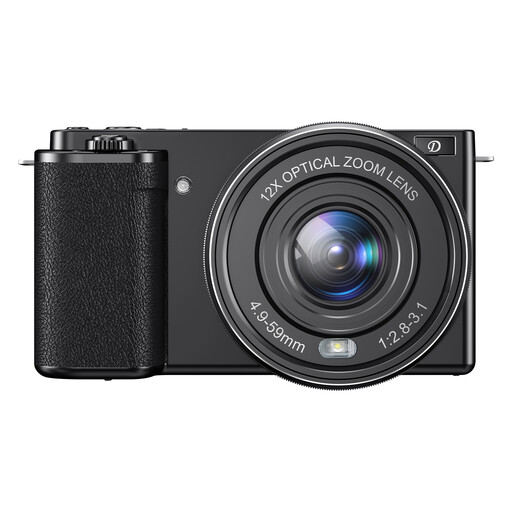 No image available
The description mentions vlogging and content creation; check separately whether the lens and set-up give you the overhead view you want.
The product title and description mention 4K video, autofocus, Wi-Fi and 12× optical zoom.
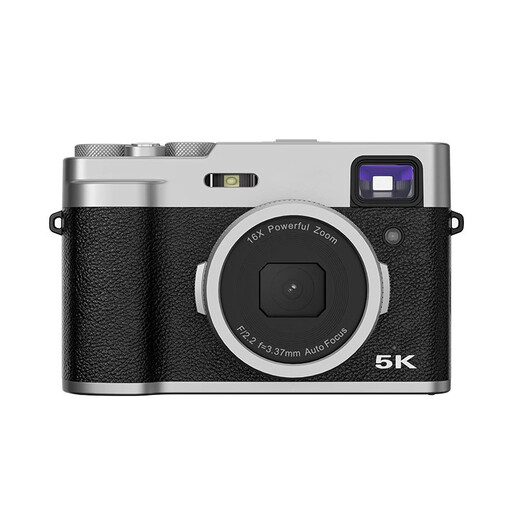 No image available
The product description mentions creative video recording; check whether the camera frames the paper and pen tip well from your intended distance.
The description lists 5K video, autofocus, a 2.8-inch LCD screen and an optical viewfinder.
 No image available
Suited to recording videos independently if the supplied zoom lens gives you the working distance and framing you need.
The product description lists 4K at 30 fps, digital Active Mode stabilisation and a Product Showcase setting that shifts focus from a face to an object. A compatible SD memory card and adapter/charger are not included.
 No image available
The product description lists DeskView and Whiteboard Mode; check whether the selected mode shows your writing area as you need it to.
The title lists a 1/2-inch sensor. The description lists 4K, HDR, AI framing and phase-detection autofocus.
No. Also compare the frame rate in the same recording mode and how much of the frame your paper fills. IPEVO lists a maximum of 15 fps at 3264 × 2448 for the V4K, compared with up to 30 fps at Full HD.
Test the framing with the paper and writing movements you normally use before choosing a mount. An adjustable document camera stand or a separate desk mount gives you options for positioning the camera; if you buy a separate mount, check which parts you’ll need.
That depends on the connection and the software you use. According to IPEVO, the V4K sends video over USB UVC to software that recognises the camera as a video source; check that it works with your computer and video-calling software.
For online purchases made by consumers, you generally have a statutory cooling-off period of up to 14 days after delivery, with some exceptions; ACM ConsuWijzer explains these rules. If a product doesn’t work as you could reasonably expect, the retailer is your point of contact for your statutory guarantee. The Dutch government states that there is no fixed statutory guarantee period covering all products in the Netherlands.
A recording kept solely for private use may fall under the exception for personal or household use. That exception doesn’t apply to wider publication or commercial use; in those cases, you need an applicable legal basis under the GDPR for anyone who is identifiable. The Dutch Data Protection Authority gives consent as a common example, but it isn’t the only possible legal basis.