
Teacher with a fixed writing desk
You want your students to see the brush tip and every stroke from a consistent angle. An adjustable setup above the paper and control over focus may matter more than portability.


For a fixed demonstration of paper displayed on a computer, a USB document camera could be a good fit. If you want to adjust the lens and framing, a mirrorless camera may be more suitable. Whichever option you choose, check that both the paper and brush tip are clearly in shot, make a test recording with your own lights and see how well your voice is picked up. A camcorder is best suited to continuous lessons with on-camera controls, while a gimbal camera is most useful if you also film moving footage.
You want your students to see the brush tip and every stroke from a consistent angle. An adjustable setup above the paper and control over focus may matter more than portability.
You record continuous explanations and want to check in advance how recording, power and voice audio are handled. Connections and recording features may therefore influence your choice.
As well as filming your desk, you want to make short clips while moving around. Compare the convenience of a compact gimbal camera with the fixed lens and the framing you need above your work surface.
Start with the camera angle and lighting, then decide which recording and audio features your lesson needs.
A good fit if: you mainly want to show a fixed demonstration on a computer and can position the camera above your work surface.
Bear in mind: a USB document camera is not automatically a standalone recorder; check the computer workflow and cable routing.
A good fit if: you want to choose a lens and framing that work for paper, close-ups and spoken explanations.
Bear in mind: consider the lens, desk mount, power supply and recording settings as one complete setup.
A good fit if: continuous recording, zoom and on-camera controls are important to you.
Bear in mind: check the focusing distance and angle of view where you plan to mount the camera.
A good fit if: you make moving introductions or other clips as well as lessons at your desk.
Bear in mind: a gimbal is no substitute for a stable mount above the paper; check that the fixed lens gives you the framing you want.
| What to consider | What should you check? | Who should pay particular attention? |
|---|---|---|
| Clear view of your work surface | Check the focusing range, lens or fixed angle of view with your paper size and mounting height. | If I want to show both the sheet and the brush tip clearly, I look for framing that suits my working distance. Around 29% of consumers say a clear view of the work surface is their top priority. |
| Artificial light | Make a test recording with the lights you use and check whether the video shutter speed can be adjusted. | If I want to avoid banding or changes in brightness, I test the camera under my own lighting. Around 24% of consumers prioritise footage without visible light bands. |
| Long lessons and voice audio | Check the recording features, power supply, recording media and microphone connections on the exact model. | When I write and explain for a long time, I want to know in advance how the camera records my voice and how long the lesson can run. Around 18% of consumers prioritise this combination. |
| Different types of lesson footage | Decide whether you will film only the paper or also yourself, close-ups and moving introductions. | If I want to use one camera for both a desk view and moving clips, I weigh flexibility against the limitations of a fixed lens or mounting position. Around 17% of consumers make versatility their top priority. |
| Complete setup | Check which lens, cables and accessories are included, and what your mounting setup requires. | If I want to put together a complete setup for my workspace, I look beyond the camera itself. Around 12% of consumers say the equipment and mounting they need are their top priority. |
Panasonic explains that some artificial light sources can cause changes in brightness or horizontal bands. Settings such as 1/50 or 1/100 second may be a starting point in certain conditions in 50 Hz regions, but test your own combination of light, camera and settings.
A recording may show the whole sheet while making small strokes hard to see, or focus on your hand rather than the paper. A resolution rating alone does not tell you whether your setup will give you the framing you need.
First, measure or work out your paper size and mounting height. Then check the lens and focusing range of the exact model.
You may need a different lens or a suitable mount to get the right view.
Some artificial light sources can cause changes in brightness or horizontal bands in your footage.
Before your lesson, make a short test recording with the lights and video shutter speed you actually plan to use.
A gimbal stabilises movement, but it does not tell you whether the fixed lens will frame the paper properly from your chosen mounting position.
Test the full mounting setup and framing at your intended working distance before choosing the camera for a fixed lesson setup.
You may need a separate, suitable desk mount to film above your work surface.
According to IPEVO, the V4K PRO is a USB document camera that provides an adjustable view of documents, designed for a fixed writing space with a computer.
According to Canon, the EOS R50 V offers a mirrorless camera setup with interchangeable RF lenses and external audio; the XA60 is a camcorder with a fixed lens.
According to Sony, the ZV-E10 II is a compact mirrorless camera with an interchangeable lens for different framing options.
According to Panasonic, the LUMIX GH7 is a video-focused mirrorless camera, worth considering when you need long recordings and advanced video features.
According to DJI, the Osmo Pocket 3 is a compact gimbal camera for anyone who films moving footage as well as scenes at their writing desk.
These cameras and webcams are options for computer-based lesson recordings, flexible camera angles and moving footage. Check that each model’s connection, mounting options and framing suit your workspace.
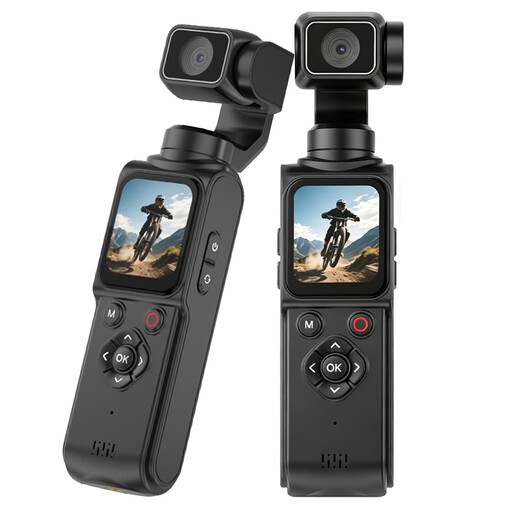 Image unavailable
The rotating lens and mini tripod may come in handy if you want to adjust the camera angle; check that the camera frames the paper well from your mounting position.
The product description lists 4K video, a 330° rotating lens and a mini tripod.
 Image unavailable
This webcam is designed for a computer setup; check whether placing it on your desk or monitor gives you a clear view of your work surface.
The product description lists 4K, autofocus, two built-in microphones and a USB-A connection.
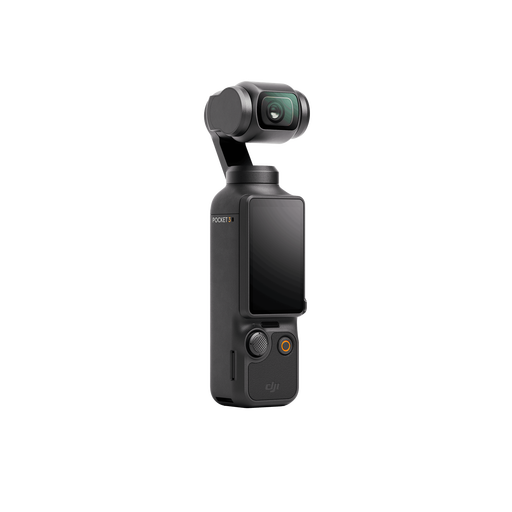 Image unavailable
This compact gimbal camera is a good option if you make moving clips as well as lessons; check that the fixed lens suits your planned overhead view.
The product name lists 4K/120fps video and 3-axis stabilisation. DJI specifies a fixed lens with a focusing range starting at 0.2 m for the Osmo Pocket 3; framing also depends on the mounting position.
 Image unavailable
The included zoom lens offers different focal lengths to help you adjust your framing; check the view from your intended desk mount.
The product description lists 4K video and a 16–50mm lens. According to the description, an SD card and adapter/charger are not included.
 Image unavailable
This webcam is designed for computer use; check that the DeskView feature and your chosen mounting position give you the view of your work surface you need.
The product name describes a 4K webcam for PC and Mac. The product description lists DeskView and autofocus.
Start by making a test recording with your own lights. Panasonic explains that some artificial light sources can cause changes in brightness or horizontal bands, and mentions 1/50 and 1/100 second, among other settings, for specific situations in 50 Hz regions. Synchro Scan may also be available. Check which settings your model offers; this is not a guarantee for every LED light.
Do not assume that you can with the IPEVO V4K PRO: IPEVO specifies this model as a USB document camera with an attached USB cable. Check the computer and recording features required for the model you choose.
Beforehand, make a test recording of the intended length using the same resolution, power supply and recording media. Panasonic ties the GH7’s stated unlimited recording time to recommended operating conditions; Canon lists two card slots for the XA60.
According to ACM ConsuWijzer, your statutory rights exist alongside a seller’s guarantee; if a product is faulty, the seller must offer a solution under the statutory conditions. The Dutch Government also states that many distance purchases come with a 14-day cooling-off period, subject to exceptions.
Not without taking privacy rules into account. The Dutch Data Protection Authority states that identifiable people in footage count as personal data and that the GDPR applies. If you film and publish footage in which students can be identified, check which lawful basis applies to your situation.