
Desk-based filmmaker
You want to show the entire bookbinding process from above, but have little space for a permanent setup.


Start with the camera angle and a secure mount: when filming bookbinding, it’s important to keep your hands and work surface steady in the frame. A webcam suits recording through a computer, a compact camera is handy if you want to move your setup, and a mirrorless camera lets you choose a suitable lens. For each option, check the framing, focus, lighting and what’s included in the kit.
You want to show the entire bookbinding process from above, but have little space for a permanent setup.
You want to switch between an overview of the book and close-ups of small tasks. The lens, working distance and focus are therefore important to you.
You record at your desk using a computer and want to show your work surface without a separate camera workflow.
A good fit if: you already record through a computer and can mount the webcam above or near your desk.
Keep in mind: a desk-view feature doesn’t automatically prove that the camera will work well at your working distance or during long recordings.
A good fit if: you have limited space and also want to take the camera with you for other recordings.
Keep in mind: you’ll still need a suitable, secure mount for a fixed overhead view.
A good fit if: you want to film both overviews and details, and choose your own lens and setup.
Keep in mind: the camera body alone won’t determine whether the book and small binding details will appear clearly at your working distance.
A good fit if: you want to work out the camera angle and field of view you need before buying anything.
Keep in mind: a phone also needs a stable mount, enough light and a suitable power supply.
The percentages indicate which concerns may matter most to consumers setting up to film bookbinding. First decide whether you need an overview, close-up details or a complete recording workflow. Then choose a camera and mount to suit.
| What to consider | What to look for | Who is this important for? |
|---|---|---|
| Keep the work surface steady in the frame | Measure your work surface and the available mounting height. Check that the book and your hands fit in the frame and that the mount is secure. | When filming from above, I want to keep the book and my hands in frame without the mount getting in the way of my workspace. Around 33% of consumers prioritise a useful overhead view. |
| Show small details in focus | Check the focusing distance and field of view of the exact camera-and-lens combination where you plan to film. | For close-ups of stitches or edges, I want to know whether my camera can focus from the available distance, even if I need to adjust the framing. Around 27% of consumers prioritise detail. |
| Record through a computer | Check computer compatibility, camera angle, focus and how you’ll save the recording. | If I already work at my computer, I want to show my desk without setting up a separate recording workflow. Around 20% of consumers mainly opt for a computer-based way of working. |
| Complete recording setup | Check that the mount, lighting, sound, storage and power supply suit your recording plans. | For a full session, I want to know in advance what I’ll need besides the camera, especially if I want to talk while I work. Around 20% of consumers prioritise a complete, practical setup. |
For an overhead view, distance, mounting, focus and lighting also affect how clearly your hands and work are shown.
First, set up a test frame using your book’s dimensions. Then check the framing and focus of the complete camera-and-lens combination.
A compact gimbal camera is portable, but that doesn’t mean you can safely mount it above a work surface.
Before buying, check how you’ll mount the camera above your hands without blocking your workspace.
Logitech describes Show Mode as a way to show objects on a desk during a call; this isn’t a test of long bookbinding videos.
Test the webcam at your working distance, with your own recording software and for the length of time you plan to record.
The EOS R50 is a mirrorless camera option for anyone looking to choose a lens for both overview and detail shots.
The ZV-E10 II is a mirrorless camera option for anyone looking to combine interchangeable lenses with video features.
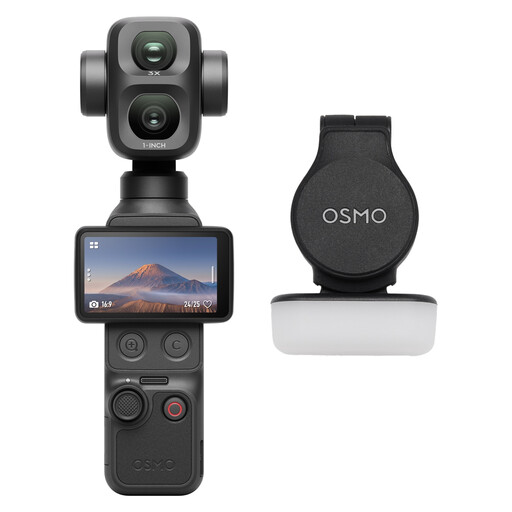
The Osmo Pocket 3 is a compact gimbal camera for anyone who also wants to use their setup outside their student room.
The MX Brio is a webcam option for recording on a computer with a desk-view feature.
The Tiny 2 Lite is a webcam option for anyone interested in using presets in a computer-based workflow.
This selection includes compact cameras and webcams you can consider for recording at a desk. For each model, check that the mount, framing and focus suit your book and working distance.
 No image available
A compact camera to consider for overview and detail shots; test the framing at your own working distance.
The description lists 4K video and a 20mm f/2.0 wide-angle lens.
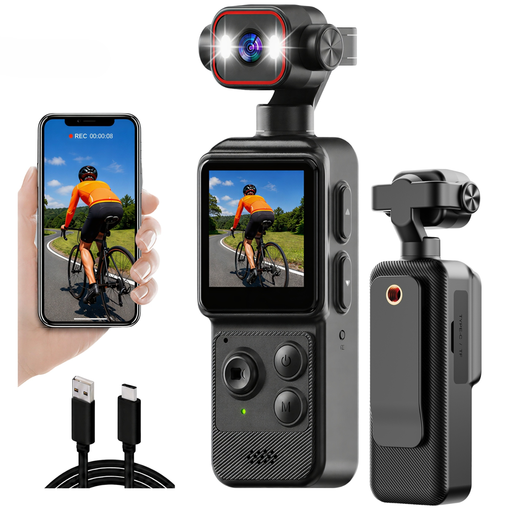 No image available
A compact camera to consider if you want to try a small setup; check that the clip can hold your chosen camera angle securely.
The product title lists 4K, a 1.54-inch display, a 140° field of view and app control.
 No image available
A computer-based option if you want to record with a webcam; test the desk framing and connection with your own computer.
The title mentions USB plug-and-play and a 120° lens; the description lists 30 fps.
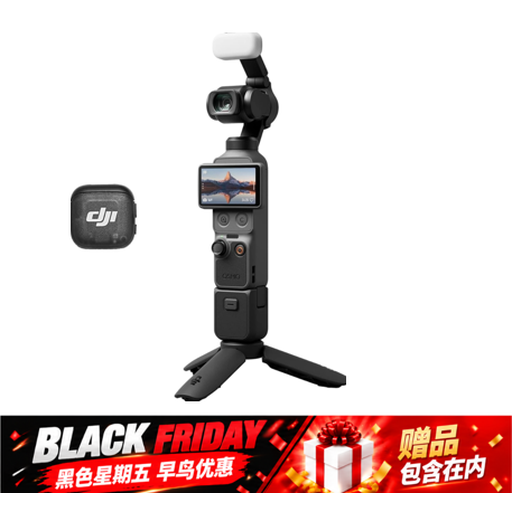 No image available
A compact gimbal camera to consider if you also want to move the camera around; you’ll need to plan a separate mount for filming above your work surface.
The product title lists 4K/240fps, 3-axis stabilisation, 2× lossless zoom, 107 GB of built-in storage and a handle with a 1/4-inch thread.
 No image available
A webcam option if you want to record through a computer; check that the mounting position and framing work for your work surface.
The title lists 8 MP, autofocus, two built-in microphones and EU Version.
No, you can try a phone camera first. Check that you can mount your phone securely and that the framing, focus and lighting work for your work surface.
Focus on your hands and your work, and make a test recording beforehand. During longer sessions, check that the recording continues and that the power supply is sufficient.
Check whether your chosen kit includes a suitable lens and mount, and whether you’ll need lighting, a microphone, storage and a power supply. This depends on the equipment you already have and whether you’ll speak while working or add a voice-over later.
Report the problem to the seller. According to the Dutch government, the seller must offer a solution or contact the manufacturer. The Netherlands does not have a fixed statutory guarantee period that applies to all products.
Don’t assume that you can. According to the Dutch Data Protection Authority, the GDPR applies to professional or commercial recordings and publication, and you need a lawful basis, such as consent. If you film only your own hands and work, without anyone else being identifiable, this specific situation may not apply; assess other publication scenarios separately.