Which camera setup is right for you?

For showing your paper live

You teach using a computer and mainly want to show your hands and paper. An adjustable overhead view may matter more than a camera pointed at your face. IPEVO describes the DO-CAM as a camera that can switch between document and webcam modes.

For speaking to camera as well

You switch between talking to camera and demonstrating at your desk. Check whether switching between camera modes is enough, or whether you need two views at once. Logitech describes the Brio 4K as a webcam with autofocus, different fields of view and a tripod thread.

For recording lessons to edit later

You want to make separate recordings and weigh up how much choice of lens or recording setup suits your space. Canon lists interchangeable RF and RF-S lenses for the EOS R50, while Panasonic describes the HC-VX3 as a camcorder with a fixed zoom lens.

What should you look for in a camera for art lessons?

USB document camera above your desk

Best for: computer-based lessons where you mainly need to show paper and drawing techniques.

Bear in mind: check the connection and software. Switching between document and webcam modes is not the same as showing two views at once.

Webcam by your computer

Best for: lessons where spoken explanations and your face take centre stage.

Bear in mind: a monitor clip won’t automatically give you a view of your paper. Check the framing and mounting options for an overhead view.

Mirrorless camera with a suitable lens

Best for: separate recordings when you’d also like to use your choice of lens for other shots.

Bear in mind: the lens and a secure overhead mount must suit the distance to your drawing surface.

Camcorder for separate recordings

Best for: anyone looking to make standalone video recordings with a fixed zoom lens.

Bear in mind: zoom does not replace a suitable mount for an overhead view of your desk.

What to consider What to look for Who should pay particular attention?
Showing paper and hands Measure your paper and check the field of view, height and stability of the mount. When I draw while teaching, I want to show the whole work surface and my hands from a stable angle. Around 42% of consumers say a complete overhead view is their main concern when buying.
Connecting for a live lesson Check the connection and make sure the camera works with your computer and teaching or recording software. For a live computer lesson, I want to use the camera in my teaching setup without awkward switching. Around 25% of consumers prioritise connecting for live teaching.
Separate recordings Compare the camera kit and check that the lens and recording mode suit the distance to your drawing surface. If I want to edit lessons later, I want control over the recording and framing. Around 17% of consumers say control over separate recordings is their main concern.
Picture and sound during the lesson Make a test recording and check the sound, shadows, power supply and required recording time. For a lesson that combines explanations and drawing, I want the picture and sound to remain clear and usable. Around 16% of consumers prioritise an uninterrupted lesson with usable picture and sound.

Common pitfalls when choosing

  • Choosing based on 4K alone

    A video mode doesn’t tell you whether the whole sheet of paper will be visible and easy to read from your working distance.

    First check the framing and mounting height with your paper size. Then compare resolution and frame rate.

  • Assuming a webcam clip is suitable for an overhead view

    A monitor clip and a mount above your work surface are two different mounting options. Logitech also lists a tripod thread for the Brio.

    Check what comes with the camera and whether a separate mount can be safely fitted above your work surface.

  • Comparing a camera body as though the required lens is included

    The lens partly determines what you can film from your desk with a mirrorless camera. Canon describes the EOS R50 as a camera with interchangeable lenses.

    Check exactly what’s included in the kit and test whether the framing suits your working distance.

Camera brands to consider

IPEVO

IPEVO describes the DO-CAM as a document camera that can also be used in webcam mode, for showing paper during computer-based lessons.

  • IPEVO lists an adjustable arm and an 8MP sensor.
  • Check that the arm, framing and software suit your paper and teaching computer.

Logitech

Logitech describes the Brio 4K as a webcam for use with a computer; a separate mount may be needed for recording above a desk.

  • Logitech lists autofocus, multiple fields of view, built-in microphones and a tripod thread.
  • These specifications alone don’t confirm that paper and fine lines will show clearly in your setup.

Canon

Canon describes the EOS R50 as a mirrorless camera with interchangeable RF and RF-S lenses, for anyone who also values a choice of lenses.

  • Canon lists UHD 4K recording at 30p and use as a USB webcam.
  • Check the exact lens kit, the framing at your working distance and the mount above your drawing surface.

Panasonic

Panasonic describes the HC-VX3 as a camcorder with a fixed zoom lens for separate recordings.

  • Panasonic lists 4K recording and 24× optical zoom.
  • Zoom does not replace a suitable desk or overhead mount. Also check Panasonic’s latest product information.

Joybuy cameras for lessons and recordings

This selection from Joybuy includes webcams for computer-based lessons and compact cameras for video recording. If you’re filming paper, check that the camera can be securely mounted above your work surface and frame the view you want.
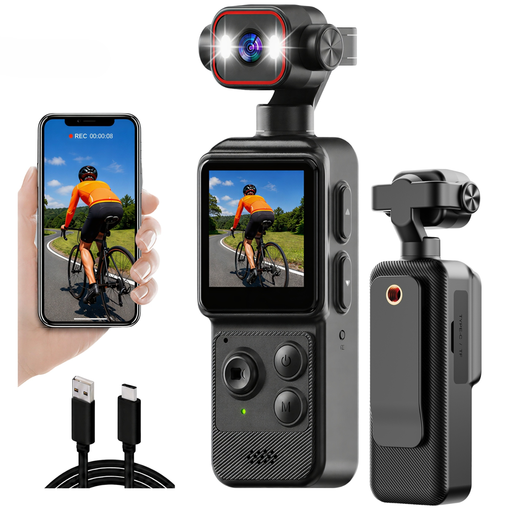
4K mini action camera with clip

4K mini action camera with clip

The clip may suit a compact setup. Check whether it lets you mount the camera securely above your drawing surface.

The product name lists 4K video, a 140° field of view, a rotating lens, app control and a 1200 mAh battery.

View at Joybuy
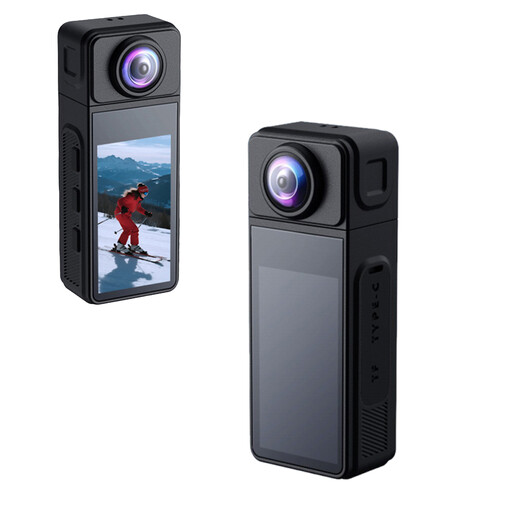
NAXSIR 2K Mini Action Camera

NAXSIR 2K Mini Action Camera

The rotating lens lets you adjust the viewing direction. Check that your chosen mount gives you a stable overhead view.

The product name lists 2K video, a 270° rotating wide-angle lens, a magnetic body and electronic image stabilisation. The product description mentions a ¼-inch tripod thread.

View at Joybuy
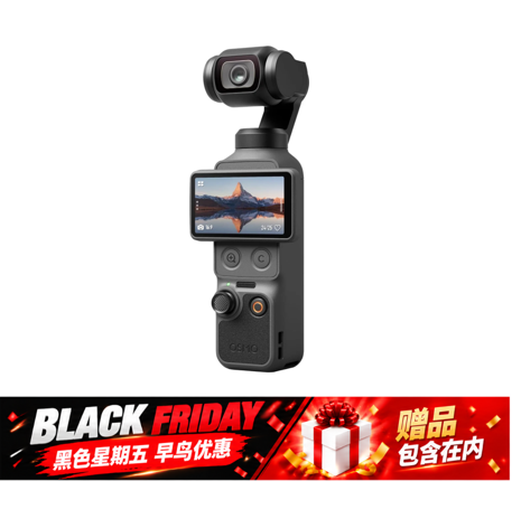
DJI Osmo Pocket 4 Standard Combo

DJI Osmo Pocket 4 Standard Combo

This pocket camera is worth considering for separate video recordings. Check separately whether the setup is suitable for filming paper from above.

The product name lists 4K video up to 240 fps, 3-axis stabilisation, 107 GB of built-in storage and a rotating 2-inch screen.

View at Joybuy

Philips 4000 Series 4K UHD Webcam, SPL6408BT/00

Philips 4000 Series 4K UHD Webcam, SPL6408BT/00

A webcam to consider for live computer-based lessons. Check whether the supplied mount also works for the paper framing you want.

The product name lists 4K UHD, 8 MP, autofocus, two built-in microphones and a privacy shutter. The variant is listed as EU Version, Black.

View at Joybuy

Philips 2K QHD PC Webcam, SPL6308S/00

Philips 2K QHD PC Webcam, SPL6308S/00

This PC webcam is an option for live lessons. Check that the clip and field of view suit the position where you want to show your paper.

The product name lists 2K QHD video, a noise-cancelling microphone and a clip for desktop or laptop use. The variant is listed as EU Version, Silver.

View at Joybuy

Frequently asked questions

How do you record your paper and spoken explanations using a computer?

Position the camera so that your whole drawing surface and hands remain in view, then test the sound. OBS Project explains how to add webcams and capture cards as video sources. Check that your camera and computer support the settings you want in your own setup.

Can one camera show your face and your drawing at the same time?

According to IPEVO, the DO-CAM can switch between document and webcam modes, but this describes switching between views, not showing two camera feeds at once. Check whether your teaching software needs a second video source for the view you want.

What are the rules on cooling-off periods and guarantees for online purchases in the Netherlands?

According to ACM ConsuWijzer, consumers who buy online generally have a 14-day cooling-off period after delivery, with some exceptions. You’re also entitled to a legal guarantee if a product doesn’t meet what you could reasonably expect; the seller is responsible for this.

Does an electronic camera sold in the EU need a CE marking?

The Dutch government lists electronic devices among the products that must have a CE marking in the EU. Check the details for the specific product and seller; a product page alone doesn’t prove that the item being offered meets the requirements.

Can I record people taking part in an online lesson?

For recordings of pupils or students by a school or university, the Dutch Data Protection Authority recommends, among other things, having a policy on recordings, providing information about their purpose and retention period, and taking appropriate privacy measures. Whether you can record participants in a particular independent art lesson depends on the organisation, the participants and how you make the recording.
