
Vandaag of morgen in huis

Kwaliteit gegarandeerd

Welkomstaanbiedingen ontgrendelen: GRATIS bezorging | Tot 80% korting | Gratis 30 dagen JoyPlus-proefperiode
Download de app
Buying a computer monitor seems straightforward until you start comparing specifications. A low price, high refresh rate or large screen may sound appealing, but it does not always tell you enough about practical usability. Three common pitfalls are:
The right choice therefore depends on your workspace, computer, viewing distance and intended use. Below are the main points to consider before buying a monitor.
A Full HD monitor with 1920 × 1080 pixels is suitable for basic use, administration, browsing and streaming. A 24-inch computer screen is a practical combination: text generally remains easy to read without taking up too much desk space.
A 27-inch monitor offers more workspace. For this size, QHD at 2560 × 1440 pixels is often a sensible middle ground. You get more room for windows and text than with Full HD, without immediately taking on the higher demands of 4K.
A 4K monitor displays 3840 × 2160 pixels. This can be useful for photo editing, detailed spreadsheets and entertainment. However, check that your computer can output the desired resolution and refresh rate via HDMI or DisplayPort.
With an ultrawide monitor, the aspect ratio and desk depth also matter. A 34-inch screen with a 21:9 aspect ratio is suitable for placing two windows side by side. A 49-inch model with a 32:9 aspect ratio takes up considerably more space and requires a sturdy, deep desk.
Refresh rate is expressed in hertz. 60 or 75 Hz is sufficient for word processing and general office work. 100 or 120 Hz makes scrolling and movement smoother. For a gaming monitor, refresh rates of 144 Hz, 175 Hz, 180 Hz or 240 Hz are relevant, particularly for fast-paced games.
Bear in mind that a stated maximum is not automatically available in every situation. The port, cable, resolution and graphics card used together determine what is achievable. Also check the difference between GtG and MPRT when looking at response times: these are different measurement methods, so the figures are not directly comparable.
Variable sync technology, such as FreeSync, can help reduce screen tearing when the refresh rates of the screen and graphics card fall out of sync. Check compatibility with your system. Do not assume a monitor is “G-Sync Compatible” unless this is officially stated in the product specifications.
Do not just look at the number of ports; consider what they are used for too:
A USB-C monitor is particularly useful with laptops. Check whether the port only transmits video or also supports Power Delivery. For example, the Dell Pro Plus P2725DE specifies USB-C with up to 90 W Power Delivery and an RJ45 connection. This can make your desk tidier with a single cable, but only if your laptop supports the relevant USB-C functions.
For a monitor for working from home or in the office, height adjustment, swivelling, tilting and pivot are often more important than HDR. Position the top edge of the screen roughly at eye level and place the computer screen at a suitable viewing distance. A monitor arm can be useful if the supplied stand offers too few adjustment options.
The recommendations below are based on verifiable specifications such as resolution, size, connections, refresh rate and adjustability. Features such as Reader Mode, Flicker Safe or Low Blue Light are product settings. According to information provided by the relevant brands, they are intended to make viewing more comfortable, but they are not a medical guarantee.
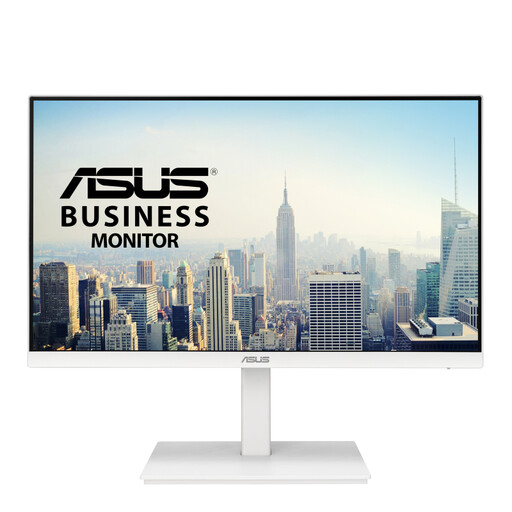
Why it suits this profile: This 23.8-inch Full HD IPS screen is suitable for everyday use, working from home and compact workspaces. The stand is height-adjustable, swivels and tilts.
You are not paying for a large size without suitable sharpness. The Full HD resolution is well matched to 23.8 inches, and the monitor has HDMI, DisplayPort and VGA.
IPS panel, 75 Hz, two USB 3.2 ports and VESA 100 × 100 mm.
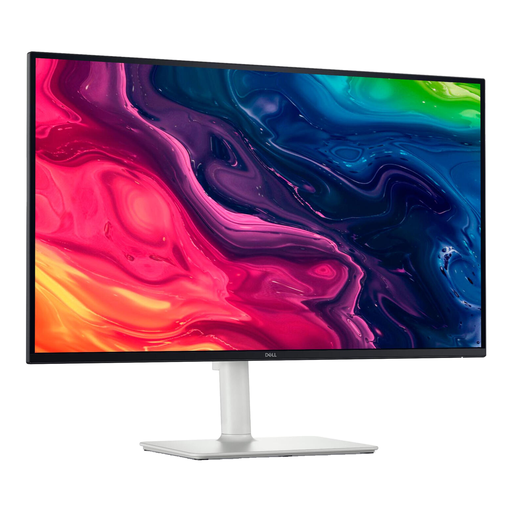
Why it suits this profile: The combination of 27 inches, 4K resolution and an IPS panel is ideal for users who expect plenty of detail for office work, media and photo editing.
The high resolution is paired with a 27-inch format. However, check beforehand that your computer can run 4K at 120 Hz via HDMI 2.1 or DisplayPort.
3840 × 2160 pixels, 120 Hz, height adjustment, pivot function, built-in speakers and FreeSync Premium.
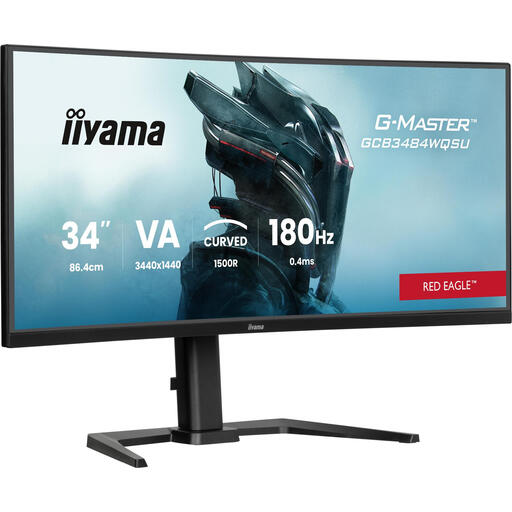
Why it suits this profile: This 34-inch ultrawide gaming monitor is designed for fast-paced games and a wide field of view, with UWQHD resolution and a refresh rate of up to 180 Hz.
The high speed is combined with 3440 × 1440 pixels. Check that you have enough space, and use DisplayPort if you want to make the most of the maximum specifications.
180 Hz, stated response time of 0.4 ms, 1500R curvature, USB hub, built-in speakers and height adjustment.
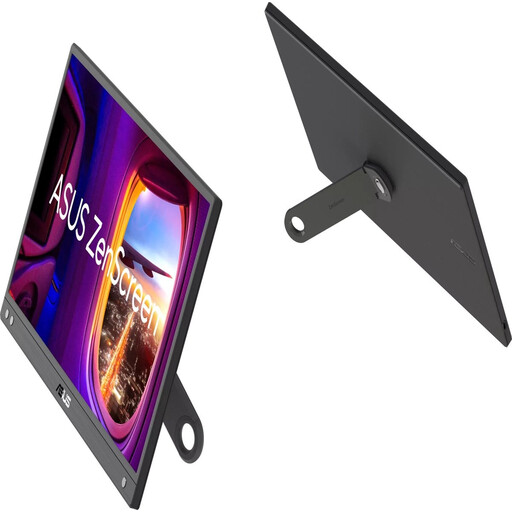
Why it suits this profile: This 15.6-inch portable monitor weighs 780 grams without its stand and works via USB-C. It is designed as an additional screen for laptop use on the go.
Portability is the priority, without having to carry a large desktop-sized screen. However, check that your laptop’s USB-C port supports DisplayPort Alt Mode.
Full HD IPS panel, anti-reflective coating, 60 Hz, 5 ms and an integrated 360° kickstand.
We have put together a complete, up-to-date list of products that fully meet these strict selection criteria and the applicable European safety regulations.
That depends on your viewing distance and preference for text sharpness. For a 27-inch monitor, QHD can provide more workspace and a finer pixel structure. Full HD remains suitable for general use, but compare the pixel density if you read a lot of text.
Power consumption varies according to size, brightness, resolution and panel type. Check the stated power consumption and the information on the European energy label. A 20 W model uses less energy than a 60 W model over the same period of use, but the actual cost depends on your electricity tariff and number of hours of use.
Lifespan varies according to the brand, model and conditions of use. Position the screen securely, keep the ventilation openings clear and use a soft, dry cloth to clean the display. Check the warranty terms when buying and keep your purchase information. In the EU, consumers are covered by statutory conformity rights; any additional manufacturer’s warranty may vary by product.
