
Vandaag of morgen in huis

Kwaliteit gegarandeerd

Welkomstaanbiedingen ontgrendelen: GRATIS bezorging | Tot 80% korting | Gratis 30 dagen JoyPlus-proefperiode
Download de app
Buying a monitor seems straightforward until you have to choose between Full HD, QHD, 4K, OLED, USB-C, HDR and different refresh rates. Marketing copy often focuses on one impressive specification, while other features get less attention. As a result, a screen may look appealing on paper but disappoint in your workspace.
Look out for these three common pitfalls:
For a monitor for working from home or the office, 24 to 27 inches is a common size. A Full HD monitor with 1920 × 1080 pixels may be enough for email, word processing and everyday browsing. However, Full HD looks less sharp on a 27-inch screen than on a 24-inch one.
A QHD monitor with 2560 × 1440 pixels gives you more workspace and sharper text. It’s a practical choice for spreadsheets, photo editing and having several windows open side by side. A 4K monitor with 3840 × 2160 pixels gives you even more detail, but puts more demands on your graphics card and may cost more.
An ultrawide monitor often has a 21:9 aspect ratio. This lets you place several windows side by side without needing a second screen. Be sure to check the width of your desk, though. A 34-inch model takes up considerably more space than a traditional 27-inch screen.
When it comes to HDR, don’t just look at the label. HDR10 or DisplayHDR True Black 400 indicates support or certification, but the overall experience also depends on brightness, contrast, local dimming and your computer’s HDR settings. According to the manufacturer’s own information or product listing, colour gamut and HDR performance can vary by model.
A standard 60Hz screen refreshes the image 60 times per second. A high-refresh-rate monitor at 100, 144, 175 or 240 Hz can display motion more smoothly. For office work, 100 or 120 Hz is often a practical step up. A higher refresh rate is more relevant for competitive gaming, provided your PC can make use of it.
Also check:
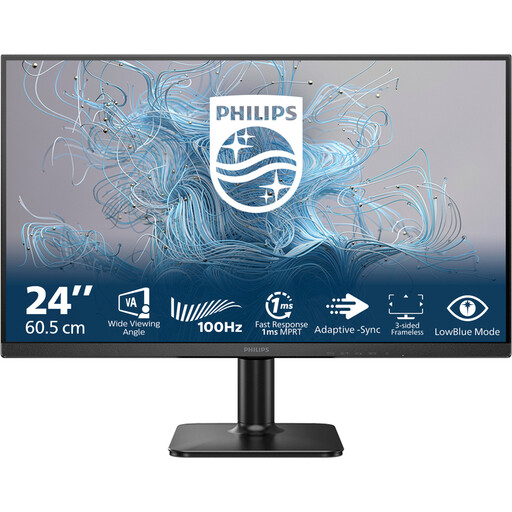
Why it suits this profile: The 24-inch size, Full HD resolution and 100Hz refresh rate are well suited to everyday office work, studying and multimedia, without unnecessary extra features.
The specifications clearly state the size, 1920 × 1080 pixel resolution, VA panel and 100 Hz refresh rate. That means you know exactly what you’re getting, rather than having to rely on a vague claim about picture quality.
24 inches, Full HD, VA panel, 100 Hz and 4 ms response time.
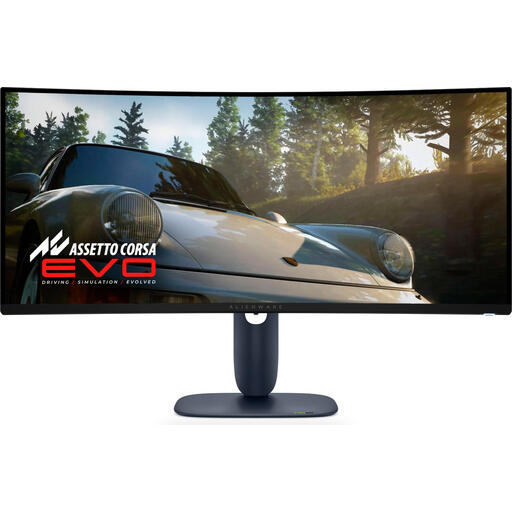
Why it suits this profile: This 34-inch curved QD-OLED screen combines a 21:9 aspect ratio with 3440 × 1440 pixels and a stated refresh rate of 240 Hz.
The model lists the resolution, aspect ratio and refresh rate. Check in advance that your desk is wide enough and your graphics card supports these settings.
34 inches, QD-OLED, 3440 × 1440 pixels, curved design and 240 Hz.
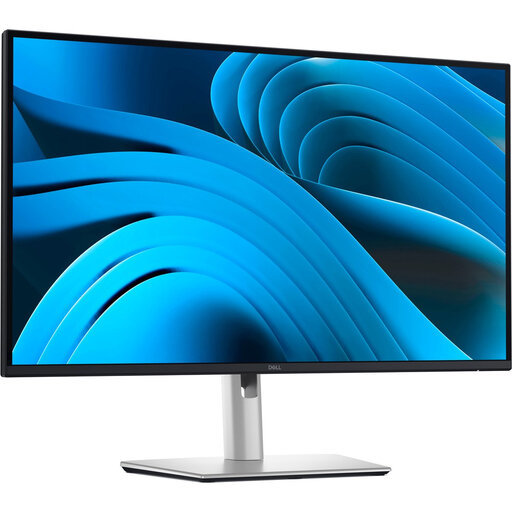
Why it suits this profile: For a permanent workspace, this 27-inch QHD IPS model offers USB-C with up to 90W Power Delivery, an RJ45 port and extensive adjustability.
The USB-C functionality is clearly specified, with video, data and 90W power delivery. Check that your laptop supports USB-C with DisplayPort Alt Mode.
27 inches, QHD IPS, 100 Hz, USB-C with 90W Power Delivery, RJ45 and height adjustment.
We’ve put together a complete, up-to-date list of products that meet these strict selection criteria and current European safety regulations.
Before you check out, take a moment to check the following:
Yes, QHD is practical if you use several windows or want sharper text. Check that your laptop or desktop supports 2560 × 1440 pixels through the connection you’ve chosen.
Its lifespan depends on build quality, hours of use, heat, settings and panel technology. LCD monitors can last a long time with normal use. For OLED models, it’s worth checking the pixel protection features, warranty and terms relating to possible image retention.
It can. A larger panel, higher brightness, HDR and a high refresh rate can all increase power consumption. So compare the energy rating and consumption per 1,000 hours in SDR and HDR, rather than looking only at the purchase price.
