
Vandaag of morgen in huis

Kwaliteit gegarandeerd

Welkomstaanbiedingen ontgrendelen: GRATIS bezorging | Tot 80% korting | Gratis 30 dagen JoyPlus-proefperiode
Download de app
Buying a monitor seems simple until you have to choose between Full HD, 4K, 144Hz, 165Hz, USB-C and different panel types. Marketing copy often focuses on one eye-catching specification, while other features are less clearly explained. As a result, a screen can look appealing on paper but not work well with your laptop, games or workspace.
The three most common pitfalls:
A Full HD monitor with 1920 × 1080 pixels is suitable for everyday office tasks, studying, streaming and casual gaming. Text is generally easy to read on a 23.8 or 24-inch screen without needing to use much scaling.
A QHD monitor with 2560 × 1440 pixels gives you more workspace. This is useful for spreadsheets, photo and video editing, and gaming on a 27-inch screen. A 4K monitor with 3840 × 2160 pixels shows even more detail, but often demands more from your graphics card. Also check whether your laptop or desktop can output 4K at your preferred refresh rate.
Refresh rate is measured in hertz. A 60Hz monitor refreshes the image 60 times per second. That’s usually enough for word processing and admin tasks. For scrolling, fast-paced games and animation, 100Hz, 144Hz or 165Hz can give you a smoother picture.
Screens with a 320Hz refresh rate are available for competitive gaming. That figure sounds impressive, but the benefits depend on your PC’s performance, the resolution you choose and the type of game you play. Also check how response time is measured. Manufacturers may use GTG or MPRT, for example, and these figures aren’t always directly comparable.
An IPS monitor is known for its wide viewing angles and consistent colour reproduction, according to the product description. This can be useful for office work, image editing and sharing the screen with others. Check brightness, contrast and colour gamut too; a higher sRGB percentage doesn’t automatically mean colour reproduction will be consistent in all conditions.
Check the connections for:
A height-adjustable stand, tilt function and VESA support can be more important than an extra picture mode. Place the screen on a stable, well-ventilated surface and check how much space you have on your desk beforehand.
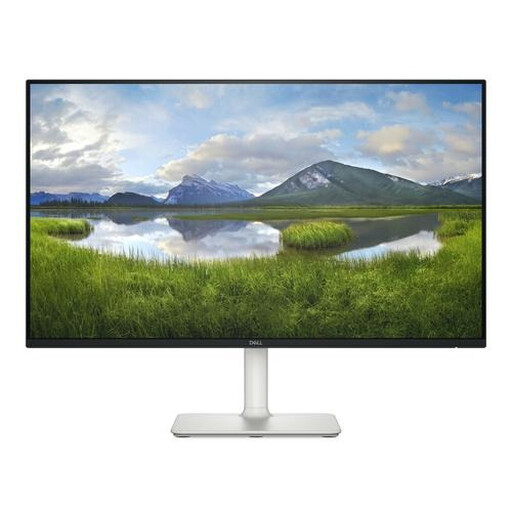
Why it suits this profile: This Full HD computer monitor is designed for everyday use, studying and office work. Its 23.8-inch IPS display has a resolution of 1920 × 1080 pixels and a refresh rate of up to 100Hz.
The product specifications list a clear Full HD resolution, two HDMI ports and a built-in speaker. That means you don’t have to pay for features you may not use.
IPS panel, 100Hz, two HDMI connections, VESA 100 × 100 mm and built-in speakers.
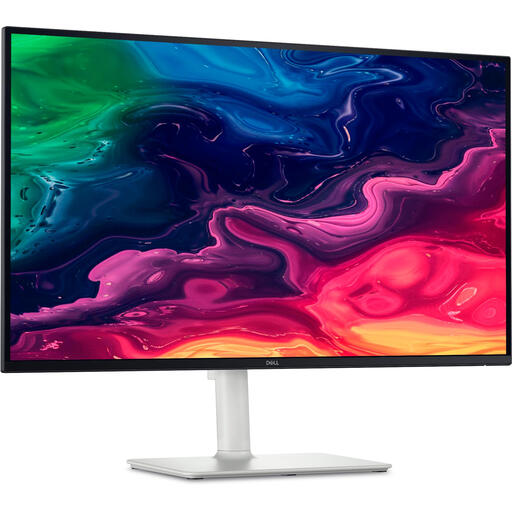
Why it suits this profile: The combination of 4K resolution, IPS technology, USB-C and an adjustable stand is a good fit for professionals, designers and home workers who want plenty of detail and a central workspace.
Check that your laptop supports video over USB-C and power delivery of up to 65W. The monitor doesn’t eliminate the connection pitfall, but its specifications make clear what you need to check beforehand.
3840 × 2160 pixels, up to 120Hz, USB-C with up to 65W Power Delivery, HDMI 2.1 and height adjustment.
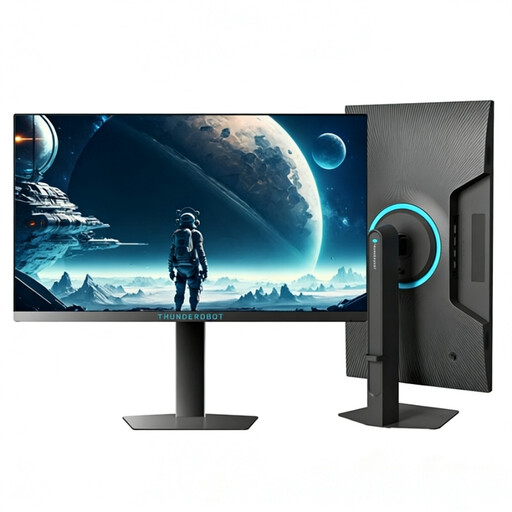
Why it suits this profile: This screen is aimed at people who play fast-paced competitive games and specifically want a high refresh rate.
The Full HD resolution puts less strain on your system than 1440p or 4K. Even so, your PC needs to deliver enough frames per second to make good use of 320Hz.
24.5 inches, 1920 × 1080 pixels and a stated refresh rate of 320Hz. The manufacturer also lists an adjustable, swivel design.
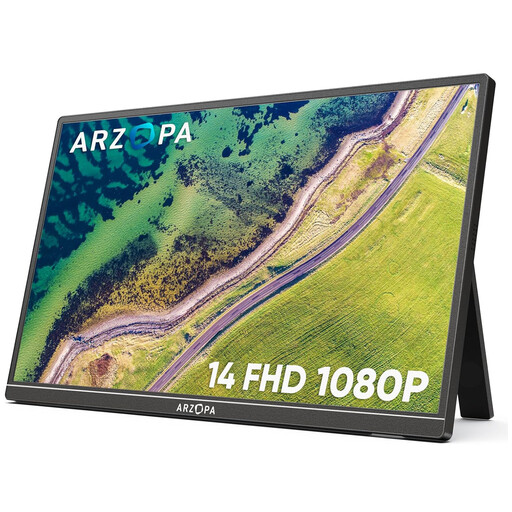
Why it suits this profile: This portable screen is designed as a second display for a laptop, PC, phone or games console. Its 600-gram weight and built-in stand make it suitable for use on the move.
The connections are clearly listed: two USB-C ports and Mini HDMI. If you want to use a single cable, check that your laptop’s USB-C connection supports video.
14-inch IPS, Full HD 1920 × 1080, 60Hz, two USB-C ports, Mini HDMI and a weight of 600 grams.
We’ve put together a complete, up-to-date list of products that meet these strict selection criteria and the applicable European safety regulations.
A 144Hz monitor can make scrolling and movement look smoother, but it isn’t essential for word processing. A 100Hz screen can already be a practical step up. Focus on resolution, size, connections and adjustability.
No. For USB-C, the port must support video, often through DisplayPort Alt Mode. Some portable screens can also connect via HDMI, but they’ll usually need a separate power connection. Check your laptop’s manual and the cables included in the box.
Power consumption varies by model, brightness and operating mode. A higher resolution doesn’t automatically mean a fixed increase in power use. Check the energy label and product specifications, especially if the screen will be on for many hours each day.
