
Vandaag of morgen in huis

Kwaliteit gegarandeerd

Welkomstaanbiedingen ontgrendelen: GRATIS bezorging | Tot 80% korting | Gratis 30 dagen JoyPlus-proefperiode
Download de app
Buying a gaming monitor seems straightforward until you start comparing the specifications. 144Hz, 240Hz, HDR, OLED, Adaptive Sync and all sorts of response times are prominently displayed on the packaging. But one impressive number doesn’t tell you everything. A screen may be fast, but still not suit your PC, console, desk or favourite games.
The most common pitfalls:
A 24- or 27-inch Full HD gaming monitor is generally easy to fit on your desk and requires less graphics processing power. A QHD gaming monitor with 2560 × 1440 pixels offers more detail, especially at 27 inches. For 4K gaming, you’ll need a screen with 3840 × 2160 pixels, as well as a graphics card capable of running that resolution at your chosen refresh rate.
A 4K gaming monitor is a good option for single-player games, creative work and consoles that support 4K. For competitive shooters, QHD or Full HD may be more practical, as higher frame rates are easier to achieve.
An ultrawide gaming monitor usually has a 21:9 aspect ratio. This gives you extra horizontal screen space and works well for racing games, simulators and multitasking. Check in advance that your favourite games support this aspect ratio properly.
A 144Hz gaming monitor is a natural step up from 60Hz. Movement and cursor motion look smoother when your computer can deliver enough frames. A 240Hz gaming monitor is aimed mainly at players of competitive games with a powerful PC.
Adaptive Sync matches the screen’s refresh rate to the graphics card’s frame output. This can help reduce tearing and stuttering. Check the official compatibility carefully:
An IPS gaming monitor is known for its wide viewing angles and consistent colour reproduction. According to product specifications, VA panels often offer higher static contrast. An OLED gaming monitor uses self-lit pixels and can display very deep blacks. If you’re considering OLED, it’s worth reading the information about pixel protection, usage modes and the warranty against image retention.
For HDR, check specific figures such as brightness and certification. A label such as HDR Ready doesn’t automatically mean the same viewing experience as DisplayHDR True Black 400 or another certified standard.
Also check:
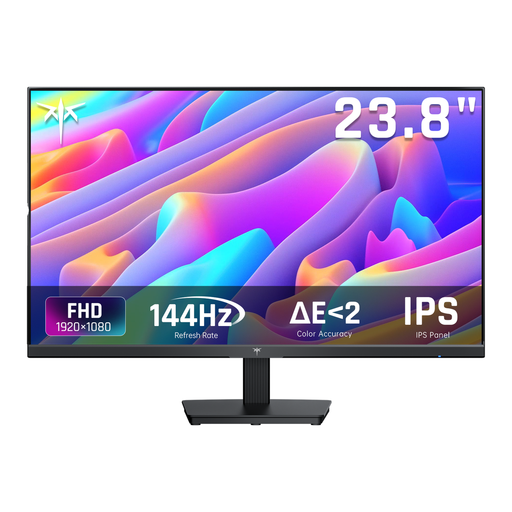
Why it suits this profile: The 24-inch Full HD size makes this a straightforward first gaming monitor that fits on many desks. Its 144Hz refresh rate is suitable for PC gaming and everyday use.
The specifications list both 144Hz and Adaptive Sync, so you don’t have to rely on a response-time claim alone.
IPS panel, 1920 × 1080 pixels, HDMI, DisplayPort and a tilting stand.
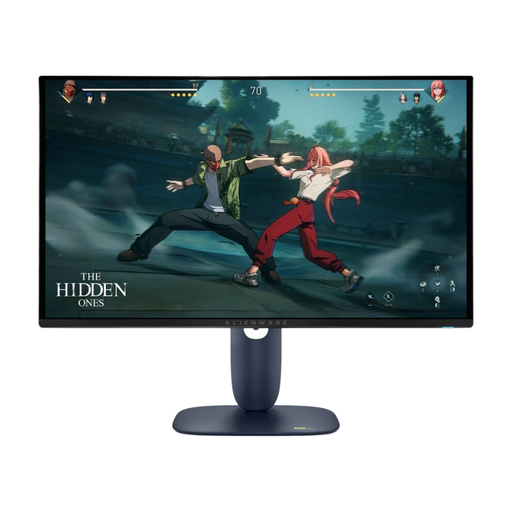
Why it suits this profile: This model combines QHD resolution with a QD-OLED panel and a high refresh rate. It’s a good fit for gamers and creative users who want detail, contrast and smooth performance in one screen.
The product information lists 280Hz, QHD and HDMI 2.1 separately, so you can choose the right connection for your PC or console.
2560 × 1440 pixels, 280Hz, stated response time of 0,03ms, HDR True Black 400, and support for FreeSync Premium Pro and G-SYNC Compatible.
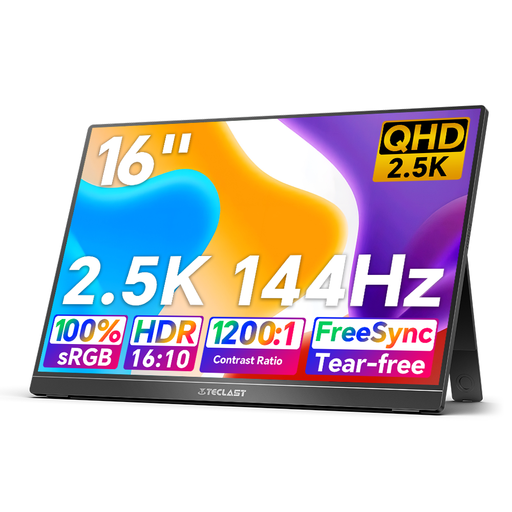
Why it suits this profile: A portable monitor is handy for laptop use, temporary workspaces, travel and as a second screen alongside a permanent gaming setup.
The built-in kickstand and two USB-C ports give you a more flexible setup than a fixed monitor stand. Check your laptop’s USB-C video mode first.
16 inches, 2.5K resolution, 144Hz, IPS, FreeSync, HDR, mini-HDMI and built-in speakers.
We’ve put together a complete, up-to-date list of products that meet these strict selection criteria and the applicable European safety regulations.
For many players, 144Hz strikes a practical balance between smooth motion and the graphics performance required. The difference compared with 60Hz is most noticeable in fast-paced games and when scrolling smoothly. 240Hz is only worthwhile if your computer can also achieve a high frame rate in the game you’re playing.
According to the product specifications, OLED offers deep blacks and a very low stated response time. If you use the screen for long periods with static elements, such as a taskbar or interface, it’s worth using the built-in OLED protection features and checking the warranty and image-retention information. Practical lifespan depends on brightness, usage time and content.
Power consumption varies depending on the panel, size, brightness and HDR setting. Check the energy label and the stated figures for SDR and HDR. A large 4K or ultrawide screen may use more power than a compact Full HD model. Switch the screen off completely if you won’t be using it for a while, and check that sleep mode is working correctly.
