
Vandaag of morgen in huis

Kwaliteit gegarandeerd

Welkomstaanbiedingen ontgrendelen: GRATIS bezorging | Tot 80% korting | Gratis 30 dagen JoyPlus-proefperiode
Download de app
Buying a gaming monitor seems simple until you have to choose between Full HD, QHD, 144Hz, 240Hz, IPS, VA, and OLED. Marketing copy often focuses on a single impressive number, but it's the combination of specifications that determines whether a monitor is truly right for your PC, console, and playstyle.
That's why it's important to watch out for three common pitfalls:
A 24-inch gaming monitor with Full HD (1920 × 1080) places a relatively low demand on your graphics card. This makes it a practical size for competitive shooters and smaller desks. On a 27-inch screen, Full HD can still be usable, but text and details generally look less sharp than with QHD.
A 27-inch gaming monitor with QHD offers 2560 × 1440 pixels. It's a practical middle ground for gaming, watching films, and working from home. A 32-inch gaming monitor is better suited to QHD or a higher resolution, as the larger screen area needs more detail.
For multitasking and racing games, a 34-inch ultrawide gaming monitor can be a great option. UltraWide Quad HD, or 3440 × 1440, gives you extra horizontal space for work and play. Just make sure your desk is deep enough and that your graphics card can handle this resolution at your desired refresh rate.
The refresh rate is expressed in hertz (Hz). A 144Hz, 165Hz, or 180Hz monitor displays a new image more frequently than a standard 60Hz screen. For fast-paced games, this can result in a smoother picture, provided your PC delivers enough frames.
For competitive players, there are also models with 240Hz, 300Hz, or 320Hz. The difference between these values is mainly relevant when your system achieves very high frame rates. For general gaming, streaming, and office work, a lower refresh rate might be a more sensible choice.
Also, pay attention to how the response time is measured:
So, a claim like 1 ms monitor is only useful if you also know whether it refers to GTG or MPRT and under what settings this value was determined.
An IPS gaming monitor typically offers wide viewing angles and consistent colours. This suits gamers who also use their monitor for photos, videos, or working from home. A VA gaming monitor is known for its higher stated contrast ratio and deep dark tones. However, on some VA screens, dark pixel transitions can look different compared to IPS.
An OLED gaming monitor uses pixels that can light up individually. This results in highly contrasted dark scenes. With prolonged static images, there is a risk of image retention or permanent burn-in, depending on the panel and usage. Therefore, check the maintenance features and warranty conditions before choosing an OLED monitor.
FreeSync and other Adaptive Sync technologies match the screen's refresh rate to the graphics card's frame rate. This can reduce screen tearing and stuttering, but you should check the supported frequency range, the connection used, and compatibility with your graphics card.
For a gaming monitor with DisplayPort or a gaming monitor with HDMI, look at the version and bandwidth. Not every HDMI port supports the same resolution and refresh rate. For PC gaming, DisplayPort is often the practical choice for high refresh rates. For consoles, HDMI ports are important; also check what resolution and frequency your console outputs.
A VESA-compatible gaming monitor can be used with a compatible monitor arm or wall mount. Check the VESA size, the weight without the stand, and whether the stand is height-adjustable.
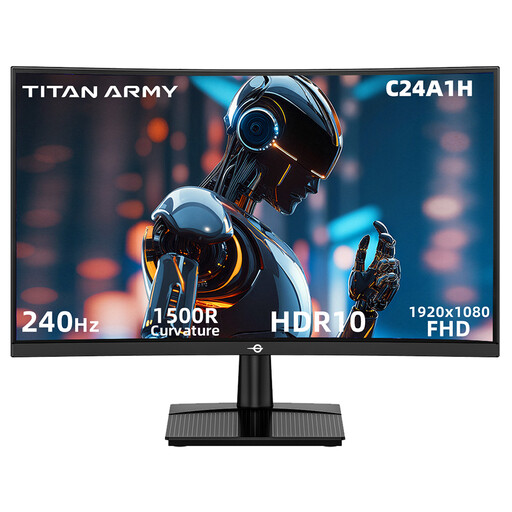
Why it fits this profile: The 23.6-inch size and Full HD resolution are a great match for a compact desk and systems that can achieve high frame rates in 1080p.
The product information separately lists 240Hz, 1 ms MPRT, HDMI 2.0, and DisplayPort 1.2. Do check that your PC supports these settings.
VA panel, 1500R curve, HDR10 support, FreeSync compatibility, and VESA 100 × 100 mm.
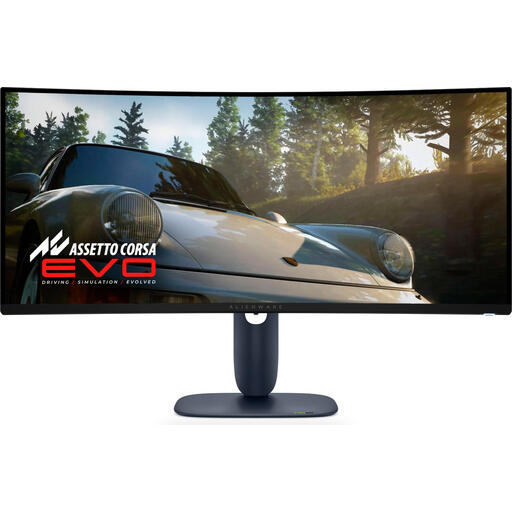
Why it fits this profile: This 34.2-inch curved gaming monitor combines ultrawide QHD with QD-OLED for gamers and multitaskers who prioritise image contrast and screen real estate.
The specifications mention 3440 × 1440, HDMI 2.1, and DisplayPort, alongside the 240Hz refresh rate and approx. 0.03 ms response time. Before buying, check your PC's performance and the OLED warranty conditions.
QD-OLED panel, 21:9 aspect ratio, 240Hz, HDR10 content support, and an ergonomically adjustable stand.
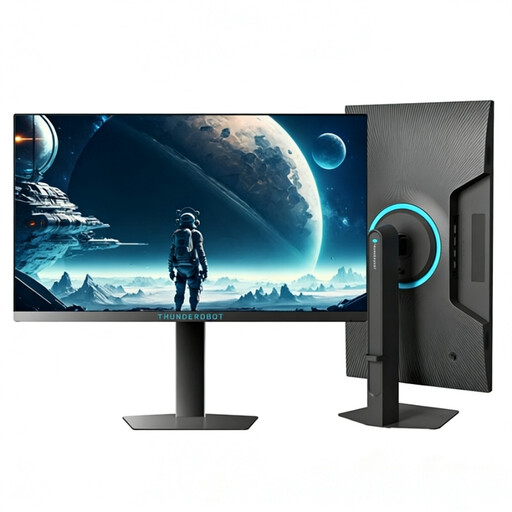
Why it fits this profile: This screen is aimed at esports players who want to take advantage of a very high refresh rate in Full HD.
The Full HD resolution limits the graphical load compared to QHD, which can make 320Hz more realistic for suitable systems. Be sure to check your actual frame rate.
1920 × 1080 resolution, 320Hz, 450 nits brightness according to the product information, and a height-adjustable stand.
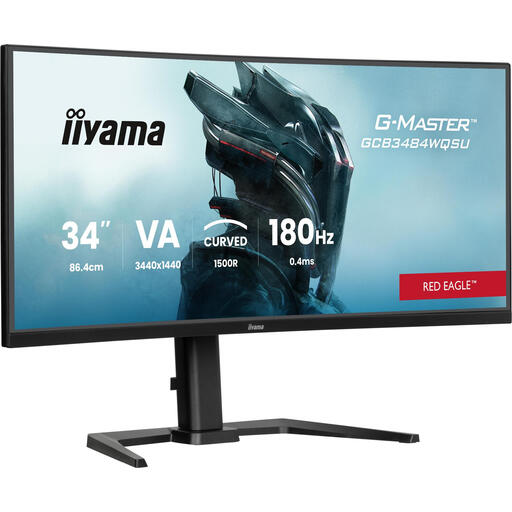
Why it fits this profile: The 34-inch ultrawide layout provides space for games, windows, and documents side by side.
The combination of 3440 × 1440, 180Hz, and DisplayPort is clearly stated. Before setting it up, check your available desk space and cable support.
1500R curve, 180Hz, stated response time of 0.4 ms, built-in speakers, USB hub, and height adjustment.
We have compiled a complete, up-to-date list of products that fully meet these strict selection criteria and comply with current European safety regulations.
For many PC and console games, 144Hz is a practical choice. The picture can look smoother than at 60Hz, but the effect depends on your frame rate, game settings, and connection. A 240Hz or 320Hz monitor is mainly relevant for players with a system that consistently achieves high frame rates.
QHD displays more pixels and therefore more detail, especially on screens 27 inches or larger. Full HD is less demanding on the graphics card, which can make it an attractive option for esports or budget-friendly systems. So, make your choice based on screen size, hardware, and viewing distance, rather than just the resolution name.
The lifespan depends on usage, heat, transport, and the quality of the power supply. When you buy, check the statutory minimum two-year warranty within the EU, any product-specific conditions, and the availability of cables and mounting hardware. With OLED monitors, it's wise to pay extra attention to pixel maintenance, static windows, and the terms and conditions regarding image retention.
