
Vandaag of morgen in huis

Kwaliteit gegarandeerd

Welkomstaanbiedingen ontgrendelen: GRATIS bezorging | Tot 80% korting | Gratis 30 dagen JoyPlus-proefperiode
Download de app
Buying a computer monitor sounds simple, until you compare resolution, panel type, connections and size. A screen that looks impressive on paper will not always suit your desk, laptop or how you use it. Office work calls for different features than gaming or video editing.
Pay particular attention to these three common pitfalls:
A high refresh rate without suitable hardware
A gaming monitor with 165 Hz or 240 Hz can produce smoother images, but your computer must also be able to deliver enough frames per second. For email, spreadsheets and video calls, a stable 75 or 100 Hz is often perfectly adequate.
A high resolution on a screen that is too small or too large
A 4K monitor offers plenty of pixels, but text and interface elements may appear small on a smaller screen. On a 32-inch monitor, 4K often comes into its own more effectively than on a compact display.
Not checking connections and accessories
A USB-C monitor can combine video, data and power, but always check how many watts its USB Power Delivery provides. It is also worth checking whether a power cable, USB cable or charger is included. Some Lenovo models, for example, state that a charger is no longer supplied as standard.
The screen size determines how much space you need on your desk and how comfortably you can place windows side by side.
Resolution affects sharpness and the available workspace:
Do not look only at the number of pixels, but also at the pixel density. According to the product specifications, a 23.8-inch IPS monitor with Quad HD, such as the Lenovo ThinkVision P24QD-40, has 123 ppi. This results in a finer image than Full HD at the same screen size.
An IPS monitor is known for its wide viewing angles and consistent colour reproduction. This makes it a practical panel type for office work, photo editing and situations where several people are looking at the screen.
A VA panel generally offers higher static contrast. This can be useful for films and games with dark scenes. An ultrawide monitor such as the Philips 5000 Series 34B1U5600CH/00 uses a VA panel with a stated contrast ratio of 3000:1.
A TN panel is found in business touchscreen monitors and models where fast operation is a priority. The iiyama ProLite 17-inch touchscreen monitor, for example, has a TN panel, 10-point touch control and a 5:4 aspect ratio. This size is mainly intended for specific workstations rather than extensive multitasking.
LED is usually the backlighting, not a separate panel type. An LED monitor can therefore contain an IPS, VA or TN panel.
Before buying a PC monitor, check which connections your computer uses:
A monitor with an adjustable stand is useful when several people share the same workspace. Look for height adjustment, tilting, swivelling and pivot rotation. VESA support, often 100 × 100 mm, provides additional options with a monitor arm or wall mount.
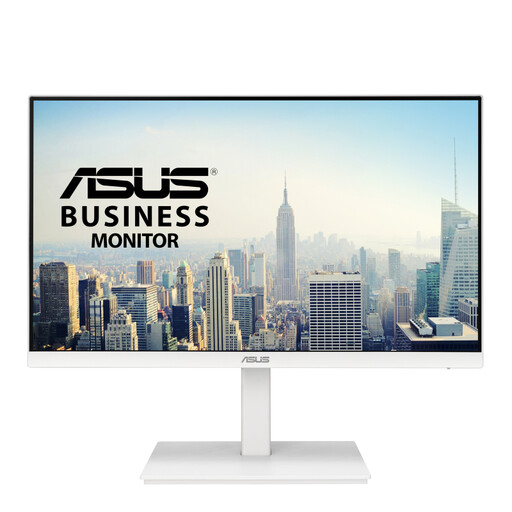
Why it suits this profile: This 23.8-inch Full HD screen is designed for working from home, administration and everyday use. IPS technology, 75 Hz and an adjustable stand keep the specifications practical and easy to manage.
The resolution and refresh rate are well suited to general tasks, so you are not paying for features you are unlikely to use.
IPS panel, height adjustment up to 130 mm, HDMI, DisplayPort, VGA and two USB-A ports.
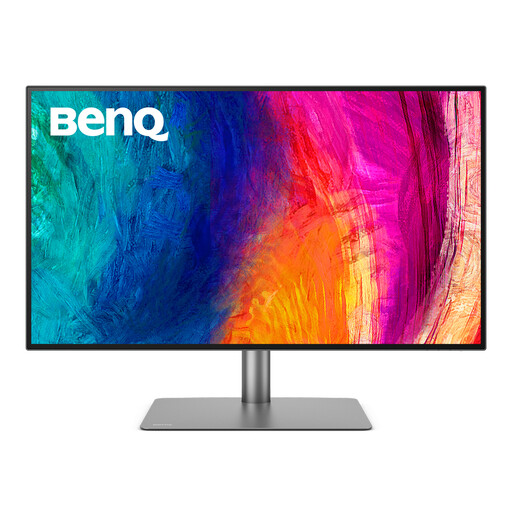
Why it suits this profile: For designers and video creators, this 32-inch 4K screen provides plenty of workspace, 140 ppi and IPS display technology. According to the product specifications, Thunderbolt 3 supports video, data and power delivery of up to 85 W.
The colour and connectivity claims are backed by specific features, including 4K, 10-bit colour and HDR400. Before buying, however, check that it suits your intended workflow and is compatible with your computer.
4K resolution, IPS panel, KVM function, Picture-by-Picture and ergonomic stand.
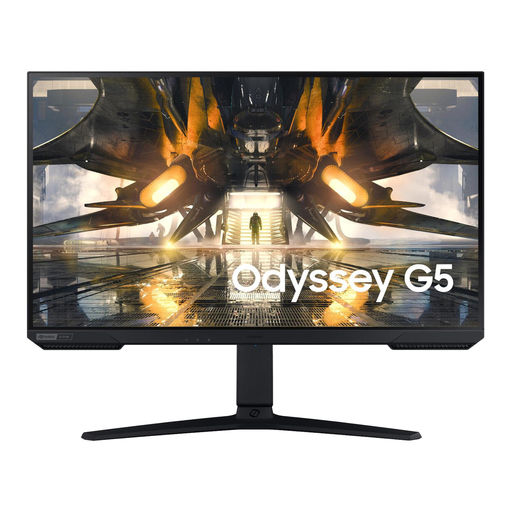
Why it suits this profile: This 27-inch gaming monitor combines Quad HD with a stated refresh rate of 165 Hz and support for G-Sync Compatible and FreeSync Premium.
The gaming features are clearly specified. Do check that your graphics card can drive Quad HD at a high refresh rate.
IPS panel, 2560 × 1440 pixels, 165 Hz, HDR10 and height adjustment up to 120 mm.
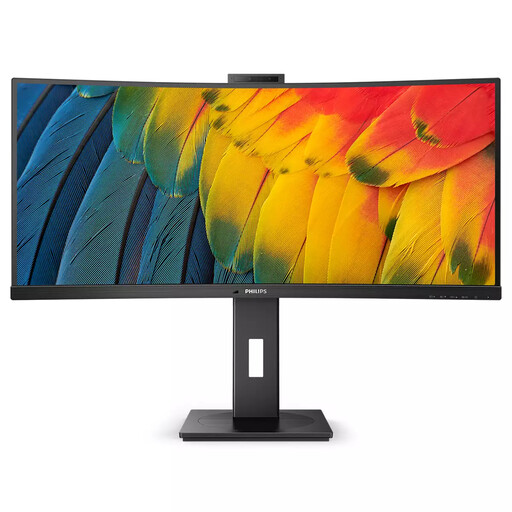
Why it suits this profile: This 34-inch ultrawide monitor is designed for large spreadsheets, placing two windows side by side and video calls. The built-in webcam, microphone, KVM and USB-C make the screen suitable for a shared workspace.
The additional features are verifiable: a 21:9 aspect ratio, KVM, webcam and USB-C with up to 100 W Power Delivery. Please note: according to the listing, the maximum refresh rate via HDMI is 100 Hz.
3440 × 1440 pixels, built-in 5MP webcam, Ethernet, speakers and height adjustment up to 18 cm.
We have put together a complete, up-to-date list of products that fully meet these strict selection criteria and the applicable European safety regulations.
For word processing, browsing, email and video calls, a 24-inch monitor is often sufficient. Ideally, choose an adjustable stand and a matt screen if you work in a bright room. If you regularly use three or more windows side by side, it may be better to consider a 27-inch, 32-inch or ultrawide model.
No. The laptop’s USB-C port must support video signals via DisplayPort Alt Mode. Also check the maximum charging power. A monitor with 60 W may be able to charge a lightweight laptop, while more powerful models need more power. Use the supplied cable when specified by the manufacturer.
This varies according to the size, resolution, brightness and HDR usage. Compare consumption per 1,000 hours on the energy label. A smaller Full HD screen generally uses less power than a large 4K or ultrawide monitor. If you will be away for a longer period, switch the screen off completely rather than leaving it on standby.
Its service life depends on daily use, heat, transport and the settings selected. Place the screen securely, keep ventilation openings clear and clean it with a soft cloth. Also keep your proof of purchase: in the Netherlands, consumers are covered by the statutory guarantee of conformity; the product information for these models states a minimum of two years’ statutory warranty under EU rules.
