
Vandaag of morgen in huis

Kwaliteit gegarandeerd

Welkomstaanbiedingen ontgrendelen: GRATIS bezorging | Tot 80% korting | Gratis 30 dagen JoyPlus-proefperiode
Download de app
Buying a computer monitor seems straightforward, until you have to choose between Full HD, QHD or 4K, 60Hz or 144Hz, and IPS or VA. Marketing copy often focuses on one headline specification, even though other features can be just as important. For example, a high refresh rate is of little use if your laptop doesn’t have the right connection or your graphics card can’t deliver a high enough frame rate.
Three common pitfalls are:
So start with your own needs. A monitor for working from home calls for different priorities from a gaming monitor or a screen for photo editing.
A 27-inch monitor is a versatile choice for office work, studying and gaming. At this size, text may look less sharp at Full HD, or 1920 × 1080 pixels, than it does at QHD. QHD, also known as 2560 × 1440 pixels, offers a useful balance between screen space and sharpness.
A 34-inch monitor with a 21:9 ultrawide aspect ratio is a good option for multitasking. You can place windows side by side without needing a second screen. Bear in mind the space available on your desk and your viewing distance. An ultrawide monitor is wider and needs a sturdy desk.
For detailed images, consider a 4K monitor with a resolution of 3840 × 2160 pixels. Before you buy, check that your computer can output 4K at your preferred refresh rate.
An IPS monitor is generally known for its wide viewing angles and consistent colour reproduction. This makes IPS a practical choice for graphic design, office environments and situations where several people will be looking at the screen.
A VA panel often has a higher stated contrast ratio. This can affect how dark images appear, making it an interesting option for films and some games. The right choice depends on what matters more to you: viewing angles and colour consistency, or contrast.
Also check how the manufacturer lists colour gamut coverage, for example sRGB or DCI-P3. A percentage only tells you about coverage within the stated colour space; it doesn’t guarantee accurate colour calibration.
A standard monitor can be perfectly suitable for word processing at 60Hz. A 100Hz monitor, 144Hz monitor or faster screen refreshes the image more times per second. This can make movement look smoother when gaming or scrolling.
Don’t look at response time alone. Manufacturers use different measurement methods, such as MPRT and GTG, so make sure you’re comparing like for like. Adaptive Sync, AMD FreeSync or G-SYNC Compatible can synchronise the monitor’s refresh rate with your graphics card. Check which technology is officially supported and which connection it uses.
The models below have been selected based on verifiable specifications such as resolution, panel type, connections, screen size and ergonomics. Features such as HDR, Adaptive Sync and eye comfort technology are based on information from the manufacturer or supplier.
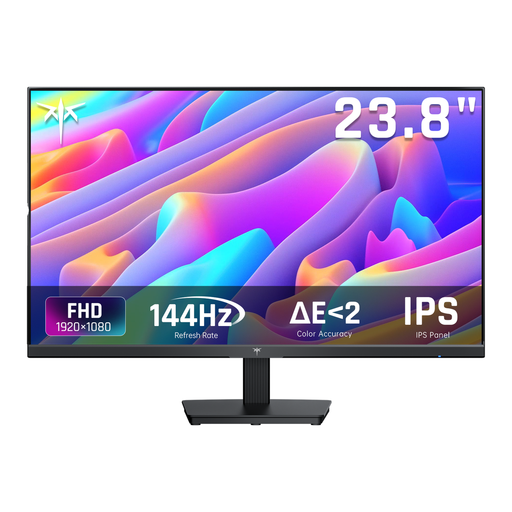
Why it suits this profile: Its compact 24-inch size and Full HD resolution make it a good first gaming or desktop screen for a smaller workspace.
The specifications list both the 144Hz refresh rate and HDMI and DisplayPort connections. This lets you check in advance whether your PC supports the display mode you want.
24 inches, IPS panel, Full HD, 144Hz, Adaptive Sync and a tilt range of -5° to 15°.
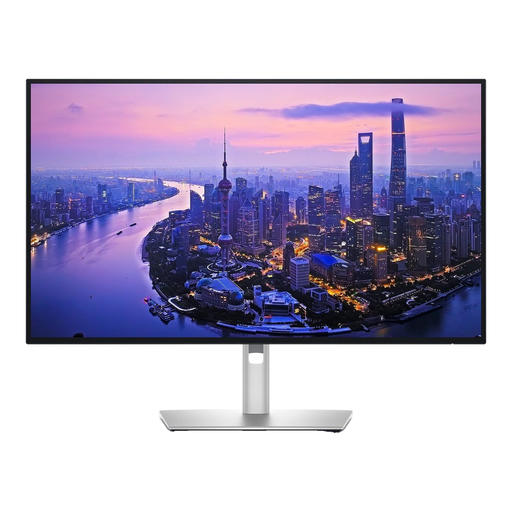
Why it suits this profile: This screen is designed for professionals who need plenty of detail, high resolution and extensive connectivity for design, image editing or office work.
As well as 4K resolution, the product information lists an IPS panel, 120Hz and several HDMI, DisplayPort, USB-C and Thunderbolt 4 connections.
27 inches, 3840 × 2160 pixels, HDR support, 120Hz and a stated brightness of 450 cd/m².
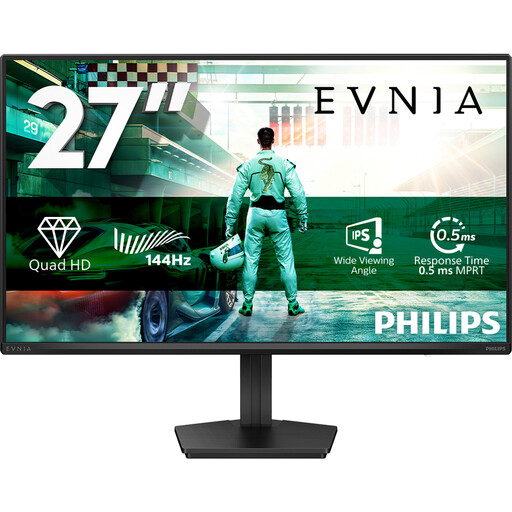
Why it suits this profile: This model combines QHD resolution with a high refresh rate, making it a good fit for gamers who also want a sharp screen for everyday work.
The product details list not only 144Hz, but also Adaptive Sync, HDMI 2.0 and DisplayPort 1.4. Check that your graphics card supports the combination you want.
27-inch IPS, QHD, 144Hz, HDR10, Adaptive Sync and a stated Smart MBR response time of 0.5ms.
We’ve put together a complete, up-to-date list of products that meet these strict selection criteria and the applicable European safety regulations.
A monitor with USB-C can be useful with a laptop, but check whether the port also carries a video signal and supplies power. On some models, USB-C is for data only. A USB-C power delivery rating of 90W, as found on some business screens, can charge a laptop, but check your device’s requirements.
For long hours at a desk, height adjustment, tilt, swivel and a VESA mount are more useful than a slim screen bezel. An ergonomic monitor should also suit the height of your desk. Position the screen directly in front of you and avoid having to look up or down all the time.
Check the energy label and stated power consumption, too. A larger 4K or ultrawide screen may use more power than a compact Full HD model. Multiply the consumption per 1,000 hours by your annual usage to compare models more fairly.
Full HD is often enough for basic tasks on a 24-inch screen. A 27-inch monitor with QHD generally gives you more screen space and a sharper picture. 4K is worth considering if you need fine detail or work with photos and video, but it puts more demands on your computer and may require you to adjust the scaling settings.
A 144Hz monitor can make movement look smoother when scrolling or using window animations. For static office work, the difference matters less than resolution, text clarity, connections and adjustability.
Lifespan depends on usage, heat, brightness and build quality. Check the statutory guarantee and keep your proof of purchase. Place the screen on a stable surface, don’t block the ventilation openings and use a soft, dry cloth to clean it.
