
Vandaag of morgen in huis

Kwaliteit gegarandeerd

Welkomstaanbiedingen ontgrendelen: GRATIS bezorging | Tot 80% korting | Gratis 30 dagen JoyPlus-proefperiode
Download de app
Buying a computer monitor seems straightforward, until you have to choose between Full HD, QHD, 4K, IPS, VA, 75 Hz or 240 Hz. Marketing copy often focuses on one standout specification, while other features may be less suited to your computer, desk or the way you use it.
The most common buying mistakes come down to three pitfalls:
Resolution determines how many pixels the screen displays. Full HD is 1920 × 1080 pixels, QHD is 2560 × 1440 and 4K is 3840 × 2160. At the same screen size, a higher resolution generally gives you a sharper picture.
Also check your laptop or desktop’s graphics capabilities. 4K at a high refresh rate, in particular, demands more from your graphics card and connection.
The refresh rate, measured in Hz, tells you how often the image can be updated each second. 75 Hz is a practical choice for office work and general use. A gaming monitor with 165 Hz, 180 Hz or 240 Hz can display motion more smoothly, especially when your computer can produce enough frames.
Response time is often listed as, for example, 1 ms or 0.5 ms. Always check the measurement method, such as GtG or MPRT. These figures aren’t directly comparable. Adaptive-Sync, FreeSync or a similar variable refresh rate can help reduce screen tearing, but check that the feature works through your chosen HDMI or DisplayPort connection.
An IPS monitor is often associated with wide viewing angles and consistent colours in product information. This makes IPS a good option for office work, image editing and multi-screen setups. A VA panel often has a higher stated static contrast ratio and is common in curved and ultrawide monitors. OLED and QD-OLED screens can offer different benefits, but if you display static images for long periods, check the manufacturer’s guidance on image retention.
Also look out for:
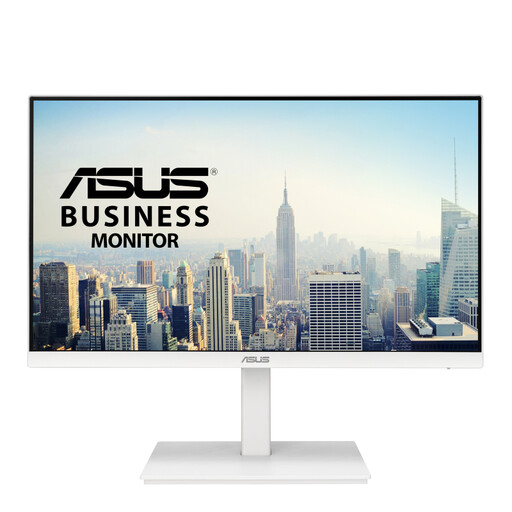
Why it suits this profile: This 23.8-inch Full HD monitor is designed for everyday work, study and general use. IPS technology, 75 Hz and an adjustable stand provide a practical setup without unnecessary gaming features.
The screen combines Full HD with a compact size and has HDMI, DisplayPort and VGA connections. That makes it less likely you’ll need extra adapters for older equipment.
IPS panel, 75 Hz, height adjustment, pivot function and a built-in USB hub, according to the product specifications.
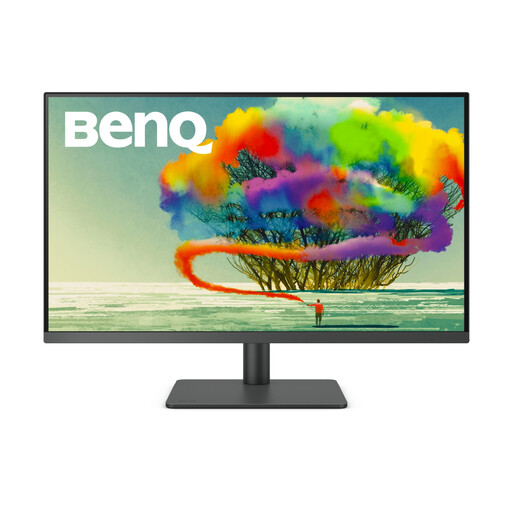
Why it suits this profile: This 31.5-inch 4K monitor is designed for users who value detail, colour reproduction and a well-organised workspace for design, photography or video.
The combination of 4K, IPS and stated 99% sRGB/Rec. 709 coverage makes it a better fit for graphic design than a large Full HD screen.
4K resolution, USB-C with up to 90 W Power Delivery, KVM function and a height-adjustable stand.

Why it suits this profile: For competitive gamers, 200 Hz, Adaptive-Sync and a stated response time of 0.5 ms are useful specifications, provided your PC can deliver that frame rate.
The high refresh rate is clearly specified. However, check that your DisplayPort or HDMI output and graphics card support 200 Hz at Full HD.
27-inch IPS panel, Full HD, 200 Hz, Adaptive-Sync and a matte screen surface.
We’ve put together a complete, up-to-date list of products that meet these strict selection criteria and the applicable European safety regulations.
For word processing, email, admin and video calls, 75 Hz is generally a practical specification. Also consider resolution, brightness, connections and adjustability. A 75 Hz monitor can also be suitable for general entertainment, while gamers often look for 120 Hz or higher.
Its lifespan depends on how it’s used, heat, settings and panel type. Check the warranty terms and keep your proof of purchase. Place the screen on a stable surface, keep the ventilation openings clear and clean it with a soft, dry cloth. If you have an OLED monitor, it’s best to follow the manufacturer’s care advice about static images.
Power consumption varies depending on the size, brightness, panel and energy mode. Check the energy label and the consumption figure per 1,000 hours. Turn the monitor off when you won’t be using it for a while, and use the automatic sleep mode. This will help you estimate the running costs before completing your purchase.
