
Vandaag of morgen in huis

Kwaliteit gegarandeerd

Welkomstaanbiedingen ontgrendelen: GRATIS bezorging | Tot 80% korting | Gratis 30 dagen JoyPlus-proefperiode
Download de app
Buying an SSD seems straightforward until you have to choose between an internal SSD, external SSD, NVMe SSD, M.2 SSD or portable SSD. Manufacturers quote high read speeds, large capacities and new PCIe standards, but those figures don’t tell the whole story.
The most important question isn’t which SSD has the highest speed on the box. It’s whether the drive is right for your device, connections and the way you work.
On paper, a PCIe 5.0 SSD can be much faster than a PCIe 4.0 SSD. However, if your motherboard only has a PCIe 3.0 or PCIe 4.0 slot, your system will limit its speed. The same applies to an external SSD: a model with USB 3.2 Gen 2x2 will only reach its stated speed if your computer supports this standard too.
So check the following beforehand:
M.2 mainly describes the SSD’s form factor. An M.2 SSD can use SATA or NVMe. An NVMe SSD uses PCIe and is generally capable of higher transfer speeds. An M.2 SATA drive has the same physical form, but a different interface.
So when looking for a drive for your laptop or desktop, don’t just search for “M.2”. Also check for:
A 1TB SSD is suitable for Windows, programmes, photos and a number of games. For large game libraries, 4K video or lots of RAW photos, a 2TB SSD may be more practical. A 4TB SSD gives you more space, but usually costs more and isn’t necessary for everyone.
Remember to leave some free space. An SSD that’s almost full all the time gives you less flexibility for temporary files, updates and video projects. For important files, a separate backup is still essential; an SSD isn’t a substitute for a backup strategy.
An internal SSD is installed directly in a desktop, laptop or, in some cases, a PlayStation 5. It’s usually the natural choice if you want your operating system, games or programmes to load faster.
An external SSD connects via USB and is handy for backups, large media files and use on the go. A portable SSD such as the Samsung T7 is easy to move between Windows, macOS, Android devices, cameras and consoles. Always check that your device and file system are compatible.
The stated read speed, for example 7.000 MB/s, is generally a maximum sequential speed. This matters when working with large files, editing video and transferring data for extended periods. For everyday office work or opening small files, random read performance, system software and the processor also play a part.
So a fast SSD won’t automatically make an older system faster in every respect. The connection and other hardware also affect the result.
NVMe SSDs can get warm during extended transfers. A heatsink helps dissipate heat, but it needs to fit in the available space. If you’re choosing an SSD for PS5, pay particular attention to the dimensions, including the heatsink. Also check the console’s requirements before installing an internal drive.
A model without an integrated heatsink can work perfectly well in a desktop if the motherboard has its own M.2 cooler. Laptops often have less clearance.
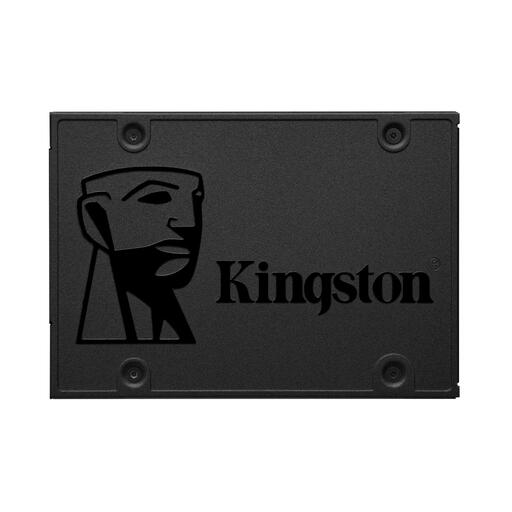
Why it suits this profile: This 2.5-inch SATA SSD is designed for desktops and laptops with a spare SATA connection. Its 480 GB capacity is suitable for an operating system and everyday programmes.
The SATA III interface makes the connection clearer than with an M.2 model. Just check that your PC or laptop has a 2.5-inch bay, SATA data cable and SATA power connection.
Read speeds of up to 500 MB/s, write speeds of up to 450 MB/s and a compact 2.5-inch form factor.
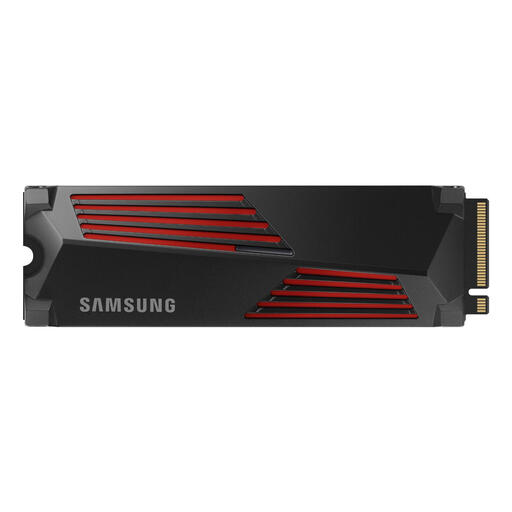
Why it suits this profile: This Samsung SSD combines 2TB of storage with an M.2 NVMe interface and an integrated heatsink. It’s a good fit for gamers and video editors with a compatible PCIe 4.0 system.
The heatsink helps manage heat during intensive use. Before buying, check that it will fit your motherboard or PS5.
Stated read speed of 7.450 MB/s, write speed of 6.900 MB/s and PS5 compatibility according to the product information.
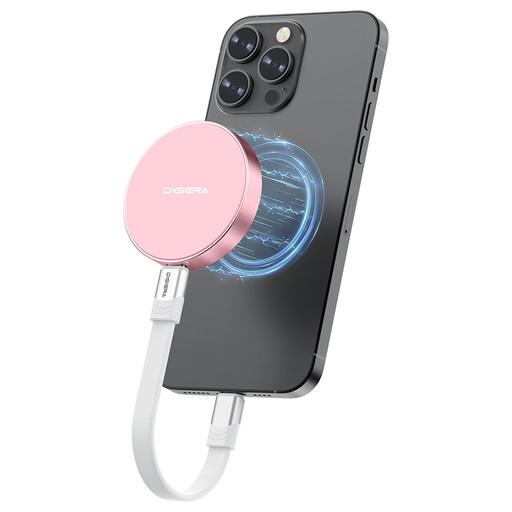
Why it suits this profile: This USB-C SSD is designed for mobile video recording, large files and use with USB-C laptops, tablets, cameras and some smartphones.
The USB-C connection and stated compatibility are clearly listed. According to the product information, the magnetic attachment works with iPhone 15 and later models, but not with iPhone 14 or earlier.
Stated read speeds of up to 2.000 MB/s, write speeds of up to 1.800 MB/s and a weight of around 46 grams.
We’ve put together a full, up-to-date list of products that meet these strict selection criteria and the applicable European safety regulations.
First, check the type of connection. A laptop may have an M.2 2280 NVMe slot, a 2.5-inch SATA bay or both. Check the laptop’s manual or specifications. With an M.2 SSD, also check its length and maximum thickness.
Lifespan depends on usage, memory technology, temperature and the amount of data written. Manufacturers sometimes list a TBW rating, which indicates the total number of terabytes that can be written to the drive according to its specifications. Always back up your data, even if your SSD is still within its expected lifespan.
It depends on your system and what you use it for. PCIe 5.0 may be worthwhile for large video files, professional applications and some gaming PCs. For everyday use, gaming and many creative tasks, a PCIe 4.0 SSD already offers plenty of performance. Also check that your motherboard supports PCIe 5.0 and that adequate cooling is available.
