
Vandaag of morgen in huis

Kwaliteit gegarandeerd

Welkomstaanbiedingen ontgrendelen: GRATIS bezorging | Tot 80% korting | Gratis 30 dagen JoyPlus-proefperiode
Download de app
Buying a computer monitor might seem straightforward, until you find that your screen doesn’t have enough ports, text looks grainy or your laptop can’t charge while connected. Marketing terms such as “gaming”, “HDR” and “4K” don’t always tell you how well a monitor will suit your workspace, either.
So look out for these common pitfalls:
For everyday office work, a 24-inch Full HD monitor is often a practical choice. The 1920 × 1080 resolution works well for documents, browser windows and video calls. An IPS monitor also offers wide viewing angles and generally consistent colours.
A 27-inch monitor gives you more workspace. At this size, Quad HD, such as 2560 × 1440, is often a good middle ground. The ASUS ProArt PA278CV, for example, has a 27-inch IPS screen with 2560 × 1440 pixels and 109 ppi. For photos, illustrations and other creative work, the product information also lists 100% sRGB and factory calibration with Delta E <2.
If you want to use several windows side by side, consider an ultrawide monitor. 34-inch screens with 3440 × 1440 pixels have a 21:9 aspect ratio. Just make sure your desk is wide enough and that your laptop or graphics card supports the resolution.
A refresh rate of 60 Hz is sufficient for word processing and most office tasks. 100, 120 or 144 Hz makes scrolling and movement look smoother. For a gaming monitor, support for Adaptive-Sync or FreeSync is also worth considering.
Be aware of the difference between refresh rate and response time. 144 Hz indicates how many frames can be displayed per second; a response time of, for example, 4 or 5 ms indicates how quickly pixels can change colour according to the manufacturer’s testing method. These figures aren’t directly comparable between brands.
Before buying, check:
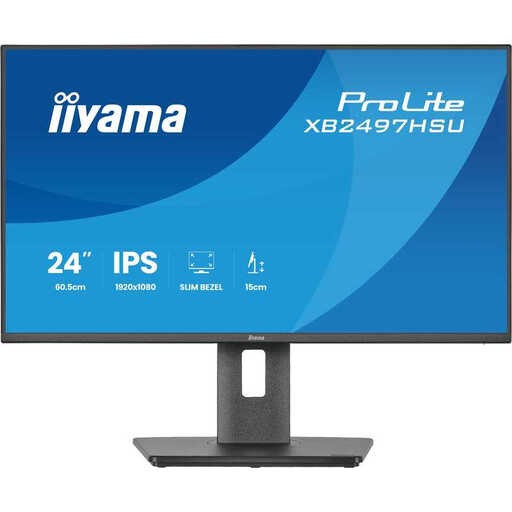
Why it suits this user: A neat size for office work, working from home and a first desktop set-up. The 120Hz mode gives you smoother images without having to move straight to a larger screen.
The specifications list an IPS panel, HDMI, DisplayPort, a USB hub and a height-adjustable stand. This means you’re less likely to need to buy an extra hub or stand.
24-inch Full HD, IPS, up to 120 Hz, built-in speakers and VESA mount support.
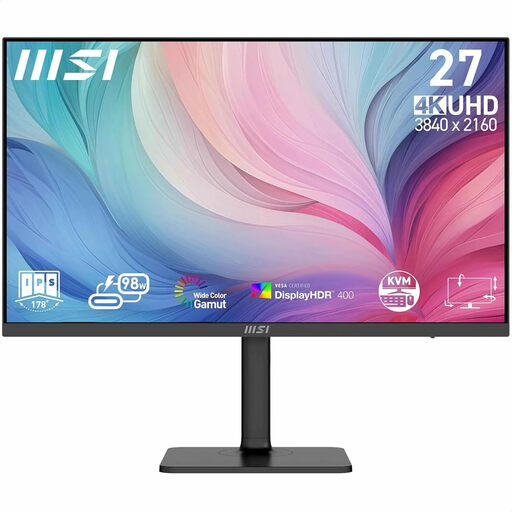
Why it suits this user: Designed for people who value high pixel density, USB-C connectivity and colour information for design, photography and video work.
The 4K resolution is paired with a 27-inch screen, making the extra detail practical to use. Check that your computer can output 3840 × 2160.
4K UHD, IPS, USB-C with up to 98 W Power Delivery, KVM and PIP/PBP functions, and an adjustable stand.

Why it suits this user: For travellers, laptop users and gamers who want to take a second screen to the office, a hotel or an event.
The stated 2K resolution and USB-C and Mini-HDMI connections make it easier to understand what the monitor can be used for. Check in advance whether your laptop can output video over USB-C.
16-inch screen, 2560 × 1600 pixels, stated 120/144Hz refresh rate and VESA compatibility.
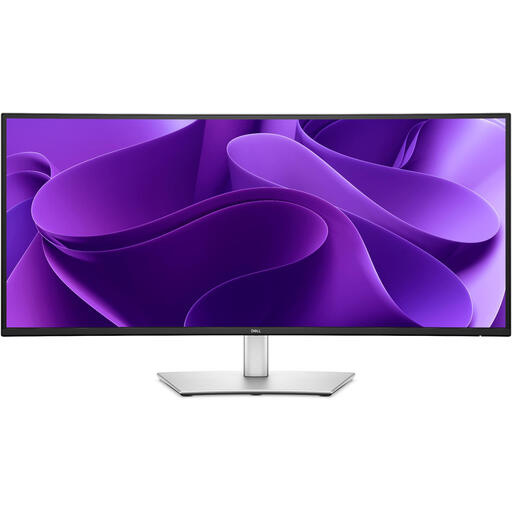
Why it suits this user: A good choice if you want to have spreadsheets, documents and communications open side by side without using two separate screens.
The product information lists USB-C with 90 W Power Delivery, an RJ45 connection and KVM. This makes it easy to check the available connections before you buy.
34 inches, 3440 × 1440 pixels, IPS panel, 100 Hz, built-in USB hub and height adjustment.
We’ve put together a complete, up-to-date list of products that meet these strict selection criteria and the applicable European safety regulations.
For working from home, an IPS panel, at least Full HD resolution, an adjustable stand and enough connections are good practical starting points. If you often work with two windows open, consider a 27-inch Quad HD monitor or an ultrawide monitor. USB-C with Power Delivery is handy if you want to connect a laptop with a single cable.
It depends on the screen size, what you do and the computer you use. A 4K monitor is especially useful for fine detail, photo and video editing, and having plenty of workspace. For simple documents, Full HD may be enough. Also check the scaling settings in Windows or macOS so that text remains easy to read.
A monitor’s lifespan depends on how it’s used, heat, transport and the quality of its power supply. Place the screen on a stable surface, keep the ventilation openings clear and use suitable cables. Consumers in the Netherlands are also covered by the statutory guarantee; the exact rights depend on the product and the circumstances. Keep your proof of purchase and report any problems to the seller promptly.
