
Vandaag of morgen in huis

Kwaliteit gegarandeerd

Welkomstaanbiedingen ontgrendelen: GRATIS bezorging | Tot 80% korting | Gratis 30 dagen JoyPlus-proefperiode
Download de app
A slow computer is a source of frustration. Programs that take an eternity to launch, long loading screens in games, and the endless wait for file transfers. A Solid State Drive (SSD) is the solution, but the market is a maze of technical terms and marketing promises. Many people fall into common traps, causing them to overpay for performance they don't need or buy a model that shows signs of failure after just a few months.
As a Joybuy Product Recommendation Officer, I'm here to help you cut through the noise. We'll ignore the flashy ads and focus on the specifications that truly matter. Let's break down the three most common pitfalls when buying an SSD, so you can make an informed choice.
Pitfall 1: Fixating on Maximum Speeds Brands advertise impressive read speeds of thousands of megabytes per second (MB/s). However, these 'sequential' speeds are only achieved under ideal conditions, like copying a single, massive file. For day-to-day use—booting your PC, opening programs, or loading a game—the 'random' read and write speeds are far more important. A cheap SSD with a high advertised speed can feel slower in practice than a model with better random performance.
Pitfall 2: The Jungle of Form Factors and Connectors (SATA vs. M.2/NVMe) A common mistake is buying an SSD that physically doesn't fit in your laptop, PC, or PlayStation 5. The two main types are the 2.5-inch SATA SSD and the more compact M.2 SSD. But be careful: not every M.2 connector is equally fast. Some older motherboards have an M.2 slot that operates on the slower SATA interface, while modern systems use the much faster NVMe interface. Plugging an NVMe SSD into an M.2 SATA slot won't give you the speed boost you were hoping for. Always check which connector and interface your device supports.
Pitfall 3: The Hidden Cost of a Short Lifespan (TBW) Every SSD has a limited lifespan, measured in Terabytes Written (TBW). This number indicates how much data you can write to the drive before the memory cells become unreliable. For the average user, this is rarely an issue. But for creative professionals who edit large video or design files daily, or for avid gamers, an SSD with a low TBW rating can wear out faster. Cheaper models often cut corners here, which can make them a bad buy in the long run.
To make the right choice, we'll focus on three key parameters. These specifications determine the performance, compatibility, and longevity of your new drive.
Before you buy an SSD, this is the first and most important check.
The required capacity depends entirely on your usage.
The lifespan (TBW) and memory type (TLC or QLC) are important for intensive users. TLC memory is generally faster and more durable than the cheaper QLC, especially when writing large amounts of data. For a gaming SSD or a drive for professional use, a model with TLC memory and a decent TBW rating is a wise investment.
Below is a selection of SSDs that suit different user profiles, based on their objective specifications.
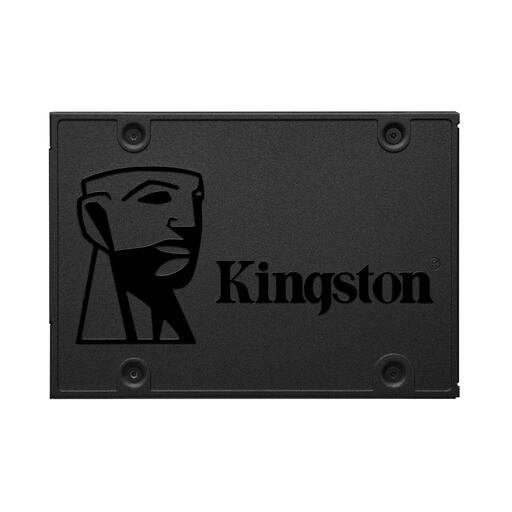
Why It's a Match: Ideal for giving an older laptop or desktop still running on a mechanical hard drive a significant speed boost. The 240GB is enough for Windows and your basic programs, making the system feel responsive again without a large investment.
This is a straightforward 2.5-inch SATA SSD. No confusion with M.2 or NVMe. The focus isn't on record-breaking speeds, but on a reliable and noticeable upgrade for everyday use.
Very affordable and universally compatible with virtually any PC or laptop with a 2.5-inch drive bay.
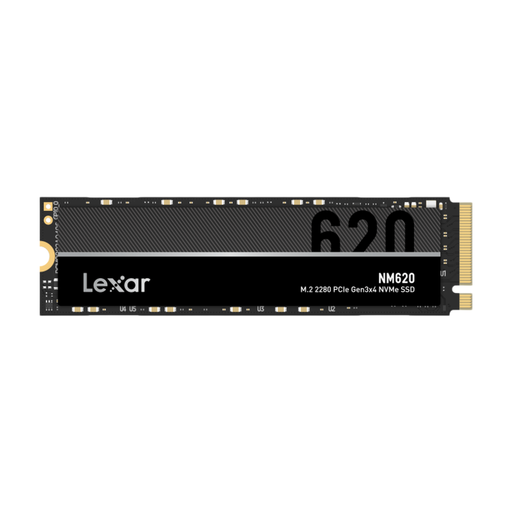
Why It's a Match: An excellent balance of price, performance, and capacity. This 2TB SSD offers enough space for a large game library. The PCIe Gen3 NVMe speeds ensure noticeably shorter loading times in games compared to a SATA SSD.
This drive offers solid NVMe performance without the premium price of the very latest PCIe 5.0 models. It delivers the speed you can feel as a gamer, without paying for top-tier speeds that offer little extra benefit in practice.
Great price-to-performance ratio for an NVMe SSD with ample storage. A smart upgrade for any modern gaming PC.
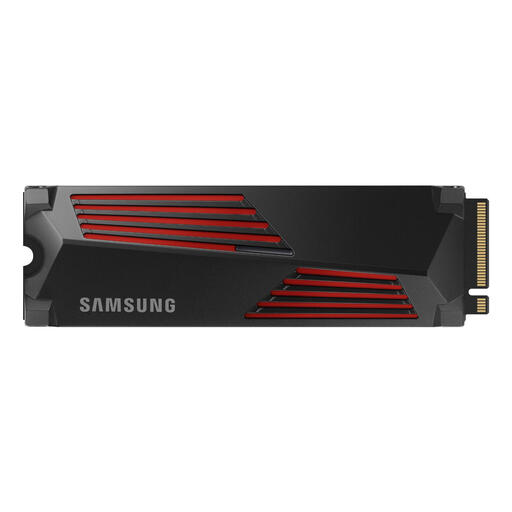
Why It's a Match: This Samsung SSD is specifically designed for top-tier performance and is compatible with the PlayStation 5. The integrated heatsink is essential to prevent overheating and performance throttling in the console's tight space.
It solves the compatibility and cooling problem for PS5 users in one go. You don't need to find and install a separate heatsink; this model is a complete, out-of-the-box solution that meets Sony's speed requirements.
A hassle-free and powerful SSD for PS5 upgrade. The PCIe 4.0 speeds and built-in heatsink guarantee stable, high performance.
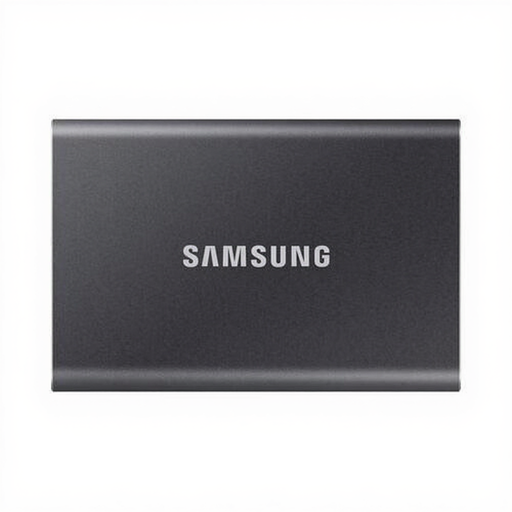
Why It's a Match: For those who are frequently on the move and need to transfer large files quickly. This external SSD is compact, robust, and offers speeds up to 1,050 MB/s, making it ideal for photographers, videographers, or as a fast backup drive.
External SSDs have their own pitfalls, such as fragile casings. The T7 has a sturdy metal body that Samsung claims is drop-resistant up to two meters. It provides a reliable, plug-and-play solution without any hassle.
Compact, fast, and durable. It comes with both USB-C to C and USB-C to A cables for broad compatibility.
We have compiled a complete, up-to-date list of products that fully meet these strict selection criteria and local regulations.
For most users, a 1TB SSD is a safe and future-proof choice. This provides enough space for your operating system, programs, and a good number of games or projects. If you mainly perform light office tasks and use cloud storage, 500 GB may suffice. Gamers who play many large, modern titles (like Call of Duty or Baldur's Gate 3) and content creators would be wise to opt for a 2TB SSD or larger from the start.
Not necessarily. An NVMe SSD is technically superior and offers much higher speeds. You'll notice this most when moving very large files. However, for everyday tasks like browsing the internet, emailing, and even loading most games, the performance difference between a good SATA SSD and an NVMe SSD is often small to the human eye. If you're upgrading an older system that doesn't have an M.2 NVMe slot, a SATA SSD is still a fantastic and cost-effective upgrade.
Installing an internal SSD is relatively straightforward but requires care.
