Start by testing background blur or replacement in the meeting app you use: a new monitor won’t automatically hide a busy room. A monitor with a webcam is most useful if you also want to upgrade your screen and meeting setup. If a consistent camera view is your priority, a plain physical backdrop could be an alternative. Whichever option you choose, check the camera preview, as digital effects are no guarantee that confidential information will stay hidden.
Who is this choice relevant to?
Home worker whose private room is on show
Wants to show less of the room during video calls and checks whether personal or confidential details are still visible. Microsoft Support warns that blur or background replacement does not guarantee confidential information will stay hidden.
Frequent caller with an ever-changing background
Wants a consistent view during video calls, even when it’s difficult to keep the room tidy. You could use an app effect or a plain physical backdrop; Zoom Support describes both options for virtual backgrounds.
Home worker who also needs a new screen
Wants a monitor and meeting camera in one setup, so compares the camera, connections and adjustability of the exact model. A built-in webcam is not a background filter in itself.
What should you consider when choosing?
If your current monitor does the job, test the background effect in your meeting app first. Only buy a different monitor if you also want to change your screen or camera setup.
Background effect in the app
A good fit if: your current screen does the job and you mainly want to blur or replace the room in view.
Bear in mind: Microsoft Support and Zoom Support list device or system requirements. Also check whether the effect really hides confidential details from view.
Monitor with an integrated webcam
A good fit if: you need a new screen and an integrated meeting setup, as well as a background setting.
Bear in mind: the webcam won’t hide the room by itself. Set up the effect separately in your meeting app and check that it connects to your laptop.
Plain physical backdrop
A good fit if: it’s hard to keep the background tidy and you have room behind your desk for a plain screen or curtain.
Bear in mind: you’ll need extra space. Zoom Support describes a greenscreen method for its virtual background effect that uses fewer system resources; this is not a guarantee for every app or setup.
| Consideration |
What to look for |
Relevant consumers |
| Privacy in the room on show |
Check the camera preview and test whether the effect is available on your device. |
I don’t want personal details from my room to be visible during a call. For around 33% of consumers, keeping the room out of view is their main buying concern. |
| A consistent camera view |
Test the effect with your usual lighting, clothes and movement, and check whether there’s room for a physical backdrop. |
If my background changes, I want to check in advance that the view stays clear. Around 27% of consumers prioritise a consistent camera view. |
| Combining a screen and video calls |
Check the webcam and microphone on the exact model, and whether your laptop supports the required connection. |
I want to upgrade my screen and camera setup at the same time, without assuming the camera hides the background. This is the main priority for around 20% of consumers. |
| Everyday screen use |
Check the screen size, adjustability and connections against your workspace and laptop. |
If I’m mainly looking for a monitor for everyday work, its size and connections need to suit my desk. Around 20% of consumers give their workspace and screen top priority. |
Common pitfalls
-
Mistaking a webcam monitor for a background filter
A monitor may include a camera, but you set up background blur or replacement separately in your meeting app.
Test the effect on your current device first. Only choose a different monitor if you also need a new screen or an integrated meeting setup.
You could replace your screen when a setting on your existing setup already meets your main need.
-
Assuming blur guarantees complete privacy
Microsoft Support warns that confidential information may still be visible despite a background effect.
Check the camera preview and keep sensitive documents and screens physically outside the camera’s view.
-
Choosing a monitor without checking your workspace
Screen size, adjustability and connections vary by model; your monitor also needs to suit your desk and laptop.
Before buying, check the dimensions, height adjustment and the connection for video and any power supply.
If the connection or placement isn’t suitable, you may need an extra cable or a different setup.
Brands to consider
Dell
Dell Netherlands describes the Pro P P2726DEB as a 27-inch QHD conference monitor with a built-in webcam, speakers and microphone.
- The meeting features are built into the monitor.
- The product specifications don’t describe background masking; set up an effect in your meeting app instead.
HP
HP describes the Series 5 Pro 527pm as a 27-inch QHD monitor with a retractable 5MP webcam.
- HP lists a tilting camera.
- The listed AI noise reduction is not background masking; also check the exact version and that it connects to your laptop.
Lenovo
Lenovo describes the ThinkVision T27QD-4v as a 27-inch QHD docking monitor with a 5MP camera and speakers.
- Lenovo lists USB-C docking and Windows Hello.
- These features don’t mean a busy room will be masked automatically.
Philips
Philips positions the 34E1C5600HE/00 as a 34-inch ultrawide screen with a built-in 5MP webcam.
- Philips lists a resolution of 3440 × 1440 pixels and space to display windows side by side.
- An ultrawide screen needs plenty of desk space; the webcam doesn’t replace a background setting.
Monitors for an integrated meeting setup
These Joybuy products combine a monitor with a built-in camera for video calls. The webcam won’t mask the background by itself; use a separate app effect or a plain physical backdrop.
 Image unavailable
Dell Pro P3426WEV 34.1-inch curved WQHD IPS USB-C hub monitor with webcam
Ideal if you’re looking for an ultrawide screen and a built-in camera in one home-working setup.
34.1-inch curved WQHD IPS screen, webcam, USB-C hub, KVM, RJ45 Ethernet, 100 Hz and USB Power Delivery up to 90 W.
View at Joybuy
 Image unavailable
Dell Pro P P2726DEV 27-inch QHD IPS monitor with webcam
Ideal if you’re looking for a 27-inch screen with a built-in webcam for a combined work and meeting space.
QHD IPS screen, 100 Hz, webcam, USB hub and USB Power Delivery up to 90 W.
View at Joybuy
 Image unavailable
Dell Pro P P3426WEB 34-inch USB-C hub monitor for video conferencing
Ideal if you want to combine a widescreen display with integrated camera and audio features for meetings.
34-inch WQHD screen, 4MP webcam, microphone, dual speakers and USB-C hub with Power Delivery up to 90 W.
View at Joybuy
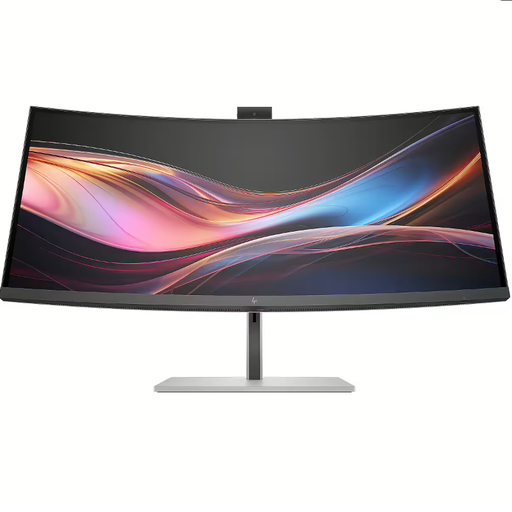 Image unavailable
HP Series 7 Pro 34-inch WQHD conference monitor 734pm
Ideal if you’re looking for a 34-inch WQHD screen with a built-in camera for video calls.
The description lists an AI webcam with Auto Framing, Thunderbolt 4 and USB Power Delivery up to 100 W. The webcam won’t mask the background by itself.
View at Joybuy
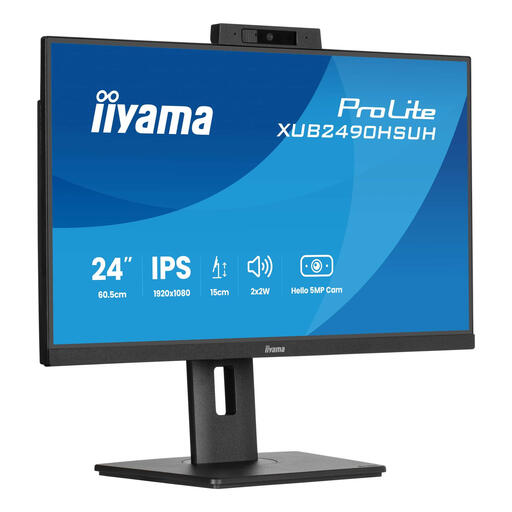 Image unavailable
iiyama 24-inch IPS monitor with built-in Windows Hello camera and microphone
Ideal if you’re looking for a smaller screen with a built-in camera and microphone for video calls.
24-inch Full HD screen, 1080p autofocus webcam, USB hub, HDMI and DisplayPort. The stand offers 150 mm of height adjustment, plus pivot, swivel and tilt functions.
View at Joybuy
Frequently asked questions
Can a monitor automatically make my messy room disappear?
No. A built-in webcam is not the same as background masking. Teams and Zoom offer separate background effects; test the available feature and preview on your own device.
What can I do if a virtual background isn’t available?
First, check the device and app requirements. Microsoft Support and Zoom Support list requirements for background effects. A plain physical backdrop is an alternative if the feature isn’t available on your device.
How can I keep sensitive information out of view?
Check what the camera actually shows and don’t rely on blur alone. Microsoft Support warns that sensitive information may still be visible, so keep documents and screens outside the camera’s view. The Dutch Data Protection Authority advises organisations to offer secure options for video calls or chat.
What rules apply to a work monitor, and what if it breaks?
For employees who spend more than two hours a day working with a screen, Arboportaal notes, among other things, that the screen and keyboard must not be fixed together. For consumer purchases in the Netherlands, the seller is responsible for the statutory guarantee. The Netherlands Authority for Consumers and Markets says the seller must arrange a free repair or replacement if the product doesn’t meet what you could reasonably expect from it.


