Start with a screen size that fits your desk and a resolution your computer can handle. Around 24 inches with Full HD takes up less space, while 27 inches with QHD gives you more pixels for map details and study windows. RTINGS.com explains that higher resolutions put more demand on your graphics card. With OLED, displaying a static image for long periods is also worth bearing in mind because of the risk of burn-in.
Which monitor is right for you?
Builder who wants to see map details
Want a clear view of your settlement and small interface elements, and have room for a larger screen? Compare a 27-inch QHD monitor with what your computer can support. RTINGS.com explains that higher resolutions require more bandwidth and can put more strain on your graphics card.
Gamer with a small desk
Need to fit your monitor, keyboard and study materials on a limited desk surface? Start with the screen size and stand dimensions, rather than the highest refresh rate. RTINGS.com discusses how screen size relates to the space available and how you use your monitor.
Student sharing one screen
Use the same monitor for study materials and games? As well as resolution, look at height adjustment and the connections you need for your devices. Lenovo Netherlands highlights screen size, resolution and compatibility as factors to consider when choosing a monitor for students.
What should you look for?
First, check whether the screen and stand will fit on your desk. Then compare the resolution with your computer’s performance, and finally check for the adjustments and ports you need for studying and gaming.
| What to consider |
What should you check? |
Who is this important for? |
| Clarity and screen space |
Compare the native resolution with what your computer can support in your games and applications. |
If I want to see map details and interface elements clearly, I look at QHD and what my computer can handle. Around 36% of consumers put detail and screen space first. |
| Desk space |
Measure the available width and depth, then compare them with the monitor’s dimensions, including the stand. |
If my desk also needs to fit a keyboard and study materials, the whole setup matters. Around 29% of consumers prioritise the desk space required. |
| Study use and connections |
Check the resolution, height adjustment, and the connections and refresh rates available through each port. Compare the USB-C charging output with your laptop’s requirements. |
If I want to read and connect devices using the same screen, the adjustments and ports need to suit my workspace. Around 21% of consumers prioritise using their monitor for both study and gaming. |
| Smooth motion and panel type |
Compare native and overclocked refresh rates separately. If you’re considering OLED, think about how often you display fixed menus and taskbars. |
If smooth motion in games matters more to me than the other factors, I check the maximum supported by the connection I plan to use. Around 14% of consumers prioritise smooth motion. |
Common pitfalls
-
Looking only at the screen diagonal
The stand takes up desk depth too. According to Gigabyte, the Gigabyte MO27Q2A is 190 mm deep with its stand.
Measure your desk and compare it with the dimensions of the exact model, including the stand.
-
Assuming the highest refresh rate is the standard setting
According to AOC, the AOC Q27G4ZR has a native refresh rate of 240 Hz; 260 Hz is its overclocked setting. On other models, the input you use may also affect the refresh rate you can achieve.
Compare native and overclocked figures separately, and check the limit for each input.
-
Assuming USB-C makes a fully equipped laptop dock
According to the manufacturer, USB-C Power Delivery on the Gigabyte MO27Q2A is limited to a maximum of 18 W. That may not be enough to charge your laptop through a single cable.
Before relying on a single cable, compare the stated charging output with your laptop’s power requirements.
-
Choosing OLED without considering static images
A game interface, taskbar or study window may stay in the same place for a long time. RTINGS.com’s independent panel guidance identifies permanent burn-in from prolonged static images as a risk with OLED.
Consider how you use your screen, vary the content displayed and check the care and warranty terms for the exact model.
Brands to consider
AOC
The AOC Q27G4ZR is an example of a 27-inch QHD IPS monitor.
- AOC specifies 240 Hz native and 260 Hz when overclocked for this model.
- The higher figure is an overclocked setting, so don’t compare it with the native refresh rate.
Philips
The Evnia 24M2N3200S/00 is an example of a more compact Full HD IPS monitor.
- Philips specifies a 23.8-inch screen, 1920 × 1080 pixels and a maximum refresh rate of 180 Hz for this model.
- Full HD has fewer pixels than QHD. Check the other specifications of the exact model too.
Gigabyte
The MO27Q2A is an example of a 27-inch QHD QD-OLED monitor.
- Gigabyte specifies a 280 Hz refresh rate and USB-C Power Delivery of up to 18 W for this model.
- RTINGS.com highlights the risk of burn-in from prolonged static OLED images. An 18 W USB-C power supply may not be enough for a laptop.
Dell
The G2725D shows why it’s worth checking the connections and adjustment options on a 27-inch QHD IPS monitor.
- Dell lists QHD at up to 180 Hz via DisplayPort and up to 144 Hz via HDMI for this model.
- According to Dell, this model’s stand only tilts.
Joybuy monitors for this use
This selection includes 27-inch QHD monitors with IPS or OLED panels, as well as a more compact Full HD monitor for a student room.
 No image available
Philips Evnia 27M2N3500NF 27-inch QHD
A good fit if you’re looking for a larger QHD screen for map details and studying.
27 inches; 2560 × 1440; IPS; 144 Hz; Adaptive Sync.
Joybuy
 No image available
AOC Q27G4ZR 27-inch QHD
A good fit if you’re looking for a 27-inch QHD IPS screen and want to assess its native and overclocked refresh rates separately.
27 inches; 2560 × 1440; Fast IPS; 240 Hz native and 260 Hz when overclocked. The stand is adjustable.
Joybuy
 No image available
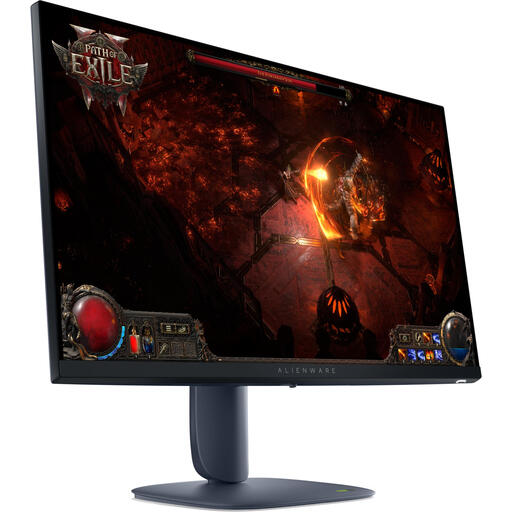
Alienware AW2725DM 27-inch QHD
A good fit if you want a larger QHD screen with an adjustable stand for gaming and studying.
27 inches; 2560 × 1440; IPS; 180 Hz; HDMI and DisplayPort. The stand is adjustable.
Joybuy
 No image available
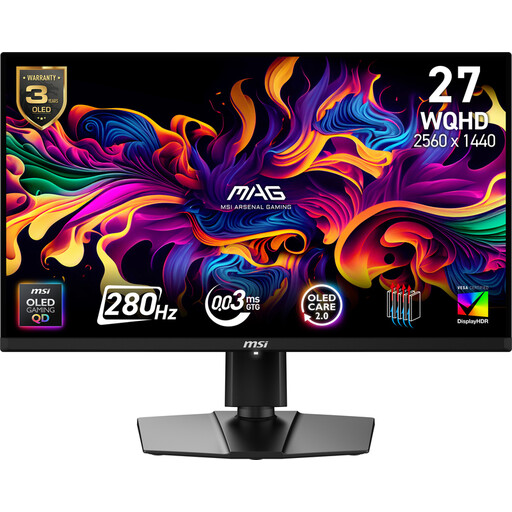
MSI MAG 271QP X28 QHD QD-OLED
A good fit if you’re looking for QHD and an OLED panel, and want to consider the effects of prolonged static images.
26.5 inches; 2560 × 1440; QD-OLED; 280 Hz. The stand offers height, tilt, swivel and pivot adjustment.
With OLED, displaying the same game menu, taskbar or study window for a long time carries a risk of permanent burn-in.
Joybuy
 No image available
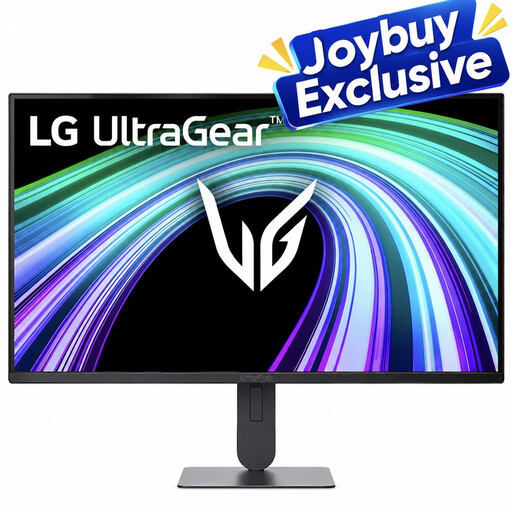
LG UltraGear 24G414B-B Full HD
A good fit if you’re looking for a monitor for gaming and studying on a smaller desk.
23.8 inches; Full HD; IPS; 144 Hz. The stand is height-adjustable and tiltable; the listing also mentions speakers and a headphone output.
Joybuy
Frequently asked questions
How do you connect your computer to get the resolution and refresh rate you want?
Check your computer’s video output, the input on the exact monitor model, and the specifications for each port. For example, Dell lists QHD at up to 180 Hz via DisplayPort and up to 144 Hz via HDMI for the G2725D. Then set your computer to a supported mode.
What should you consider when using an OLED monitor for long periods?
Bear in mind the risk of permanent burn-in if the same interface elements stay in the same place for a long time. RTINGS.com identifies this as an OLED risk. Vary the content on screen and follow the care instructions for your chosen model.
Will a gaming monitor with USB-C charge your laptop for studying?
Not necessarily: compare the monitor’s charging output with your laptop’s power requirements. Gigabyte specifies USB-C Power Delivery of up to 18 W for the MO27Q2A. Also check whether the USB-C port on your chosen monitor can receive video from your laptop.
What are your rights when buying a monitor from a Dutch online retailer?
When you buy online from a business, you’ll often have a 14-day cooling-off period; the Dutch Government says the seller must inform you about this. For a fault that appears within the first year, the Dutch Government explains that the seller must prove the consumer caused the fault before they can refuse a claim for a free repair or replacement. Different rules apply when you buy from a private seller.


