
Students who edit drawings
First, check which CAD or BIM application, version and files your course requires. Autodesk publishes separate system requirements for AutoCAD and Revit, so check the requirements for the software you’ll actually use.


If you often take bridge drawings from one classroom to another, start by considering what you need to do: viewing and annotating files calls for something different from running CAD or BIM software locally. First check the required software, version and files. Then compare portability and screen space, taking the full specification, ports and included charger into account.
First, check which CAD or BIM application, version and files your course requires. Autodesk publishes separate system requirements for AutoCAD and Revit, so check the requirements for the software you’ll actually use.
If you view or discuss drawings in different places, consider the laptop’s size, weight, charger and ports. ASUS recommends 14 inches as a guide for students, not a fixed size for everyone.
Compare the laptop’s screen space with how you view lines and annotations. An external monitor can give you more room at a permanent workstation, but check that the laptop you choose has the right port.
A good fit if: you mainly view files or add notes, and the application you choose supports the file format.
The trade-off: a more compact screen is easier to carry, but shows less of a detailed drawing at once.
A good fit if: your course requires AutoCAD to run locally; first check the edition, version and operating system.
The trade-off: RAM alone doesn’t prove that a laptop is suitable for every drawing file; Autodesk also specifies GPU requirements for AutoCAD 2027 on Windows.
A good fit if: your course requires Revit or local editing of larger models; compare the system requirements with the size of the models.
The trade-off: a higher-capacity specification may be less compact; the exact processor and graphics configuration still matter.
| What to consider | What should you check? | Who does this matter most to? |
|---|---|---|
| Software compatibility | Ask which programme, version and file format are required, and what needs to run locally. For AutoCAD 2027 on Windows, Autodesk lists 16 GB RAM as the minimum and recommends 32 GB. For Revit 2027, Autodesk lists 16 GB as the entry level and 32 GB or more for a balanced configuration. Check the operating system and graphics requirements too. | If I need to run CAD or BIM locally, I want to know which software and files my course requires first. Around 28% of consumers prioritise compatibility with the required software. |
| Portability | Compare the weight and screen size of the exact model with what you’ll carry every day. ASUS recommends 14 inches as a guide for students; it’s not a universal limit. | When I move between classrooms often, I want to carry my laptop and essentials easily, without having to lug around more screen space than I need. Around 22% of consumers prioritise portability. |
| Screen space | Check the screen size and resolution of the model. If you want to use an external monitor, check which port it needs and whether the laptop has one. | If I want to view lines and annotations side by side, a larger workspace matters more to me than the most compact size. Around 22% of consumers put screen readability first. |
| Power | Check the included adapter, charging capacity and ports for the exact offer you’re considering. | On days when I’m not sure whether there’ll be a socket available, I want to know in advance what I’ll need to bring to power my laptop. Around 17% of consumers give this need the most weight. |
| Complete setup | Check what’s included in the box and whether you’re eligible for educational access to the required software. Autodesk says eligible students can renew access each year for educational use. | If I need a complete study setup, I want to know in advance which equipment and software access I’ll need to arrange. Around 11% of consumers prioritise their overall setup. |
AutoCAD for Windows, AutoCAD for Mac and Revit each have separate system requirements. A particular amount of memory or a particular screen size alone doesn’t confirm that a laptop is suitable for your application or model.
Ask your course provider for the programme name, version and sample files. Then compare the requirements with the full specification, including the operating system and graphics configuration.
The ASUS Zenbook configuration reviewed states that the power adapter is not included. What’s in the box can vary between models.
Check the box contents and the charging capacity required by the laptop you’ve chosen before arranging any accessories.
There’s no fixed statutory warranty period in the Netherlands. An additional manufacturer’s warranty is not the same as your legal right to receive a product that meets the standards you can reasonably expect.
Read the terms of any additional cover separately, and contact the seller if there’s a problem with the product.
Zenbook models offer a compact Windows option to compare if you often move between workspaces.
The Dell Pro Precision 5 14 is a configurable workstation option to explore if you need to run design software locally.
The ProBook 4 G1ah is a 14-inch Windows option to compare if you’re looking for a business configuration and a good range of ports.
The ThinkPad T14 Gen 6 range is a business-focused 14-inch option for comparing connectivity and maintenance features.
A compact MacBook Air may suit you for studying drawings on the move if the required application runs on macOS.
This selection includes compact models, laptops with more screen space and configurations with more memory. Compare them with your course’s software requirements and what you want to carry every day.
 No image available
This 14-inch model is a compact option to compare if you often move between classrooms.
Full HD screen, Intel Core 7 150U, 16 GB DDR4, 512 GB SSD and Windows 11 Home.
 No image available
The 16-inch screen may suit you if you want more built-in screen space for studying drawings.
WUXGA OLED screen, Snapdragon X processor, 16 GB LPDDR5X, 512 GB SSD and Windows 11 Home. Check that the software required for your course works with this model.
 No image available
The 15,6-inch screen gives you more built-in viewing space for drawings, but it’s larger than a compact 14-inch model.
Full HD screen, Intel Core 7 150U, 16 GB RAM, 512 GB SSD and Windows 11 Home.
 No image available
This model is worth comparing if you need a lot of memory; check the required software and configuration before making your choice.
14-inch 3K OLED screen, 128 GB RAM, 1 TB SSD and Windows 11 Pro. No charger is included.
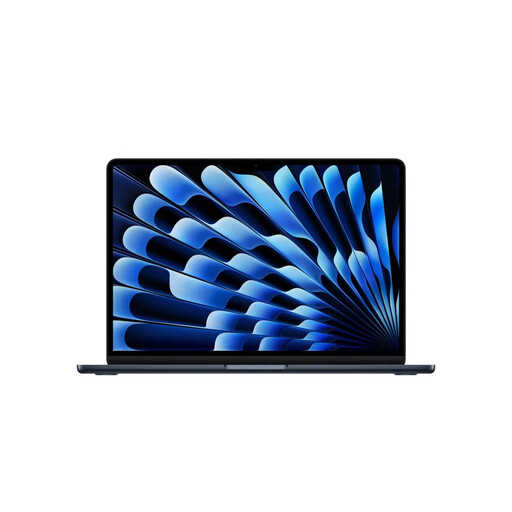 No image available
This compact MacBook Air may suit you if the application you need for your bridge drawings runs on macOS.
24 GB memory and 1 TB SSD. No power adapter is included; check your course’s software requirements too.
No, it depends on the application and model size. For AutoCAD 2027 on Windows, Autodesk lists 16 GB as the minimum and recommends 32 GB. For Revit 2027, Autodesk lists 16 GB as the entry level and 32 GB or more for a balanced configuration. If you’re only viewing files, the file format and application you use also matter.
Check the charging and display ports on the exact laptop model before choosing an adapter or external monitor. ASUS says that a Zenbook configuration it reviewed doesn’t include a power adapter; other models may differ.
No. Autodesk offers access to students who meet its eligibility requirements, for educational use. You’ll need to renew access each year for as long as you remain eligible.
When you buy online, you’ll often have a 14-day cooling-off period. You’re also entitled to a product that meets the standards you can reasonably expect; there’s no fixed statutory warranty period in the Netherlands. Any additional manufacturer’s warranty is separate from these statutory rights.