
Artist with an existing tablet
You’re looking for a pen that works with your exact device; compatibility varies by model and version. Apple Support, Samsung and Microsoft publish compatibility information for specific devices.


Start by checking that the stylus is compatible with your exact tablet or pen display model: pens from the same brand aren’t automatically interchangeable. Then check whether the pen and your drawing app support the pressure or tilt input you need for lines and shading. Finally, factor charging, storage and your working posture into your choice.
You’re looking for a pen that works with your exact device; compatibility varies by model and version. Apple Support, Samsung and Microsoft publish compatibility information for specific devices.
You create fine outlines and shaded areas, and want to know what input features the pen and your drawing app offer. Samsung and Wacom specify input features for certain pens and devices.
You want to position your drawing surface, arm support, pen and charging accessories practically when switching between sitting and standing. Arboportaal describes the strain caused by static postures when working at a screen, and the importance of a well-set-up workstation.
First check that the pen works with your device; then consider its drawing input features and how practical your workstation is.
| What to consider | What should you check? | Who is this important for? |
|---|---|---|
| Compatibility | Check your exact device model and any software requirements in the manufacturer’s compatibility information. | If I want to keep using my current tablet, I want to avoid buying a pen that won’t work with it. Around 36% of consumers prioritise compatibility with their existing device. |
| Control over lines and shading | Check which pressure and tilt inputs the exact pen supports, and whether your drawing app uses them. | For fine botanical outlines and shading, I want to know how the pen responds to each stroke. Around 29% of consumers give variable lines and shading top priority. |
| Using it at a sit-stand desk | Consider storage and charging, as well as where to position the drawing surface and arm support at your working height. | If I switch between sitting and standing, I want to be able to set up my drawing space practically. Around 21% of consumers give workstation comfort top priority. |
| Purchase and use | Check which charging accessories and replacement nibs come with the version you’re considering, and what you already have. | I want to know in advance whether my chosen pen needs an extra accessory or replacement nib. Around 14% of consumers prioritise additional purchases and accessories. |
Support varies by device and pen version, so a pen from the same brand won’t necessarily work with your tablet.
Before buying, check your full device model and the specific pen in the manufacturer’s compatibility information.
A pen that recognises tilt isn’t necessarily pressure-sensitive. Your drawing app also needs to use the input you want for the brush you’ve selected.
Check the features of the exact pen and, if possible, try the brush you want to use in your drawing app.
Wacom specifies the One Pen CP91300B2Z for the Wacom One DTC133 pen display; this doesn’t confirm compatibility with other tablets or Wacom models.
If you’re buying a replacement pen, check the full model number of your pen display.
Charging options vary by pen and device. Arboportaal also highlights the strain on your neck, shoulders and arms that can result from a poorly set-up screen workstation.
Check which charging option your set-up supports, and make room for a suitably positioned drawing surface and arm support.
Microsoft notes that certain Surface set-ups may require a separate charger.
Apple Pencil versions are designed for specific supported iPads, making them worth considering if you already draw on a compatible iPad.
S Pen versions are designed for the Galaxy devices Samsung supports for each model.
Surface Slim Pen is an option for users of a Surface model that supports pen input.
The Wacom One Pen is a replacement pen for the specified Wacom One DTC133 pen display.
Crayon is designed for sketching and writing on supported iPads; versions differ in features such as the connector.
This selection includes styluses for a range of compatible tablets and pen displays. Check whether your device and drawing app are supported for each version.
 No image available
For drawing on a compatible reMarkable 1/2 or Kindle Scribe; check your exact device model.
The product name lists 4,096 pressure levels.
 No image available
For drawing on a supported iPad; check that your iPad model works with this version.
USB-C version in silver. Logitech describes the Crayon (USB-C) as ready to use straight away.
 No image available
For drawing on an iPad that supports this pen; check compatibility with your exact model.
Apple lists pressure and tilt input, squeeze and barrel roll gestures, and magnetic charging for Pencil Pro.
 No image available
For drawing on a compatible iPad. The product title lists specific iPad Pro, iPad Air and iPad mini models; check your exact model.
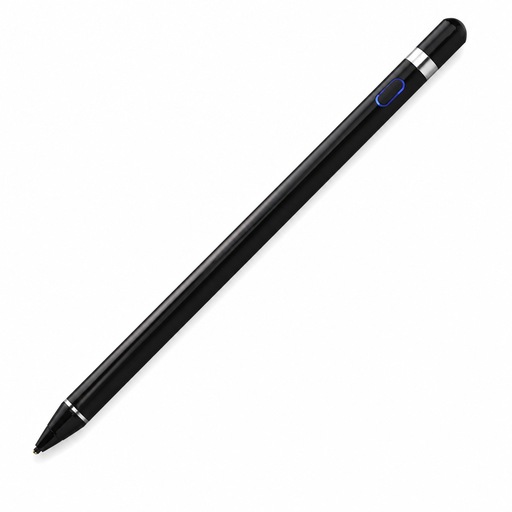 No image available
Only suitable for use if your device has a compatible capacitive screen and the pen can be paired using the accompanying app, as described in the instructions.
The product name lists support for iOS, iPad, Android and PC; check your device requirements.
Compare your exact device model with the compatibility information for the specific pen version. Apple also lists a minimum iPadOS version for some Apple Pencil versions; Microsoft specifies Surface pen features by model.
Use an adjustable set-up and consider where to position the screen and arm support. Arboportaal describes the strain on your neck, shoulders and arms caused by a poorly set-up screen workstation, but doesn’t specify a universal tablet drawing height.
No, it varies by pen. Apple describes magnetic charging for Pencil Pro and cable charging for Pencil (USB-C); charging Surface Slim Pen depends on a compatible device or accessory. Wacom states that the One Pen CP91300B2Z is battery-free.
Follow the care instructions for your exact pen and check which replacement nibs are included. Samsung explains how to replace the S11 pen nib and lists two replacement nibs included with the Creator Edition.
According to ACM ConsuWijzer, online consumer purchases generally come with a 14-day cooling-off period from delivery, subject to legal exceptions. If a product breaks too soon during normal use or doesn’t meet what you could reasonably expect, the seller must resolve the issue under statutory guarantee rules; this doesn’t automatically mean a fixed two-year guarantee period.