Start by checking your planned filming height: test whether the whole book and small binding tasks are both in sharp focus, and record a test using the actual white paper. A webcam is suited to teaching via a computer, while a mirrorless camera with the right lens helps you choose the framing, a camcorder offers built-in zoom, and a pocket camera can film demonstrations on the move. Also check the lighting, sound, mounting and recording time for the setup you choose.
Who is this choice relevant to?
Teacher with a permanent worktable
You mainly film the book, paper and both hands from above. Getting the framing right and keeping the image in focus are more important than moving camera shots. Canon Netherlands, Sony Netherlands and Logitech Netherlands describe options for these different filming setups.
Online course creator
You want to record or share your lessons via a computer and show your worktable at the same time. Logitech describes Show Mode for sharing work on a desk with the MX Brio.
Teacher who uses different camera angles
You switch between a wide shot and close-ups, or also film demonstrations away from your usual table setup. Panasonic lists optical zoom for the HC-VX3, while DJI describes the Osmo Pocket 3's gimbal.
What should you look for when choosing?
Webcam
A good fit when: you record or stream lessons via a computer and want to show your desk from that setup.
Keep in mind: your computer and camera mount are part of the setup. Test whether the book and small tasks are visible from that angle.
Mirrorless camera with interchangeable lens
A good fit when: you want to choose the angle of view using a selected lens from a fixed filming position.
Keep in mind: the camera and lens need to work together to give you the distance, framing and focus you need.
Camcorder with zoom lens
A good fit when: you want to reframe between a wide shot and a close-up without changing lenses.
Keep in mind: check the recording time for your chosen mode and model. Panasonic's UK specifications list around 50 minutes with the supplied battery in 4K MP4.
Compact gimbal camera
A good fit when: you want to film moving demonstrations as well as shots of your table.
Keep in mind: a gimbal is no substitute for a secure mount above your work surface. Check the angle of view and make sure there is room for your hands.
| What to consider |
What should you check? |
Who should give this more thought? |
| Work surface and fine details |
Test the exact camera and lens at your planned height, using a real book and both hands. |
I want to show the whole book and small tasks without cutting off my hands. Around 36% of consumers put framing first. |
| White paper and colour |
Record a test using the actual paper and check the exposure, light details and white balance. |
I want white paper to look bright without losing light details or changing the colour of materials. For around 29% of consumers, how white and colours are rendered comes first. |
| Teaching and recording workflow |
Test the microphone from your usual speaking distance and check the computer connection and setup. |
I want to speak clearly and carry on working while bookbinding. These are the top priorities for around 21% of consumers. |
| Recording a full lesson |
Check the recording time, power supply and storage for your chosen video mode, and test a recording that lasts as long as the lesson you plan to film. |
I want to avoid a long demonstration being interrupted by power, storage or recording limits. Around 14% of consumers give recording time the highest priority. |
With a white background, automatic metering can make the scene look darker. Canon Europe therefore recommends checking the exposure with a bright scene in mind. Also make sure that light details on the paper remain visible.
Common buying mistakes
-
Choosing based only on 4K or megapixels
Resolution alone won't tell you whether the book, your hands and small tasks will all be clearly visible at the height available.
Before buying, test the framing and focus at your planned working height. If you're choosing a mirrorless camera, check the exact lens too.
You may still need a suitable lens or mount.
-
Leaving the white background entirely to automatic settings
Automatic metering can make a predominantly bright scene look darker, while a change in white balance can also affect how colours appear.
Record a test using the paper and lighting you'll use for your lesson. Check the exposure and white balance in video mode.
-
Confusing gimbal stabilisation with a fixed overhead setup
The DJI Osmo Pocket 3's stabilisation is designed for movement, but it won't hold the camera above your work surface by itself.
Choose a mount that suits the camera's weight, your working height and the space your hands need.
You may need a separate, suitable camera mount for overhead filming.
-
Assuming the supplied battery will last a whole lesson
For the HC-VX3, Panasonic lists around 50 minutes of actual recording time with the supplied battery in 4K MP4. This doesn't automatically apply to other modes or models.
Compare the planned lesson length with the recording mode, and test recording with your power supply and storage setup.
Longer recordings may need an additional power supply or could be interrupted.
Brands to compare
Canon
The EOS R50 is an option for a fixed setup with an RF or RF-S lens suited to your chosen working height.
- Canon Netherlands specifies Dual Pixel CMOS AF II and 4K 30p.
- The body alone won't determine your framing. Canon lists no sensor-shift image stabilisation for this model.
Sony
The ZV-E10 II is worth considering if lens choice and video features matter to you.
- Sony Netherlands lists E-mount lenses and 4K 60p. The specified kit includes an E PZ 16–50 mm F3.5–5.6 OSS II.
- Check the lens included with the model on offer. The camera body alone doesn't guarantee a suitable overhead shot.
Panasonic
The HC-VX3 is a camcorder option for teachers who want to switch between wide shots and close-ups with a built-in zoom.
- Panasonic's UK specifications list 24× optical zoom and around 50 minutes of actual recording time with the supplied battery in 4K MP4.
- Check the model and terms of use when buying in the Netherlands.
Logitech
The MX Brio is a computer-connected option for showing work on a table during an online lesson.
- Logitech lists Show Mode, adjustable image settings and integrated microphones.
- Test it with your own setup to see whether the book framing and audio recording meet your needs.
DJI
The Osmo Pocket 3 is a compact option if your lessons also include moving demonstrations.
- DJI specifies a three-axis gimbal and a focusing range starting at 0.2 m.
- You'll still need a suitable mount for a fixed shot directly above the book.
Cameras and webcams at Joybuy
This selection includes cameras and webcams for video recording. For overhead filming, use a real book to check whether the framing, focus and mount suit your workspace.
 No image available
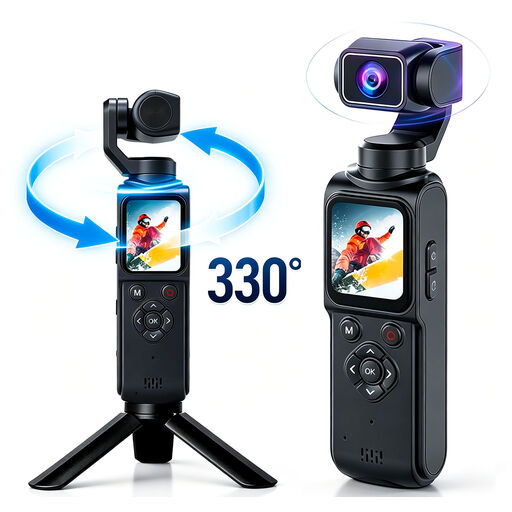
4K action camera with 330° rotating lens
The rotating lens may be useful if you want to change the camera's orientation. Test your preferred overhead angle with your book and workspace.
The product name lists 4K video and a 1.72-inch touchscreen. A memory card is not included.
View at Joybuy
 No image available
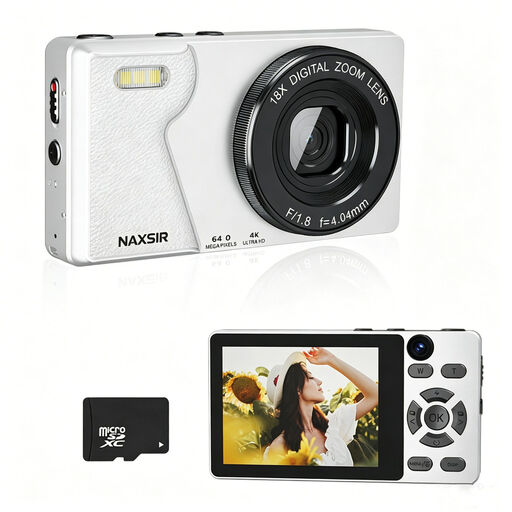
NAXSIR 4K Ultra HD digital camera
If you're considering this camera for a bookbinding lesson, first check the angle of view and focus from your planned filming position.
The product name lists 64 MP photo resolution, 18× digital zoom, autofocus and a 32 GB memory card included.
View at Joybuy
 No image available
Philips 4000 Series 4K UHD webcam, SPL6408BT/00
This webcam is worth considering for computer-based lessons. Test whether you can show the whole book and fine details from the position you have in mind.
The product name lists 4K UHD, an 8 MP camera, autofocus, dual built-in microphones, a privacy shutter and the black EU version.
View at Joybuy
 No image available
Philips 2K QHD PC webcam, SPL6308S/00
For a computer-based lesson, check whether the clip mount suits the position you want to film the book from.
The product name lists 2K QHD, a noise-cancelling microphone, a clip mount and the silver EU version.
View at Joybuy
 No image available
Logitech MeetUp
Before using it for a bookbinding lesson, check whether the wide angle of view gives you a clear picture of your work surface from the planned position.
The product name lists 3840 × 2160 pixels at 30 fps. The product description mentions a 120° angle of view, USB connection and built-in microphones.
View at Joybuy
Frequently asked questions
How can you stop a white background looking grey?
Record a test using the paper you actually use and check the exposure. Canon Europe explains that automatic metering can make a very bright scene look too dark. Where possible, use the exposure controls on your chosen camera and in your chosen video mode. Also check that light details on the paper remain visible.
Is Show Mode the same as having a camera directly above the book?
No. Logitech describes Show Mode as tilting the MX Brio downwards to share work on a desk. Test it with your intended mount to check that the whole book and small tasks are visible from the angle you want.
What extra parts and conditions should you check when choosing a camera?
Check that the version you choose includes the lens, mount, power supply and storage you need for your lesson. According to the Dutch government, online purchases often come with a 14-day cooling-off period, although there are exceptions.
Can you show identifiable participants in a published bookbinding lesson?
First, check which privacy rules apply to recording and publishing the footage. According to the Dutch Data Protection Authority, identifiable people in images count as personal data. For commercial filming or publication, you need a lawful basis under the GDPR, such as consent. Recordings kept solely for private use may fall under the household exemption. Whether a particular publication is lawful depends on how it is used and the lawful basis chosen.


