Which approach is right for you?

Student with lots of bound pages

If you want to keep the binding intact and often scan consecutive pages, compare book correction features and the steps involved for each page. CZUR and IRIS describe these features for specific overhead models; you’ll need to assess how well they work with your own notes.

Student with a small desk

When workspace is limited, you need room for both the scanner and the open book. Compare the full set-up and think about where you’ll store the device after use, rather than looking only at the scanner’s own dimensions.

Student who wants searchable scans

If you want to find or edit printed passages later, check whether the exact model supports OCR and your preferred output format. IRIS lists searchable PDF output for the Desk 6 Pro, but that doesn’t tell you how well it recognises handwriting.

What should you look for?

Start with the factor that matters most to you: the binding, available desk space, searchable text or the number of pages you scan in one go.

What to consider What to look for when buying Who is this important for?
Bound pages Check for book correction, the size of the open book and readability near the spine using a representative test scan. If I want to keep the binding intact and capture text close to the spine, I’ll compare the correction features with the steps required. Around 33% of consumers put preserving the binding and readability near the spine first.
Workspace and storage Measure the space for both the scanner and the open book; also check whether you can put the device away after use. With a small desk, I want to know whether the whole scanning set-up will fit, not just the device. Around 27% of consumers are most concerned about space and storage.
Searchable text Check whether the exact model can output searchable PDFs or editable text; if possible, also try a printed and a handwritten test page. If I want to find or edit passages later, I’ll check the output format and the text itself. Around 20% of consumers put searchability at the top of their list.
Work involved per scan Think about how many pages you usually scan in one go and whether you want to position them by hand or move the scanner over each page. For occasional scans, I may be happy to work manually, but the number of steps matters when scanning a whole set of lecture notes. Around 20% of consumers prioritise simple, occasional use.

Common buying mistakes

  • Assuming a scanner for loose A3 sheets is automatically suitable for a bound book

    A large capture area and the ability to process curved pages are two different things. Without suitable book correction, text near the spine may need extra attention.

    Check specifically whether the model offers book correction and, if possible, look at a test scan of a similar bound book.

    An unsuitable scanning method may mean extra work or having to scan the pages again.

  • Assuming OCR guarantees recognition of handwritten notes

    The mention of an OCR feature doesn’t confirm how accurately your handwriting will be converted into searchable text.

    If possible, test a representative page and check the recognised text before scanning a large batch.

    Allow time to check or correct the recognised text manually.

  • Measuring only the scanner

    Your workspace also needs room for the open book and for turning the pages. A short camera arm doesn’t remove the need for that space.

    Measure the complete set-up where you’ll actually be scanning.

  • Choosing a handheld scanner for a whole set of lecture notes just because it’s easy to store

    In its review of the IRIScan Book 7, PCMag notes that it takes a steady hand and practice to use, and that longer scanning jobs can be labour-intensive.

    Weigh the space saved against the number of pages you usually scan in one go and how much manual work you’re prepared to do.

Brands and models to compare

CZUR

CZUR describes the Aura as an overhead scanner suitable for tasks including scanning bound books.

  • According to CZUR, the Aura has book correction and page-turn detection. The manufacturer lists a 14-megapixel camera and OCR output for the Aura.
  • Check that the software is compatible with your computer and assess scans of your own pages; listed features don’t guarantee results with handwriting or heavily curved pages.

IRIS

IRIS describes a range of document cameras and scanners, with features that vary by model.

  • According to IRIS, the Desk 7 Pro has book correction. The manufacturer lists searchable PDF as an output format for the Desk 6 Pro.
  • Don’t assume that a feature on one model is also available on another without checking. An independent PCMag review notes that the manual IRIScan Book 7 takes practice and requires extra work for longer scans.

Plustek

The Plustek OpticBook 3800L is a flatbed alternative that lets you position a page along the edge of the book.

  • Plustek lists an A4 scanning area, OCR software and a 6 mm book-edge on its Dutch model specifications page.
  • You need to position the book one page at a time. With a stiff binding, check whether you can reach the text near the spine without forcing the book too far open.

Ricoh ScanSnap

Ricoh describes the SV600 as an additional contactless overhead option for books and documents.

  • Ricoh lists book correction and page detection for the SV600.
  • The stated maximum document thickness of 30 mm applies to this model and shouldn’t be used as a guide to other scanners.

Joybuy products

This Joybuy selection includes a flatbed scanner and a scanner with a feeder for thin booklets. Check that the stated scanning method is suitable for the binding and thickness of your notes.
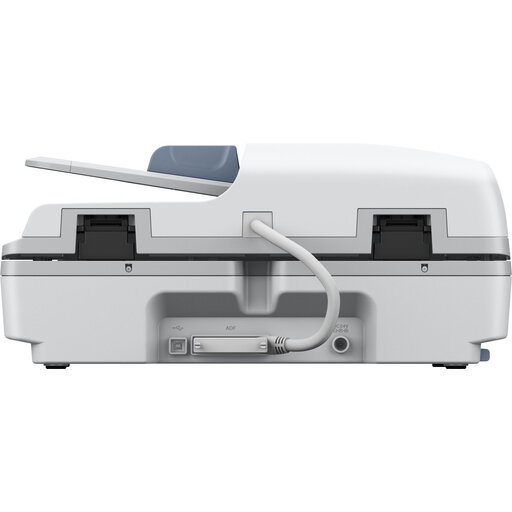
Epson WorkForce DS-6500 Power PDF scanner

Epson WorkForce DS-6500 Power PDF

The flatbed design may suit you if you mainly scan flat pages; check that your bound notes sit properly on the scanning surface.

The product description lists a flatbed scanner with ADF and searchable PDF output.

View at Joybuy

EPSON DS-C330 ADF + sheet-fed scanner, 600 x 600 DPI, A4, black, white

EPSON DS-C330 ADF + Sheet-Fed Scanner, 600 x 600 DPI, A4, Black, White

The described feed mechanism may work for thin booklets, but the stated limit is a maximum of 5 mm; check the thickness of your bound notes.

The product description lists a U-turn paper path for booklets up to 5 mm thick and output to PDF, JPG and TIFF.

View at Joybuy

Frequently asked questions

Can you scan bound lecture notes or study materials and share the scans?

For copyright-protected material, the Dutch government says you may make a private copy for your own use, but you may not distribute it or make it publicly available. Whether all the content in your notes is covered by the same copyright rules depends on the material; before sharing anything beyond a private copy, check the applicable terms or get permission.

What should you check before scanning lots of pages?

Check that the open book and complete set-up will fit, that the software works with your computer and that the model supports your preferred file format. Scan a few representative pages first, paying particular attention to text near the spine and any handwritten passages.

How can you keep a batch of scans usable?

As you scan, check that the pages are in the right order and the text remains readable. CZUR describes software for the Aura that can combine images into one PDF; for other models, check their own export options.

What returns and warranty rules apply to online purchases in the Netherlands?

According to ACM ConsuWijzer, for a standard online purchase you generally have a statutory 14-day cooling-off period after delivery, with some exceptions. The statutory guarantee is separate from any manufacturer’s warranty: if a device doesn’t perform as you could reasonably expect under normal use, the retailer is responsible for providing an appropriate solution.
