Choose a touchscreen if players enter scores directly on the scoreboard. A standard HDMI monitor is a good fit when scores are entered on another device and the screen mainly displays the standings. Save scores using the application on the connected device and its local storage, and check the connections, power supply and compatibility of your chosen screen variant in advance.
Who is this setup for?
Builders who want to save scores locally
You want to be able to retrieve the standings after switching off the device. As well as a screen, you’ll need a connected computer and an application that saves scores locally. Raspberry Pi describes non-volatile storage, such as a microSD card, as storage for the operating system.
Players who enter scores on the screen
You want to tap directly on the scoreboard during the game. So look for touch functionality, the connections required and compatibility between the screen variant and your computer. Raspberry Pi, Elecrow and Waveshare describe different touch and connection options for their models.
Groups who want to view the score together
You enter scores elsewhere and mainly want your fellow players to see the standings on screen. In that case, a standard monitor may be enough; according to its product specifications, the Raspberry Pi Monitor uses HDMI.
What should you look for when choosing?
Touch Display 2 via DSI
Choose this option if: you want to enter scores on the screen and the selected size is compatible with your Raspberry Pi.
Bear in mind: compatibility varies by size; you’ll still need a separate computer and storage.
HDMI touchscreen
Choose this option if: you want touch input from an HDMI source and the screen connections are compatible with your computer.
Bear in mind: on the Elecrow and Waveshare models described, video and touch use separate connections.
Standard HDMI monitor
Choose this option if: players enter scores on another device and the screen is mainly there to display the standings.
Bear in mind: you’ll need a separate way to enter scores; Raspberry Pi notes that its monitor has power limitations when powered via a Pi USB port.
| What to consider |
What should you check? |
Who does this matter to? |
| Saving scores locally |
Check where the application saves scores and test whether a saved game is still available after restarting. |
I want to retrieve the standings after switching off the device, so I’m looking at both the storage and the application that saves them. Around 33% of consumers give top priority to keeping scores locally. |
| Entering scores on screen |
Check the touch functionality, the exact computer model and the video and touch connections required. |
If you want to enter scores directly on the scoreboard, make sure touch functionality works with your chosen computer. Around 27% of consumers prioritise direct touch control. |
| Viewing the standings together |
Compare the screen size and placement with the scoreboard layout and the space available. |
If fellow players need to see the standings and scores are entered elsewhere, screen size and placement are important considerations. Around 20% of consumers prioritise being able to view the standings together. |
| Connections and power |
Check the video port, any separate touch port, power supply and cables required. |
I want to connect the screen to the computer I’m using, so I check all the connections required. Around 20% of consumers prioritise having compatible connections. |
Common pitfalls when choosing
-
Assuming a touchscreen is a complete scoring system
A screen lets you control or view the interface, but it doesn’t determine where scores are saved. To keep scores locally, you’ll also need a connected device, storage and software.
Plan for the screen, computer and storage as separate components. Use your application to test whether a game is still available after closing and reopening it.
Check that your setup has the required USB connection and any touch cable.
-
Assuming all Touch Display 2 sizes are interchangeable
Raspberry Pi lists compatibility requirements for each size. A screen that suits one Pi setup won’t necessarily work with a different model.
Check your Pi model against the size you’ve chosen, especially for the 10-inch variant.
If a screen variant isn’t compatible with your Pi model, you’ll need a different combination.
-
Expecting full brightness when powered via the Pi
Raspberry Pi notes that brightness and volume are limited on the Raspberry Pi Monitor when it’s powered via a Pi USB port.
Decide in advance how you’ll power the monitor and check the power specifications for your chosen model.
You may need a suitable separate power supply to avoid the limitations mentioned.
Brands for this project
Raspberry Pi
Offers Touch Display 2 screens for compatible Pi setups, as well as a separate HDMI monitor for viewing.
- Raspberry Pi describes touch control and power requirements for compatible Touch Display 2 combinations.
- Connections and compatibility vary by size. The computer and storage are separate from the screen.
Elecrow
The RC070 is a 7-inch HDMI touchscreen for setups with separate video and touch connections.
- For the RC070, Elecrow lists 1024 × 600 pixels and HDMI plus Micro-USB.
- The manufacturer specifies single-touch when used with a Raspberry Pi; this doesn’t automatically apply to all Elecrow screens.
Waveshare
The 10.1inch HDMI LCD (H) with case is a larger HDMI touchscreen option.
- For this model, Waveshare specifies a 10.1-inch screen, 1024 × 600 pixels, HDMI for video and USB for touch.
- For Raspberry Pi OS, the manufacturer specifies single-touch. The screen itself doesn’t save scores locally.
SunFounder
The 10 Inch DIY Touchscreen is a larger touchscreen option for a DIY Pi setup.
- For the CN0472 variant, SunFounder lists a 10.1-inch screen, 1280 × 800 pixels and 10-point touch.
- Plug types and optional Pi and storage bundles vary; check which version and components you’re choosing.
Joybuy screens
These Joybuy screens can be connected to a scoring computer. The scoring application and local storage belong on that connected device, not on the screen alone.
 No image available
Philips Evnia 27M2N3500NF 27-inch QHD gaming monitor
An option if your scoring computer connects to the screen via HDMI or DisplayPort.
The product title lists an IPS panel, 144 Hz, HDMI 2.0 and DisplayPort 1.4.
View at Joybuy
 No image available
UPERFECT 15.6-inch portable touchscreen monitor
A portable touchscreen option if you want to try entering scores on screen; check that its connections are compatible with your computer.
The product information lists Full HD (1920 × 1080), mini-HDMI and USB-C.
View at Joybuy
 No image available
INNOCN CB27U1 27-inch 4K UHD monitor
A screen option for a scoring computer with a compatible video connection; local storage remains on the computer.
The product title lists 3840 × 2160 pixels, HDMI, DisplayPort and USB-C.
View at Joybuy
 No image available
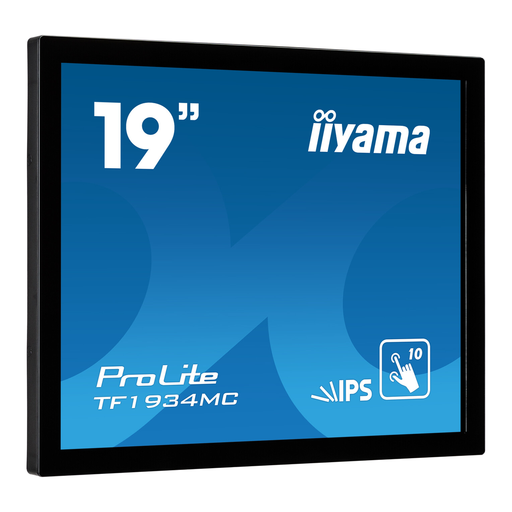
iiyama ProLite 10pt Touch Open Frame monitor
A touchscreen option for entering scores on screen; check that your computer can connect to both video and touch.
The product information lists an IPS panel, 10-point touch, HDMI and VGA inputs, and a USB touch port.
View at Joybuy
 No image available
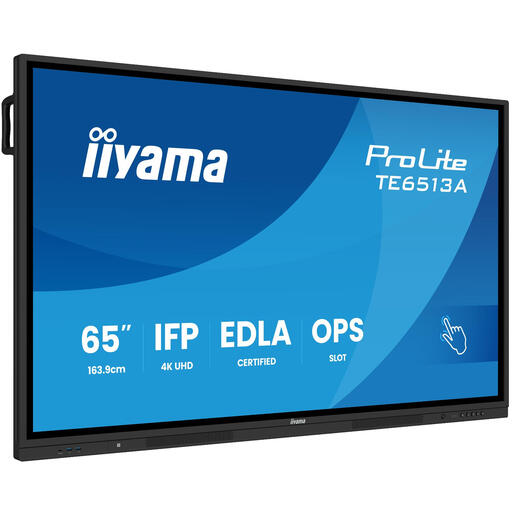
iiyama TE6513A-B1AG 64.5-inch interactive panel
A large touchscreen for a setup where players enter scores on screen; check the available space and connections in advance.
The product information lists 4K resolution and 40 simultaneous touch points.
View at Joybuy
Frequently asked questions
Does a monitor save my game standings locally?
No, not simply by displaying the picture. Raspberry Pi describes non-volatile storage, such as a microSD card, on the connected device. Make sure your scoring application also saves standings locally and can retrieve them.
Do I only need an HDMI cable for an HDMI touchscreen?
Not with every model. For the RC070, Elecrow lists HDMI and Micro-USB; for the 10.1-inch model mentioned, Waveshare lists HDMI for video and USB for touch. Check the connection instructions for the exact variant.
What should I check before setting up my scoring system?
Check that the power supply, video and touch connections, and storage medium are compatible with your connected computer. Use your own application to test whether a score is retained after closing and reopening it; the screen specifications alone don’t show that this will work.
What are my rights when buying a monitor online in the Netherlands?
When you buy from a business at a distance, you usually have a 14-day cooling-off period, as stated by the Dutch government; exceptions and the circumstances of the sale matter. This is separate from your warranty rights: if a product is faulty, the seller is your point of contact, according to ACM ConsuWijzer.
Does every small project screen need a European energy label?
The name ‘monitor’ alone doesn’t determine this. The European Commission describes rules for electronic displays and lists exceptions, including screens with a display area of no more than 100 cm². Check whether the rules apply to the exact variant; this information doesn’t establish an energy label class for the models mentioned.


